¶ Introduction
Financial policies establish clear standards and procedures to manage risk, protect financial integrity, and support organizational growth. When paired with an effective treasury management system, well-structured policies enable sound decision-making, operational efficiency, and long-term financial stability.
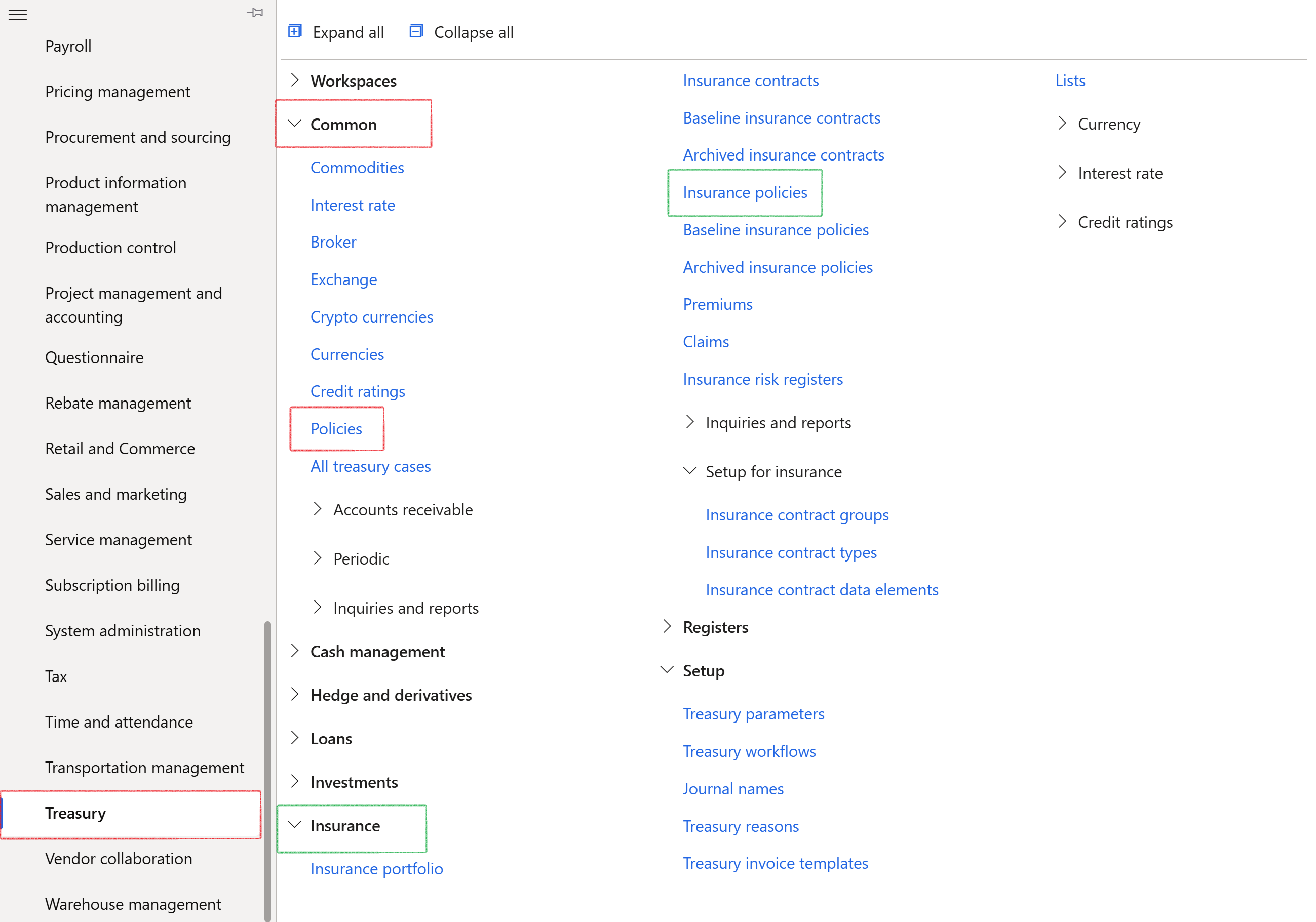
¶ Navigation
¶ Daily use
¶ Step 1: View Treasury Policies
- Go to: Treasury > Common > Policies
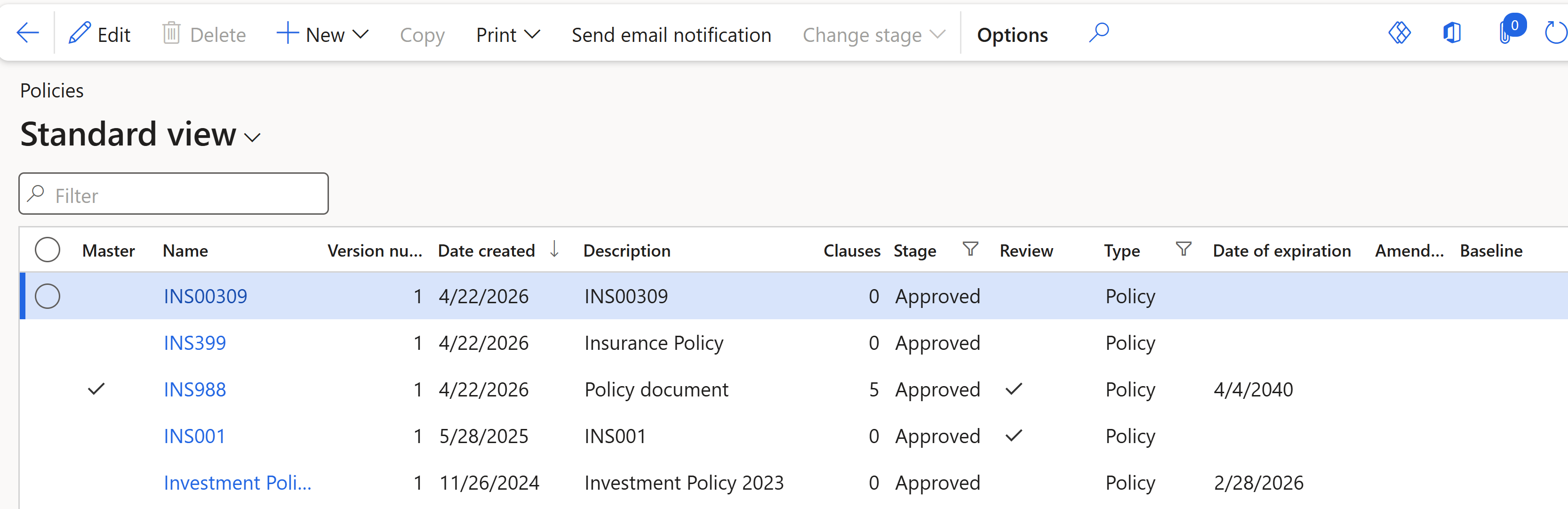
The following information will be displayed on the Policies list page:
- Master
- Name
- Version number
- Date created
- Description
- Clauses
- Stage
- Review
- Type (Document type) - the following types exist:
- Policy
- Agenda
- Contract
- Contract classifications can be applied to a specific department or section in the company, for instance H.R. or Supply chain or Projects, etc.
- Different contract classifications:
- Financial contracts
- Formal contracts
- Insurance Policy
- Lease agreement
- Service Agreement
- Supply Chain Agreement
- Service Level Agreement
- Minutes
- Report
- Resolutions
- Specification
- Other
- Date of expiration
- Amendment
- Baseline (ticked or unticked)
- Status
- Staus options to choose from:
- Receive
- Draft
- Submit
- Approve
- Revise
- Reject
- Archive
- Staus options to choose from:
- Follow up (ticked or unticked)
¶ Step 2: Create a new Policy
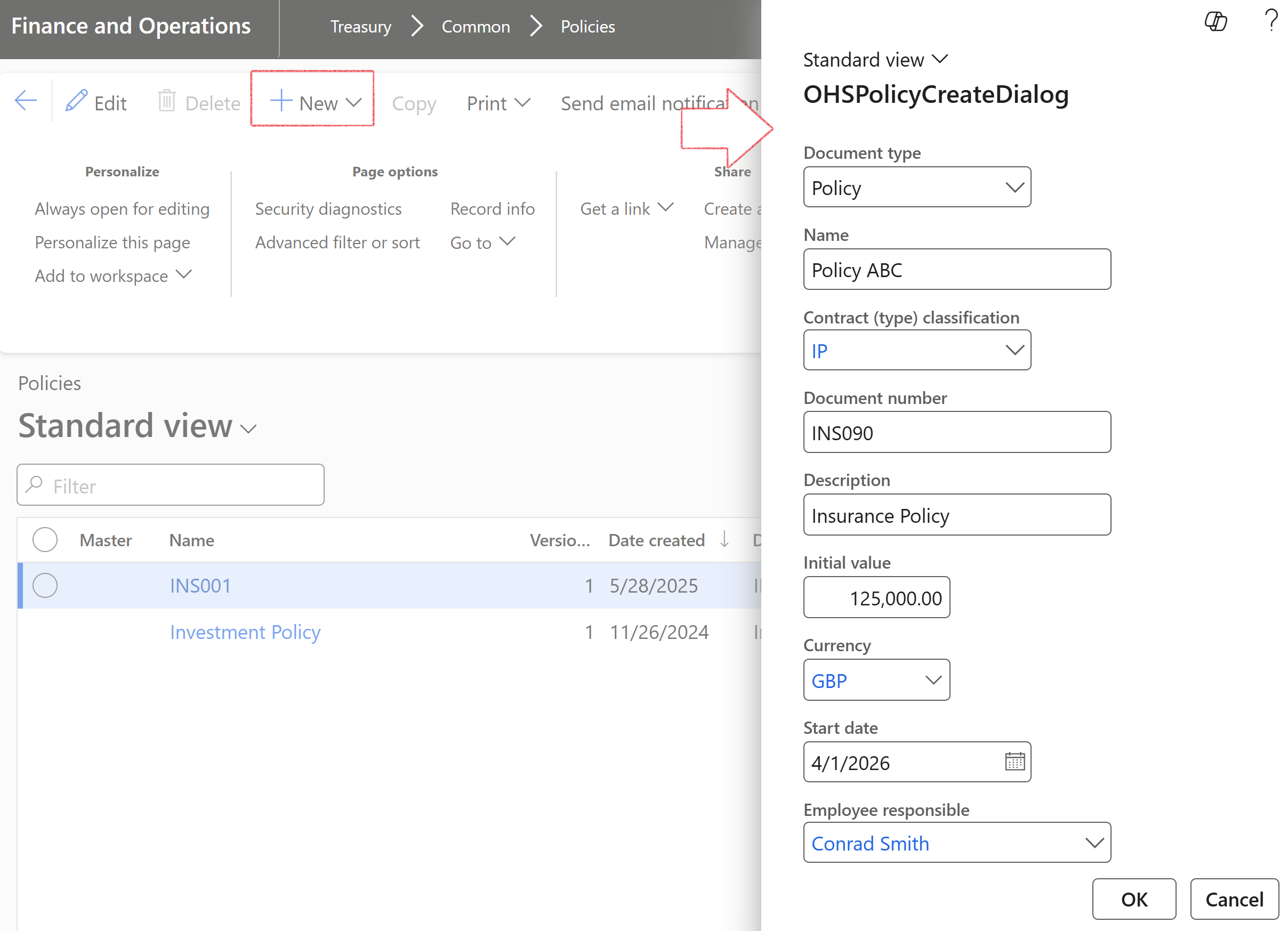
- Go to: Treasury > Common > Policies
- Click on New
- Select a Document type
- Choose a Contract clasification
- Enter a Document number and Description
- Enter a Value
- Select a Currency
- Enter a Start date
- Enter the name of the Employee responsible
- Click OK
¶ Step 3: Policy management
¶ Policy FastTabs
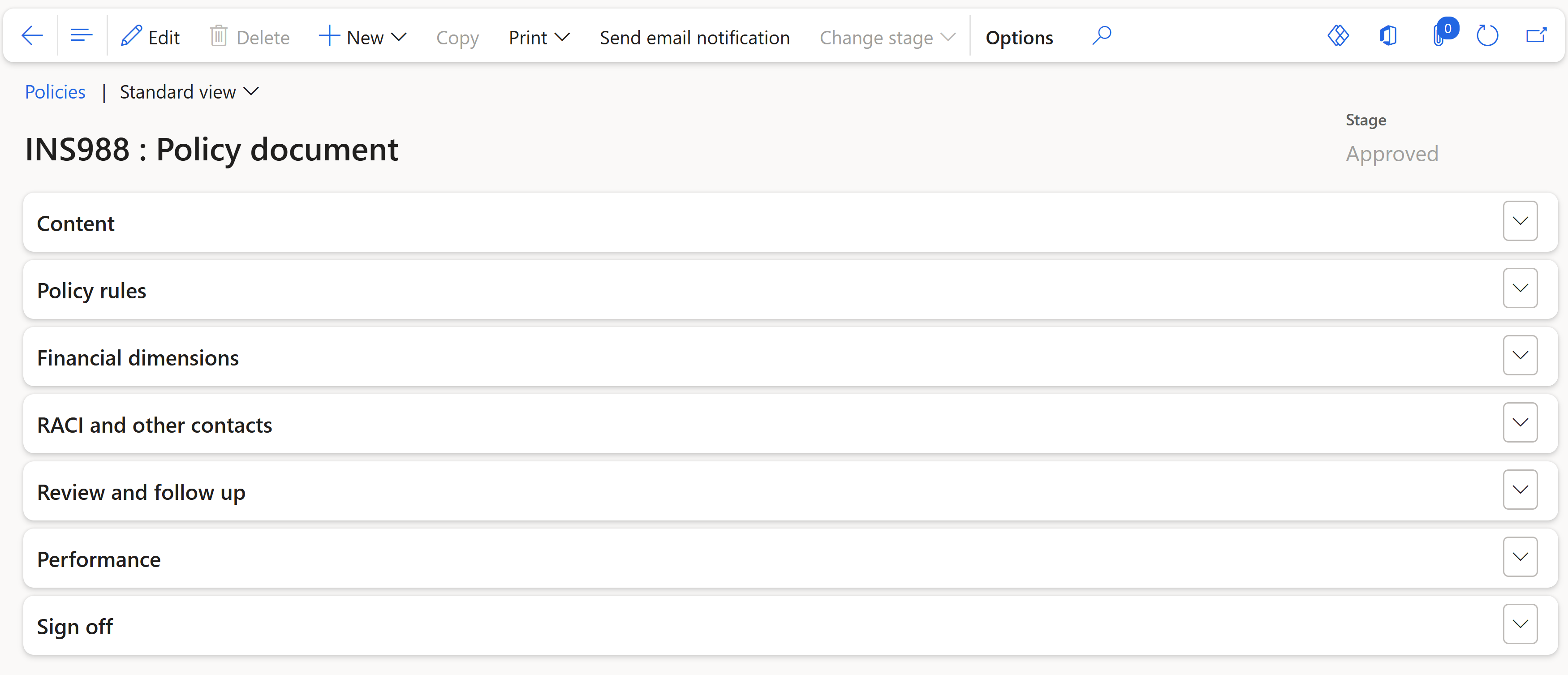
¶ Step 3.1: The Content FastTab
The Content FastTab consist of the following tabs:
- Cover page
- Preamble
- Index
- Clause
- References
- Appendixes
- Signatures
- History
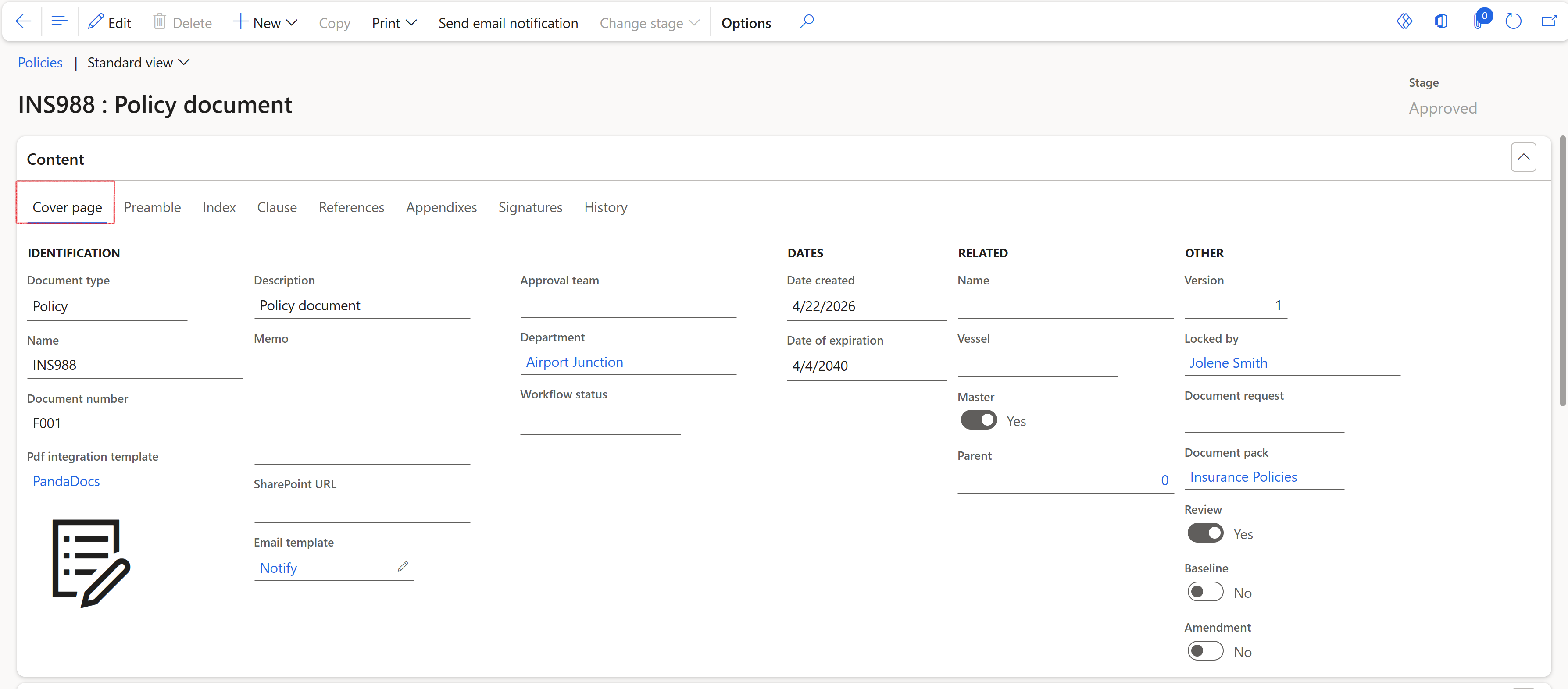
¶ Step 3.1.1 Cover page tab
- The Document type field will be populated with Policy
- Enter information such as a SharePoint URL, Department, Date of expiration, etc.
- Select the relevant Document pack from the dropdown list (if required)
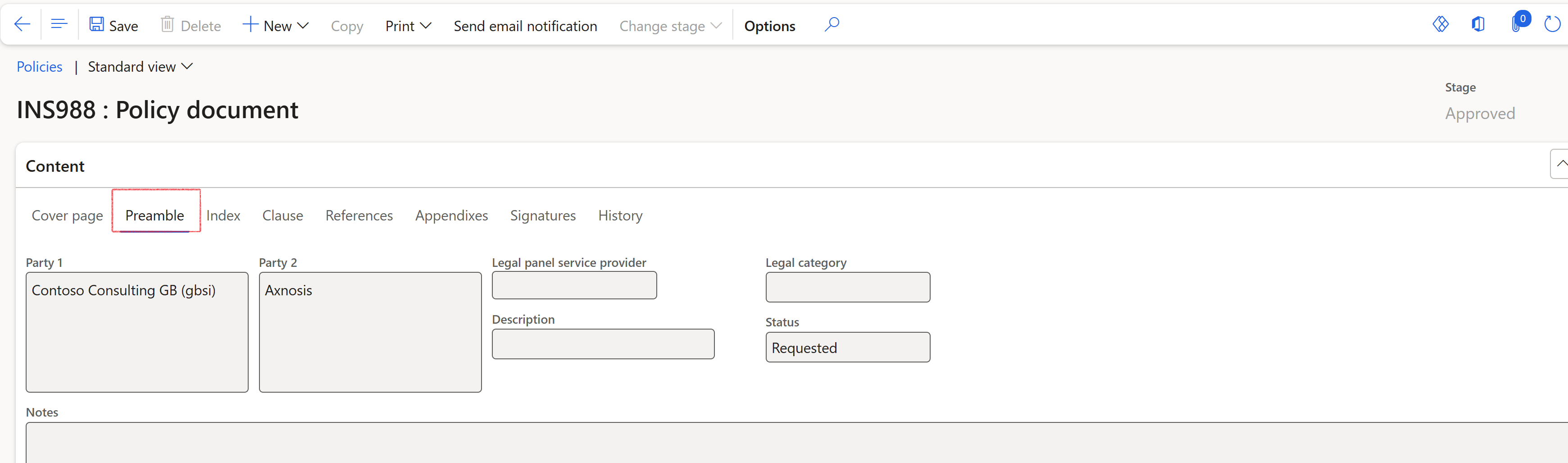
¶ Step 3.1.2 Preamble tab
- Enter the introduction in the Notes box provided
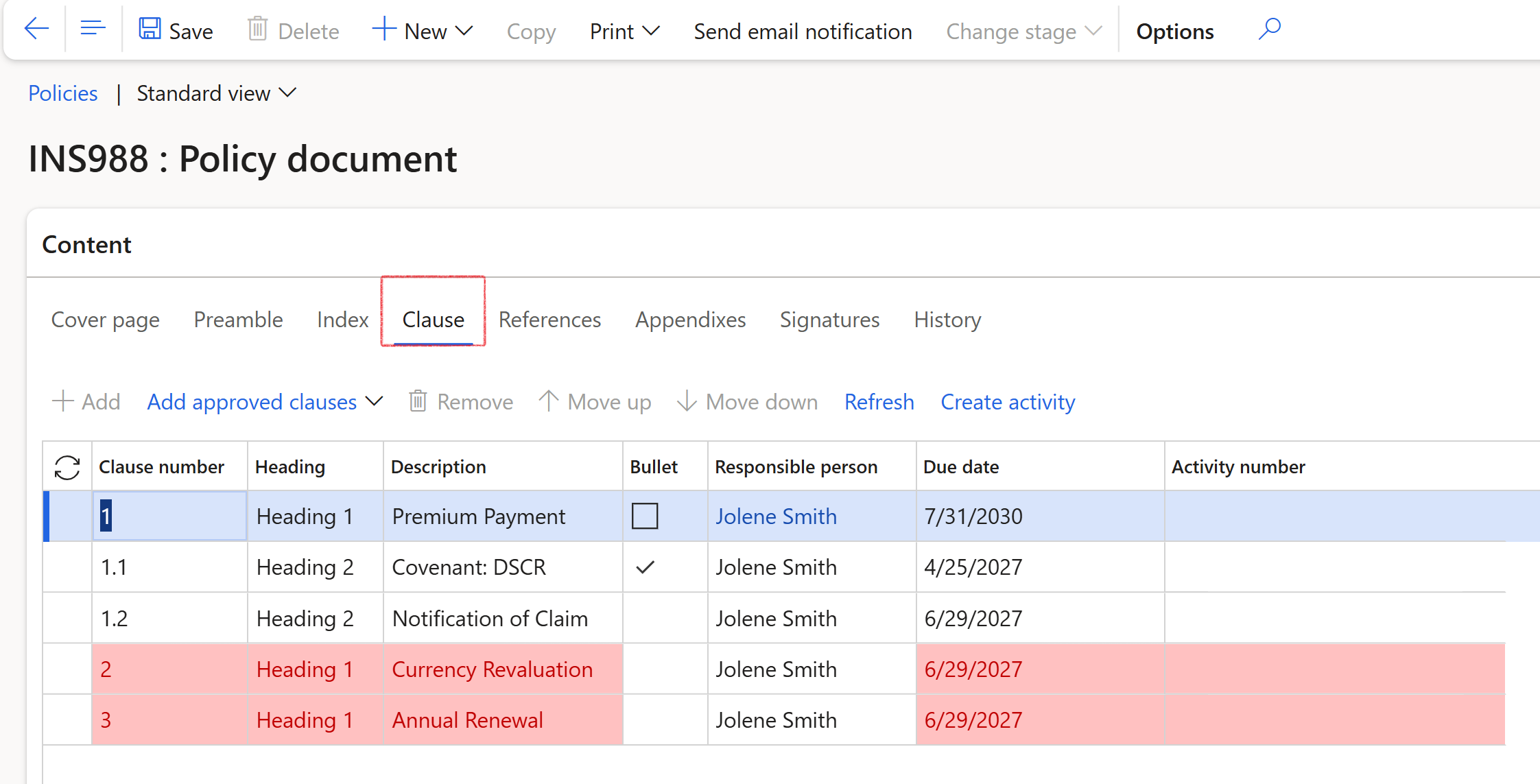
¶ Step 3.1.3 Clause tab
- In the Button strip, click on the Add button
- The Clause number will be generated by the system
- Select the Heading (Heading 1 for a primary heading, Heading 2 for a secondary heading)
- Enter a Description
- Use the box provided to type the Clause definition
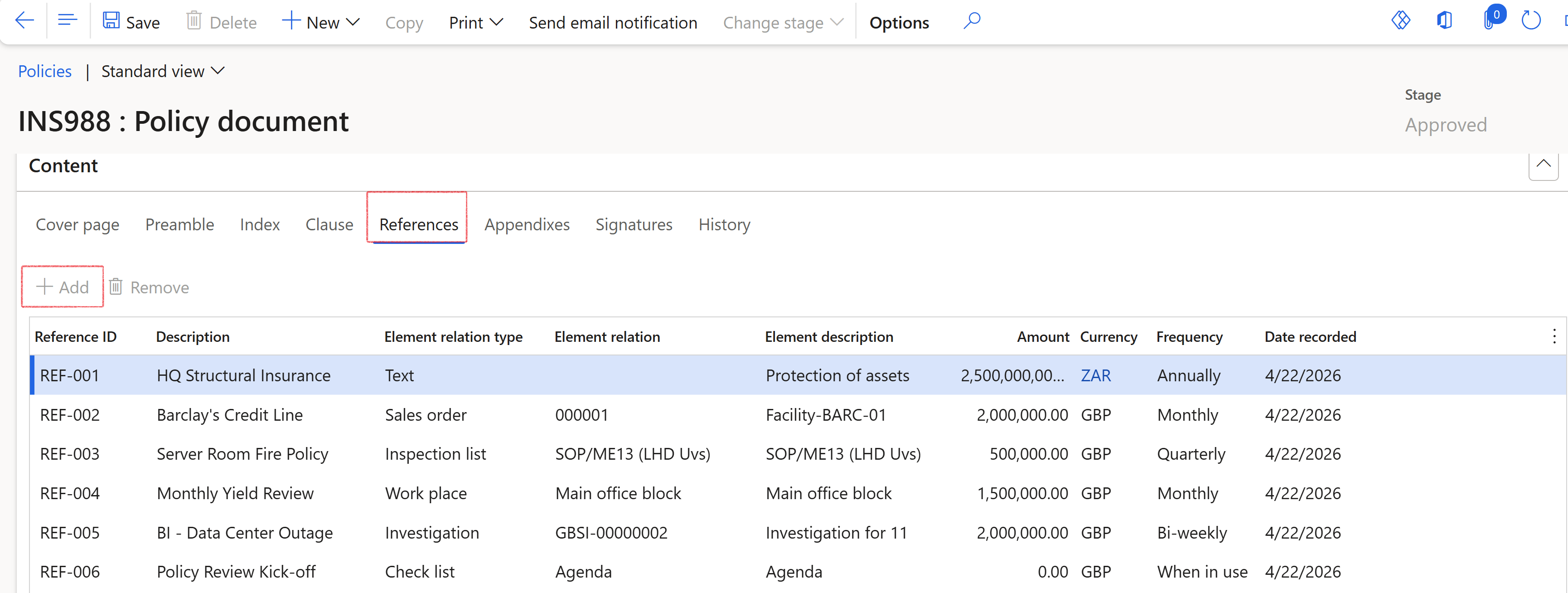
¶ Step 3.1.4 References tab
- In the Button strip, click on the Add button
- Enter a Reference ID
- Type a Description
- Select an Element relation type from the dropdown menu
- Select the related Element relation
- The Element description will display based on previous selections
- Enter an Amount
- Select a Frequency
- Enter the Date recorded
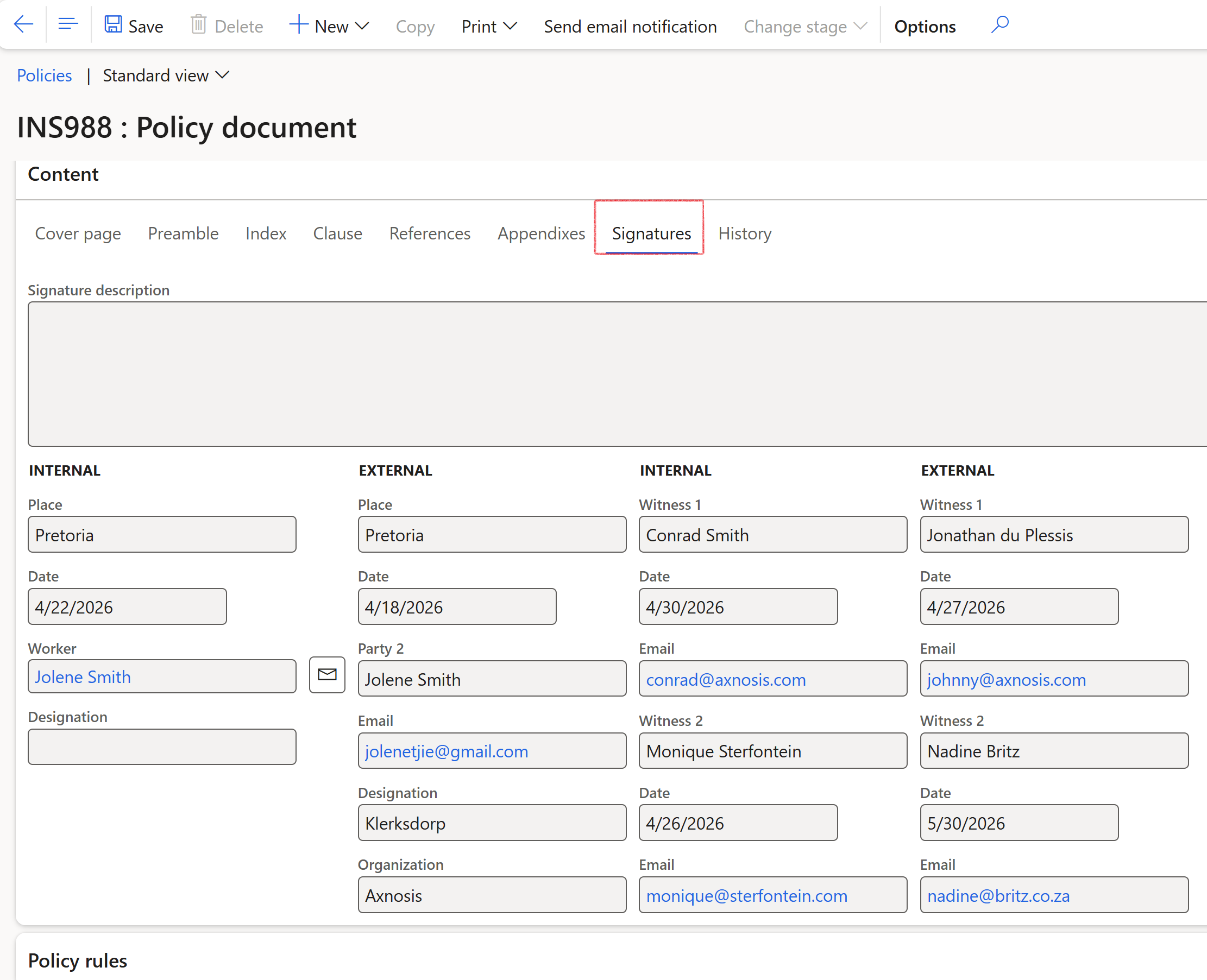
¶ Step 3.1.5 Signatures tab
- Enter a Signature description
- Enter the Internal signature details
¶ Step 3.2: Policy rules FastTab
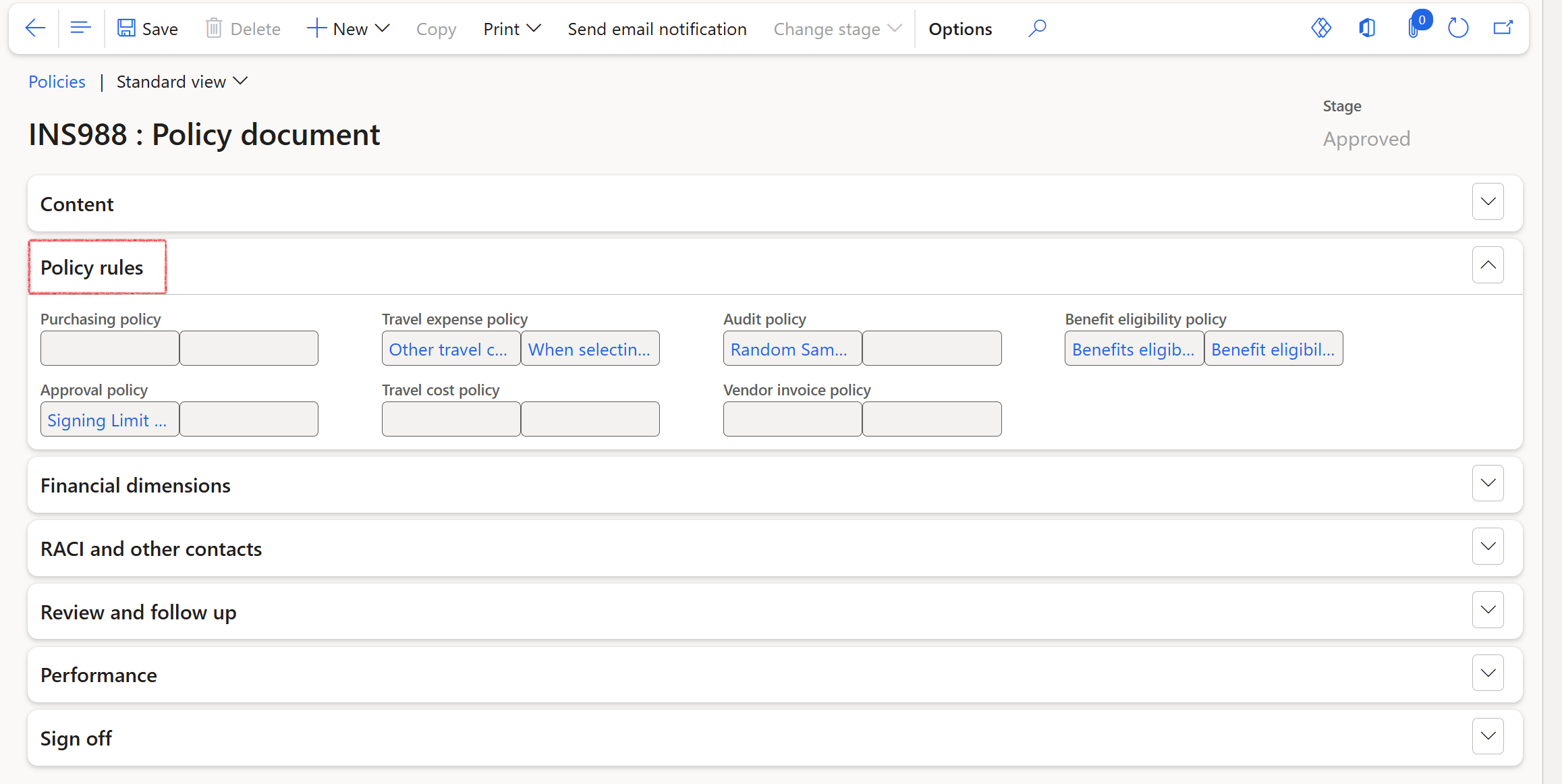
The Policy rules FastTab consist of the following fields:
- Purchasing policy
- Approval policy
- Travel expense policy
- Travel cost policy
- Audit policy
- Vendor invoice policy
- Benefit eligibility policy
¶ Step 3.3: Financial dimensions FastTab
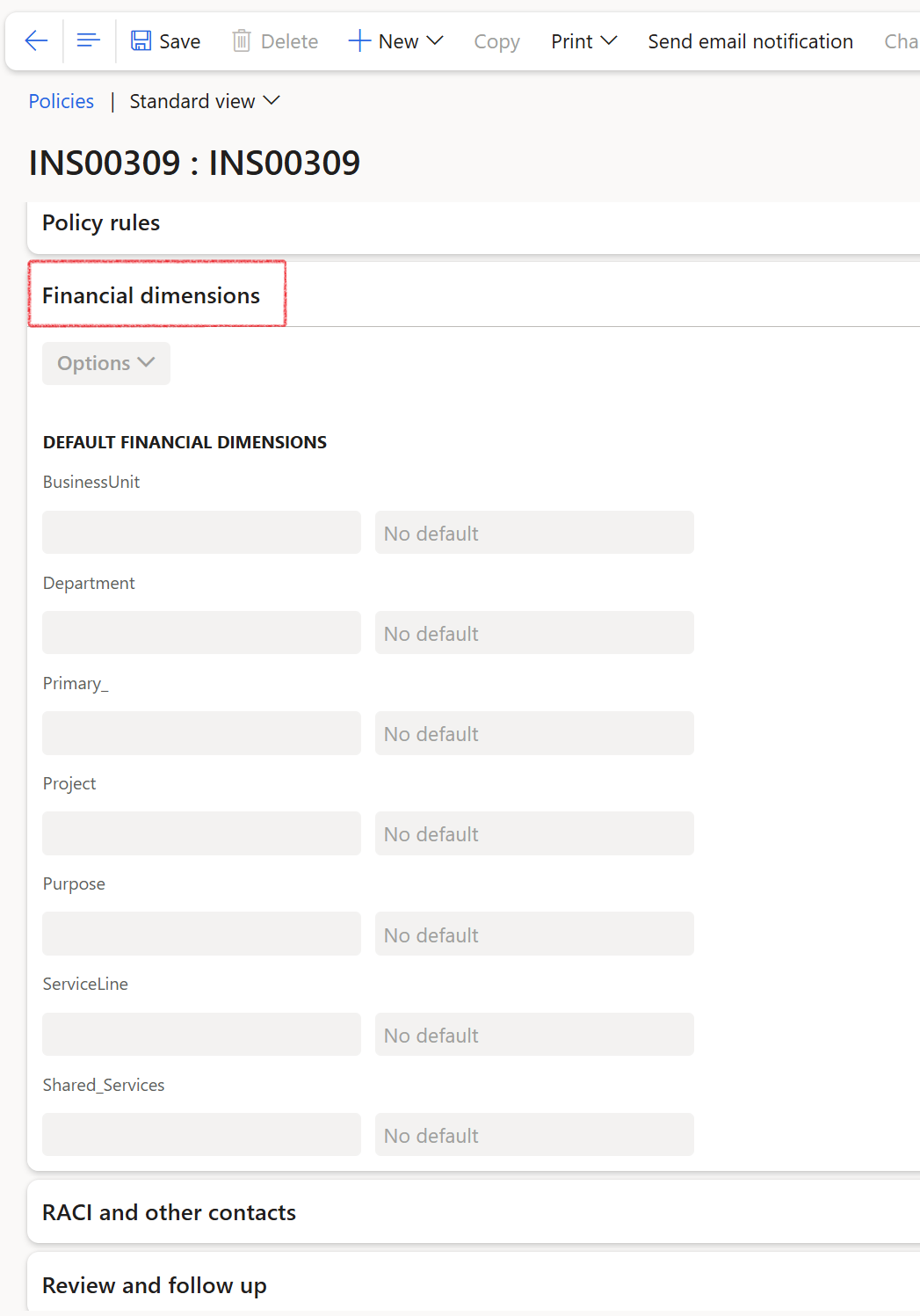
Example of Financial dimensions
¶ Step 3.4: RACI and other contacts FastTab
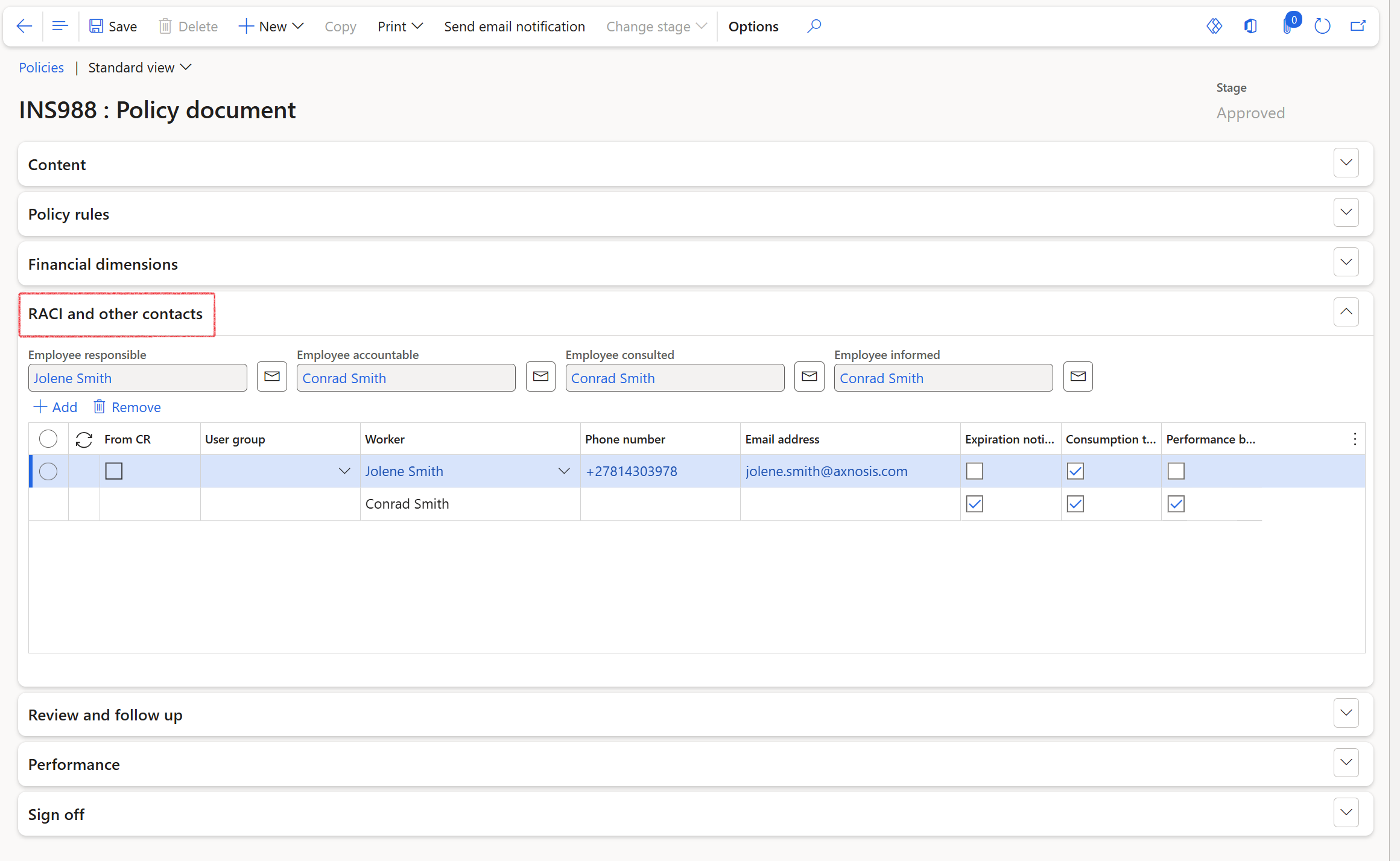
RACI and other contacts consist of display fields for the following:
- Employee responsible
- Employee accountable
- Employee consulted
- Employee informed
Column names for RACI and other contacts:
- From CR
- User group
- Worker
- Phone number
- Email address
- Expiration notifications
- Consumption threshold notifications
- Performance bond expiration notifications
¶ Step 3.5: Review and follow up FastTab
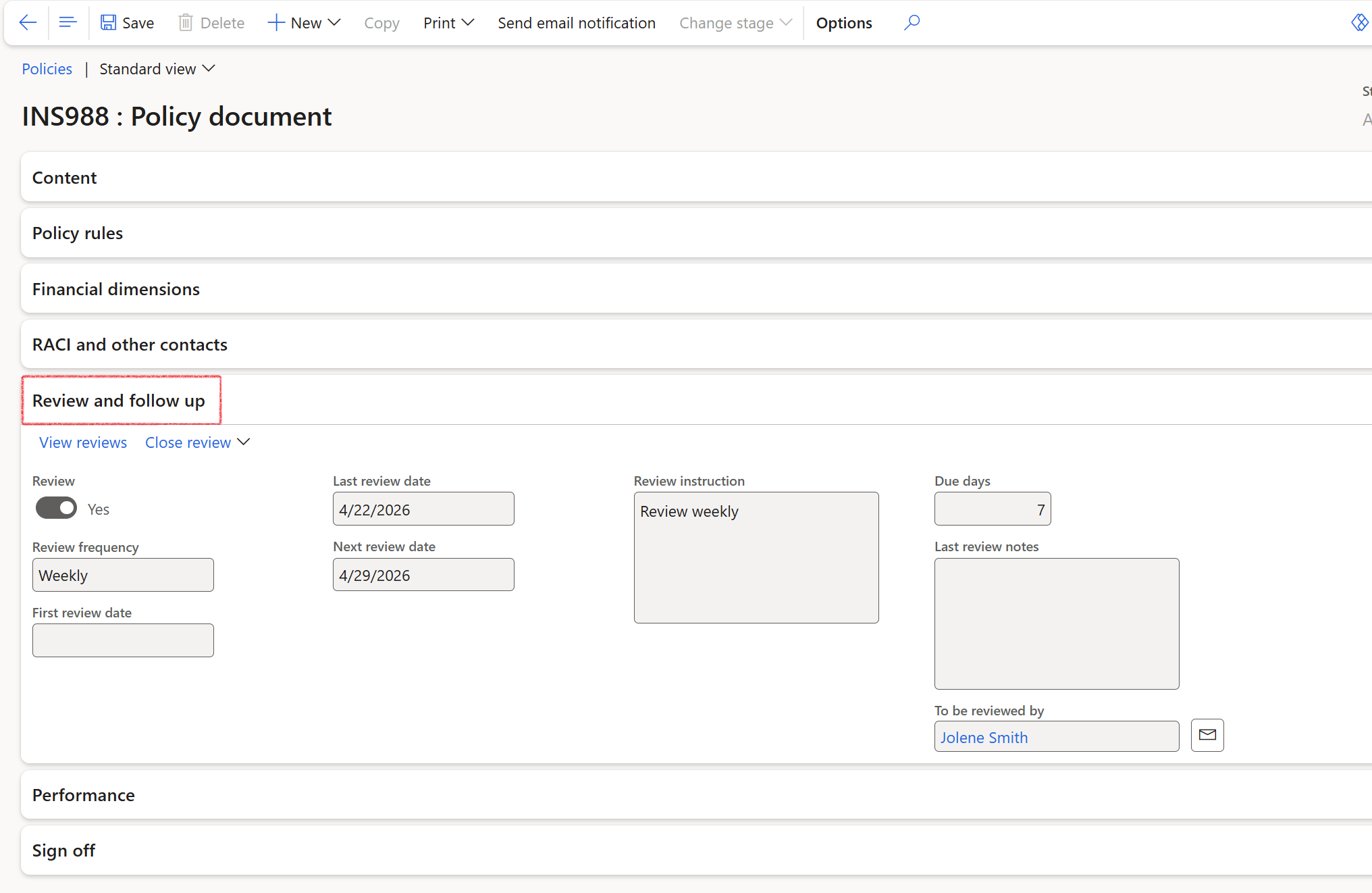
Under the Review and follow up FastTab, there are two buttons, one to View reviews and another to Close review
- Review (yes/no toggle)
- Review frequency
- First review date
- Last review date
- Next review date
- Review instruction
- Due days
- Last review notes
- To be reviewed by
¶ Step 3.6: Performance FastTab
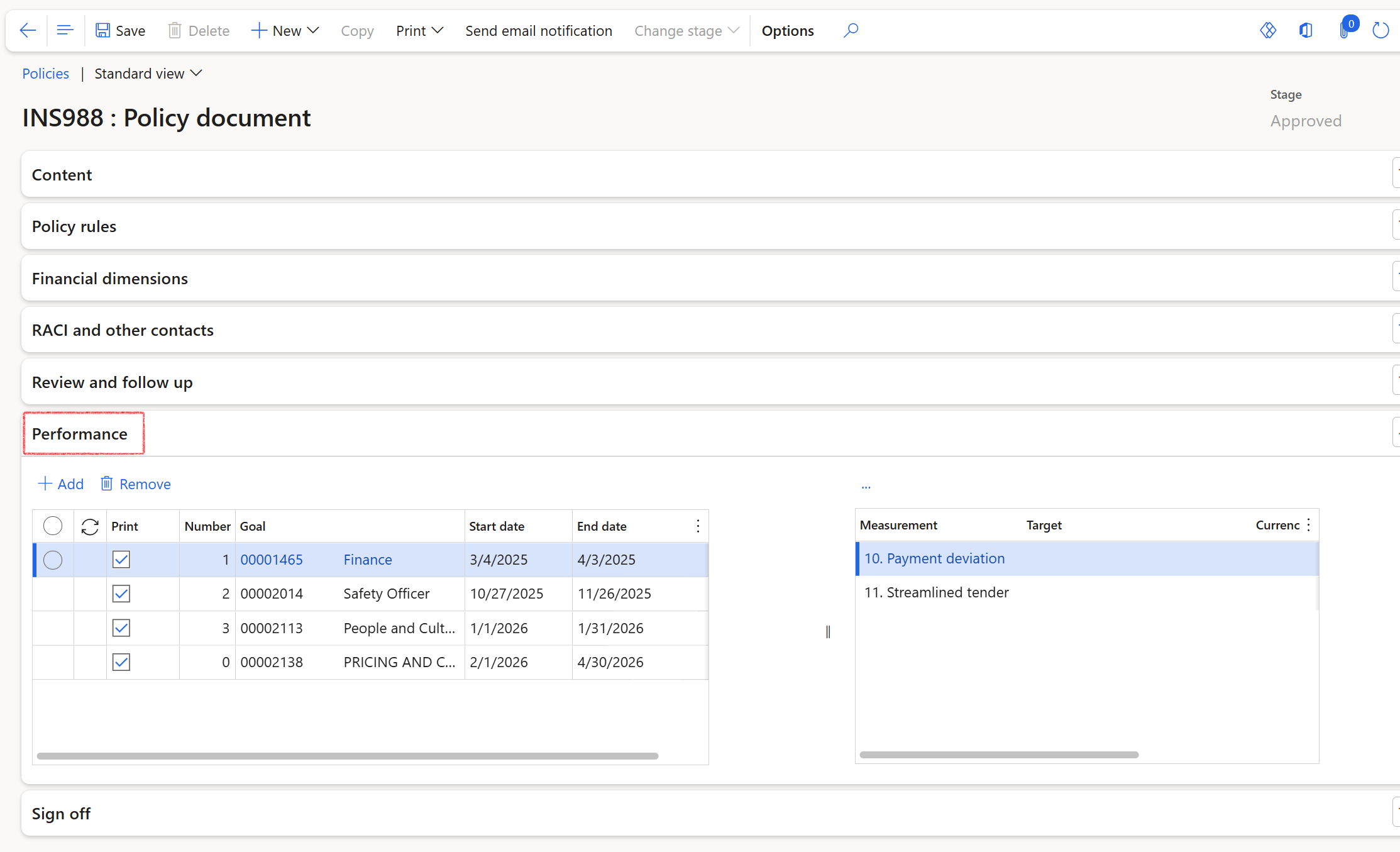
Under the Performance FastTab, there are two buttons: +Add and Remove
The Performance and Measurement sections share a one-to-many (1:N) relationship
Performance
- Goal
- Start date
- End date
Measurement
- Measurement
- Target
- Currency
- Actual
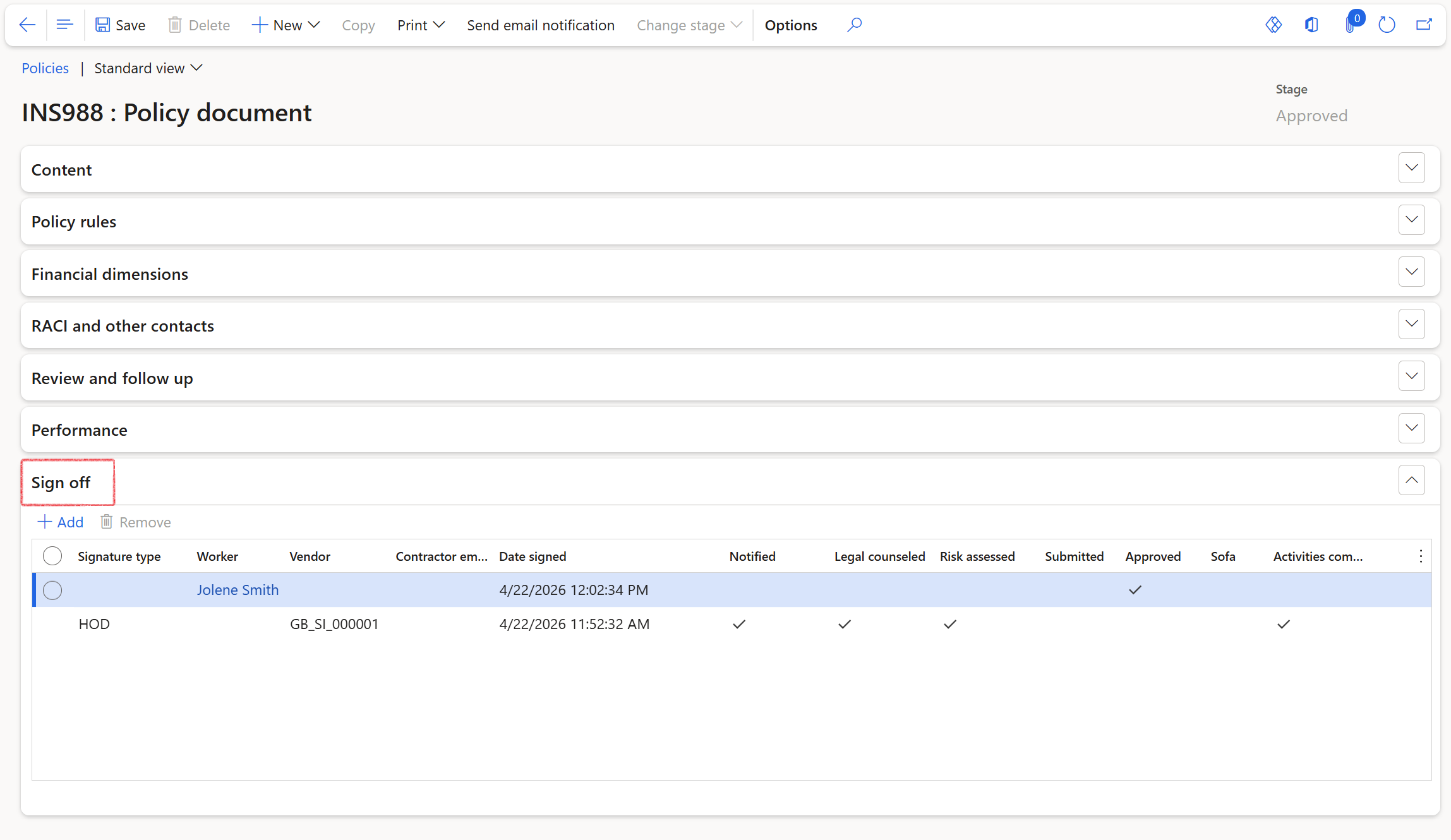
¶ Step 3.7: Sign off FastTab
- Signature type
- Worker
- Vendor
- Contractor employee
- Date signed
- Notified
- Legal counseled
- Risk assessed
- Submitted
- Approved
- Sofa
- Activities completed