¶ Introduction
Tender envelope opening is a formal, transparent process where sealed bids are opened (publicly or live-streamed) at a set time/place, usually with tenderers or reps present, to announce names, prices, and key details, ensuring fairness by recording everything, checking for compliance (signatures, required docs), and noting any rejections, all documented in minutes for the evaluation stage. It is crucial for public accountability and integrity in procurement.
In GRC, "envelope opening" refers to the revealing of sealed supplier bids in a sourcing event, done by authorized users once the event stage allows it, often to evaluate technicals before commercials, with rules controlling who opens what and when, ensuring fairness by preventing early financial data exposure. To open them you navigate to the event, and in die Action pane, click on Open envelope button, select suppliers and choose to open.
In addition, if negotiations are used, users can also open negotiation response envelopes. Go to the event and open the Negotiation Index tab under the Governance Fast tab.
Envelope opening is governed by: dates, committee members, solicitation type rules and the bidder's event status (Sent and Received).
Dynamics GRC supports these types of envelope opening:
|
Type |
Description |
|
Single: |
This assumes one envelope (inclusive of at least the commercial response)
|
|
Parallel: |
Done side-by-side (at the same time)
|
|
Sequential: |
The opening and evaluation process is done in stages, not at the same time. Typically the commercial opening is dependent on the technical opening process being completed. |
|
Negotiation: |
Done after one of the above three scenarios.
Finally via the Compare replies button, Negotiated values are now visible |
If any of the first three options are used (via the Solicitation type) the following functions will not be available (until after the envelopes were opened):
- Edit RFQ reply on the Manage replies: Enter a reply from a bidder/vendor as a procurement professional on their behalf.
- Compare replies: Do a row-by-row comparison of replies received from bidders/vendors (assuming they have replied using the Vendor bidding portal or a procurement professional did it on their behalf via the above Manage replies)
- Viewing of Totals, Overall pricing and Evaluation report
So for RFQ events where the solicitation type "Envelope opening" = Not required; these three functions above will be available.
¶ Navigation
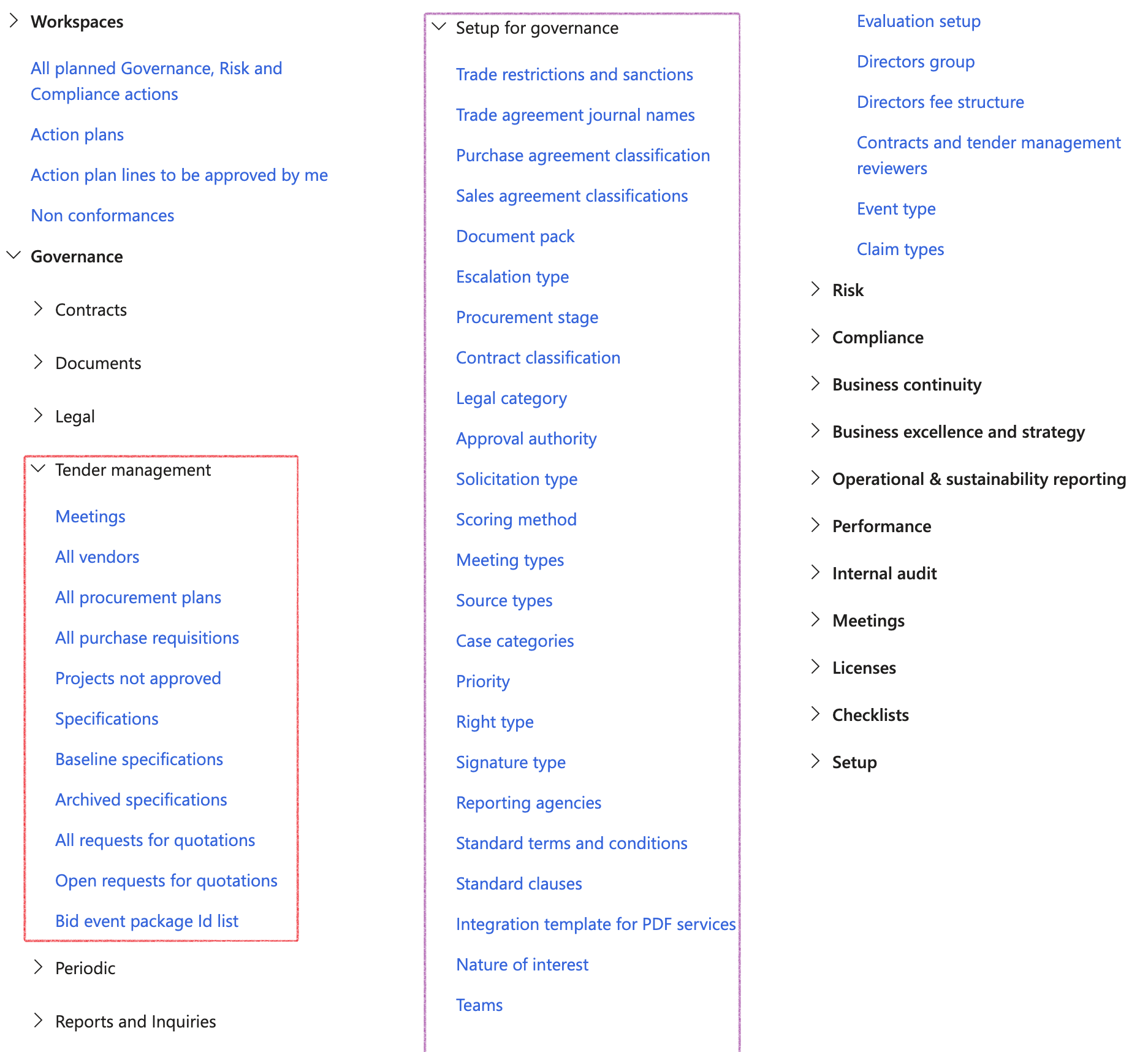
Users can also find Tender management under the Procurement and souring module
¶ Specific setups reviewed
¶ Step 1: Populate Scoring method
For enhanced scoring, additional fields exist on the Scoring criteria form
Go to: GRC > Governance > Setup for governance > Scoring method
- On the Action pane, click on the New button
- Enter a Name for the scoring method
- Enter a brief Description of the scoring method
- Select the Status for the scoring method
- Under the Scoring criteria Fast tab, in the Button strip, click on the New button
- Enter a Name for the Scoring criteria. This will be the text displayed on the checklist lines on the checklist feedback form.
- Enter a Description for the Scoring criteria. The text entered here will be displayed on the checklist feedback form in the Notes box under the grid.
- Enter the Range from and Range to for the Scoring criteria
- Enter the scoring Weight percentage for the Scoring criteria
- Enter scoring criteria Reference, explaining the reason for the weighting
- In the Include in checklist field, the user can choose to include the scoring lines into a Checklist
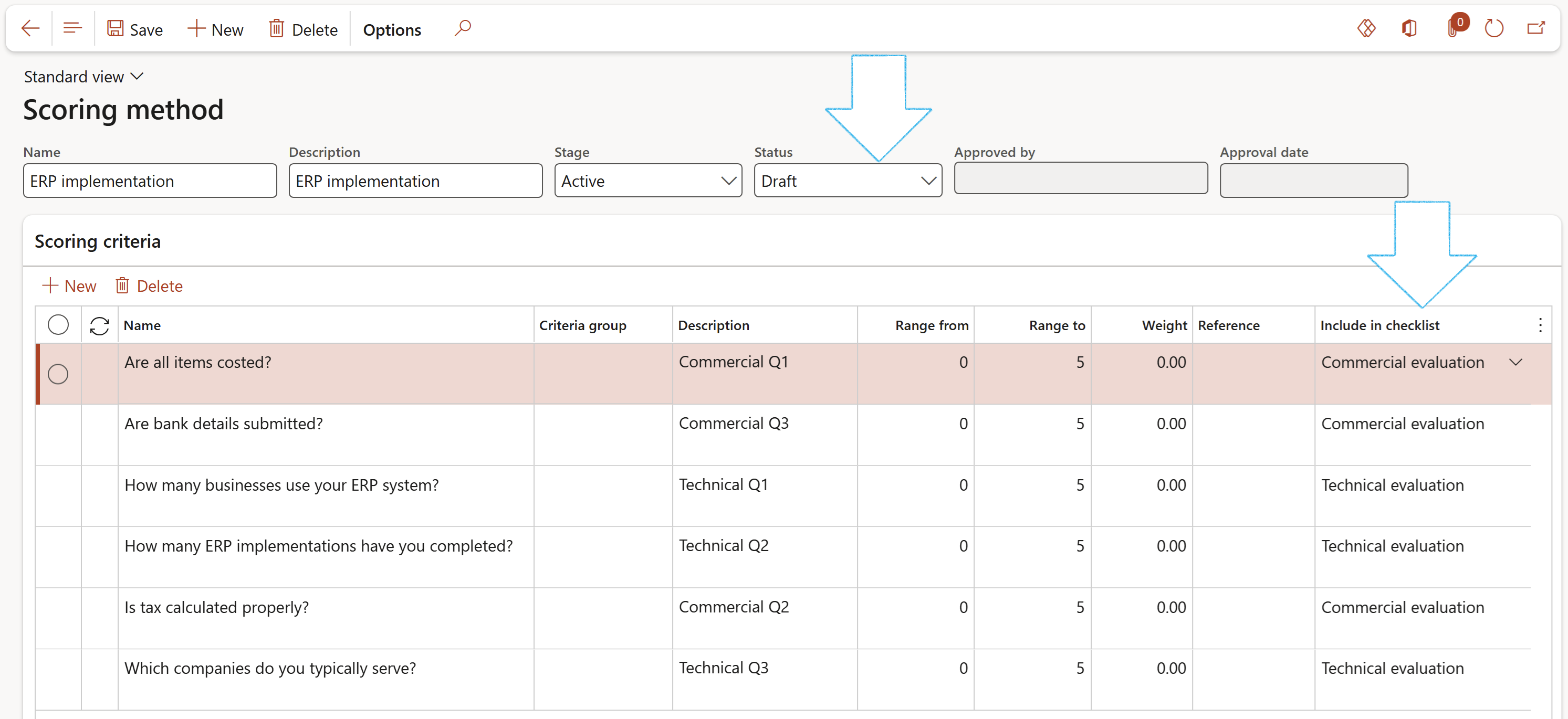
Tick the Pricing box if the line is to be used in envelope opening
Note that both Job plans and Scoring methods configurations are required for the creation and scoring of Checklists
¶ Step 2: Create Solicitation types
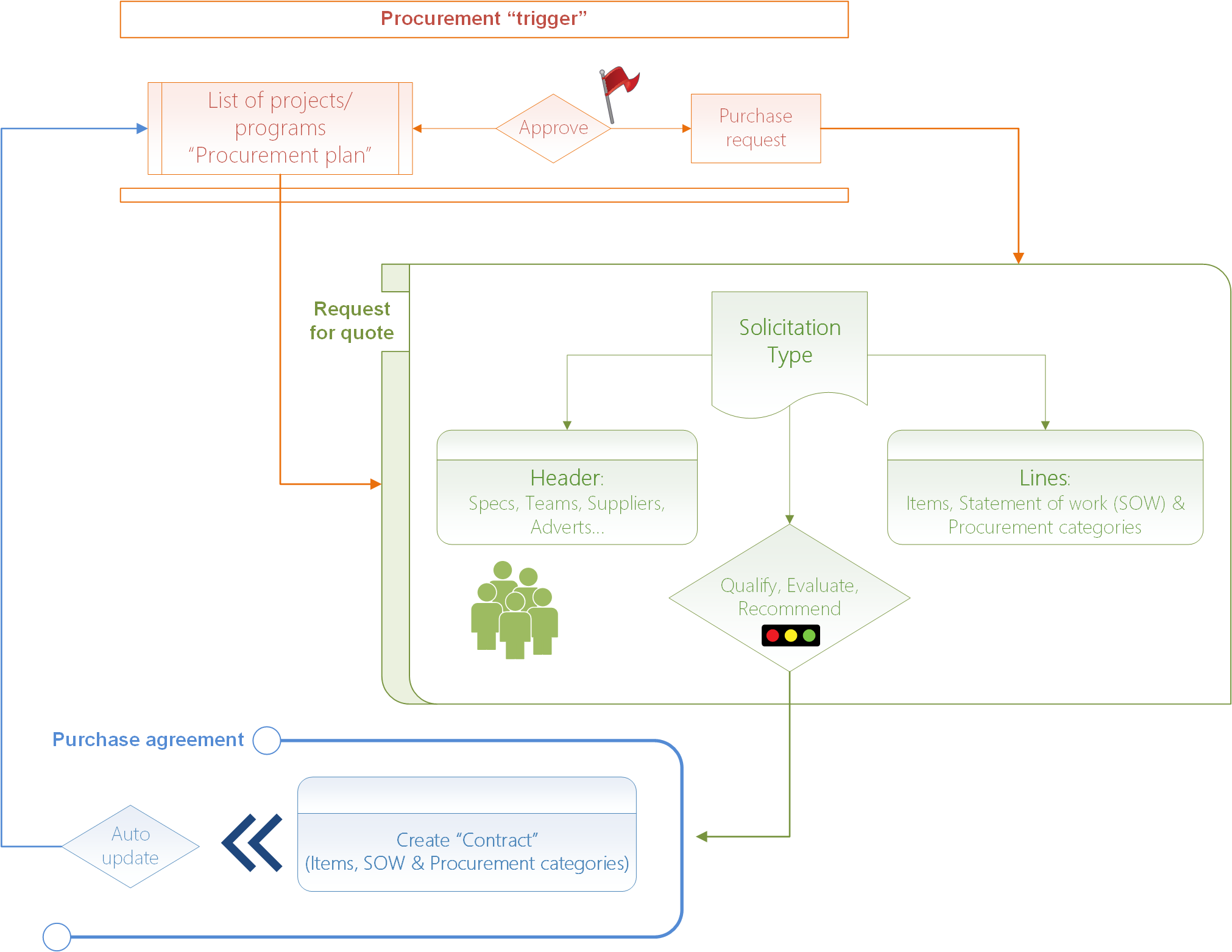
Solicitation is the act of requesting. The objective of solicitation is to prepare and issue a solicitation to ensure that all qualified bidders are given the opportunity to compete for a contract. For Advance procurement this object/form is where most of the rules are specified. Default values and rules specified here are carried over and applied to Procurement plans and RFQs.
Go to: GRC > Governance > Setup for governance > Solicitation type
- On the Action pane, click on the New button
- Enter a Name for the Solicitation type
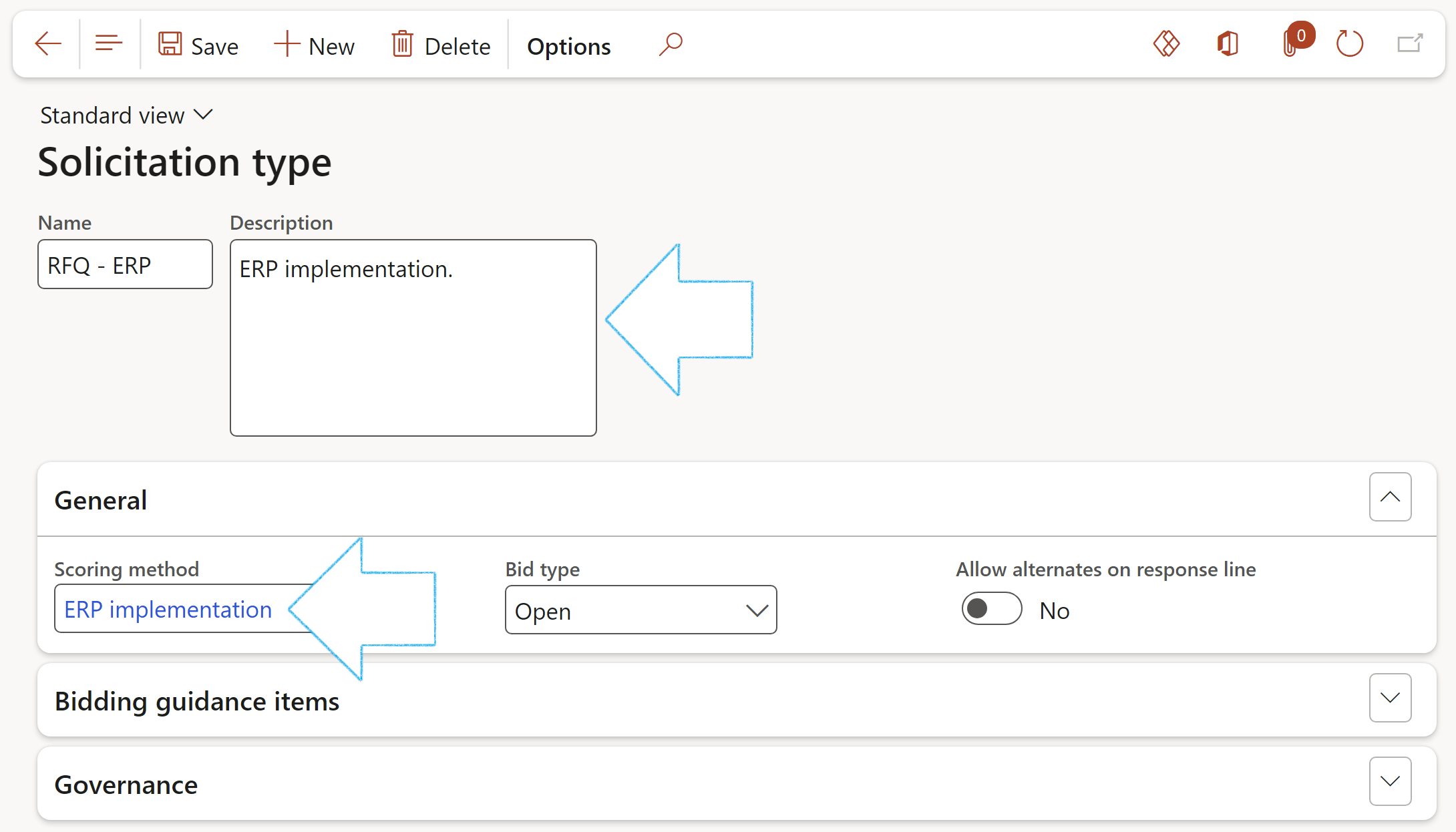
- Enter a brief Description of the Solicitation type
- Expand the General Fast tab
- Select the relevant Scoring method from the dropdown list
- Expand the Governance Fast tab
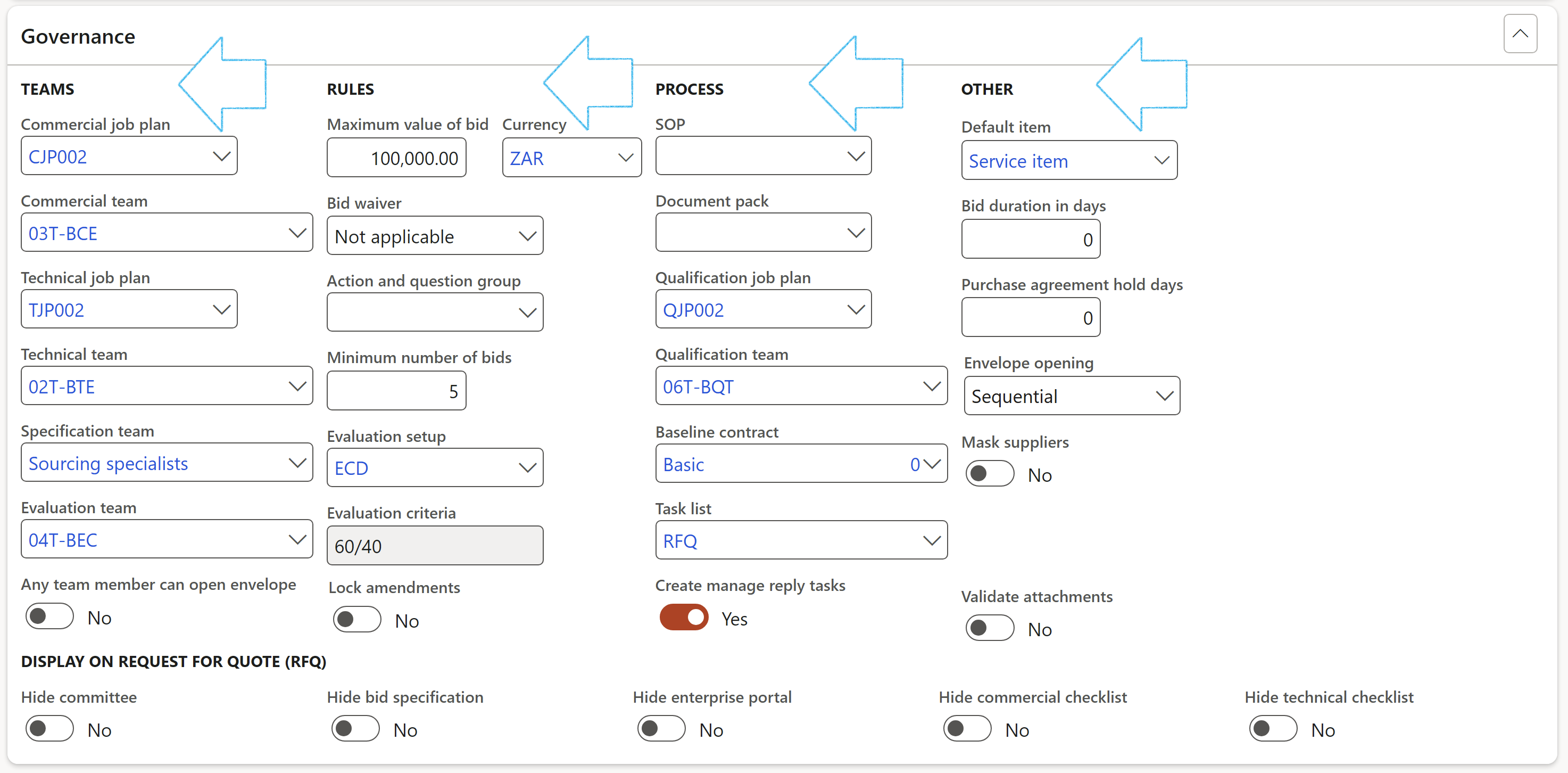
- Select the following under the TEAMS field group:
- Approval team
- Specification team
- Qualification team
- Envelope team
- Technical team
- Commercial team
- Negotiation team
- Evaluation team
- Recommendation team
- Enter the following under the RULES field group:
- Maximum value of bid
- Select the relevant Currency from the dropdown list
- Select whether a Bid waiver is applicable, optional or mandatory
- Select the relevant Action and question group from the dropdown list
- Enter the Minimum number of bids required for this classification
- Enter the duration in days of the bidding process
- Enter the number of days to hold the purchase agreement
- In the Negotiation level field the user can indicate whether negotiations will be done on Header or Line level
- Move the Negotiation criteria slider to Yes to include commercial scoring criteria to the negotiation checklists during checklist creation
- Select the relevant method of Envelope opening from the dropdown list
- If the Non-team member to open envelope slider is moved to Yes, Team members will not be allowed to open envelopes. A different worker must then be selected on the RFQ in the Envelope opener field under the Committees Index tab. (Applicable to all envelope types)
- If any team member should be able to open the envelopes, move the Any team member can open envelope slider to Yes
- Enter the following under the DEFAULTS field group:
- Select the relevant SOP from the dropdown list
- Select the relevant Document pack from the dropdown list
- A Default item can be selected for RFQ services
- Select the relevant Event type from the dropdown list
- Select the relevant Baseline contract from the dropdown list
- If the Enable voting slider is set to No, all voting buttons will be hidden on the RFQ
- Only users that belong to the Approver group/committee selected on the RFQ, will be able to extend the due date of the RFQ if the Lock amendments slider is moved to Yes
- Move the Package ID mandatory slider to Yes.....
- Enter the following under the EVALUATION field group:
- Select the relevant Evaluation setup from the dropdown list
- Enter the Technical weight %
- Enter the Commercial weight %
- Enter the Risk weight %
- Enter the Safety weight %
- Enter the Other weight %
- Enter the following under the OTHER field group:
- Select the relevant B-BBEE requirements from the dropdown list
- Select the relevant Task list from the dropdown list
- If it is required that reply tasks should be created, move the Create manage reply tasks slider to Yes
- Indicate whether suppliers should be “masked”
- Indicate whether buyers should be “masked”
- Indicate whether the solicitation type should be “masked”
- By moving the Validate attachments slider to Yes, Procurement plan records will not be allowed to be approved if attachments have not been added
- Under Governance Fast tab on DISPLAY ON REQUEST FOR QUOTE (RFQ), the user can choose to hide/display the following by moving the slider:
- Committee
- Specification
- Enterprise portal
- Commercial checklist
- Technical checklist
- Additional checklists
- Negotiation
- The Job plan that is selected in the Qualification job plan field, will be displayed on the RFQ, Governance Fast tab, Qualification checklist Index tab
- The Job plan that is selected in the Technical job plan field, will be displayed on the RFQ, Governance Fast tab, Technical checklist Index tab
- On Awarding of the bid, the RFQ will create the purchase agreement with an effective date of Today + “7”
- When selecting the Baseline contract, make sure that the clauses that have to be copied to the contract when the RFQ is awarded, are ticked to be copied
- A Default item can be selected for RFQ lines. When users create an RFQ, a line is created for them using this value.
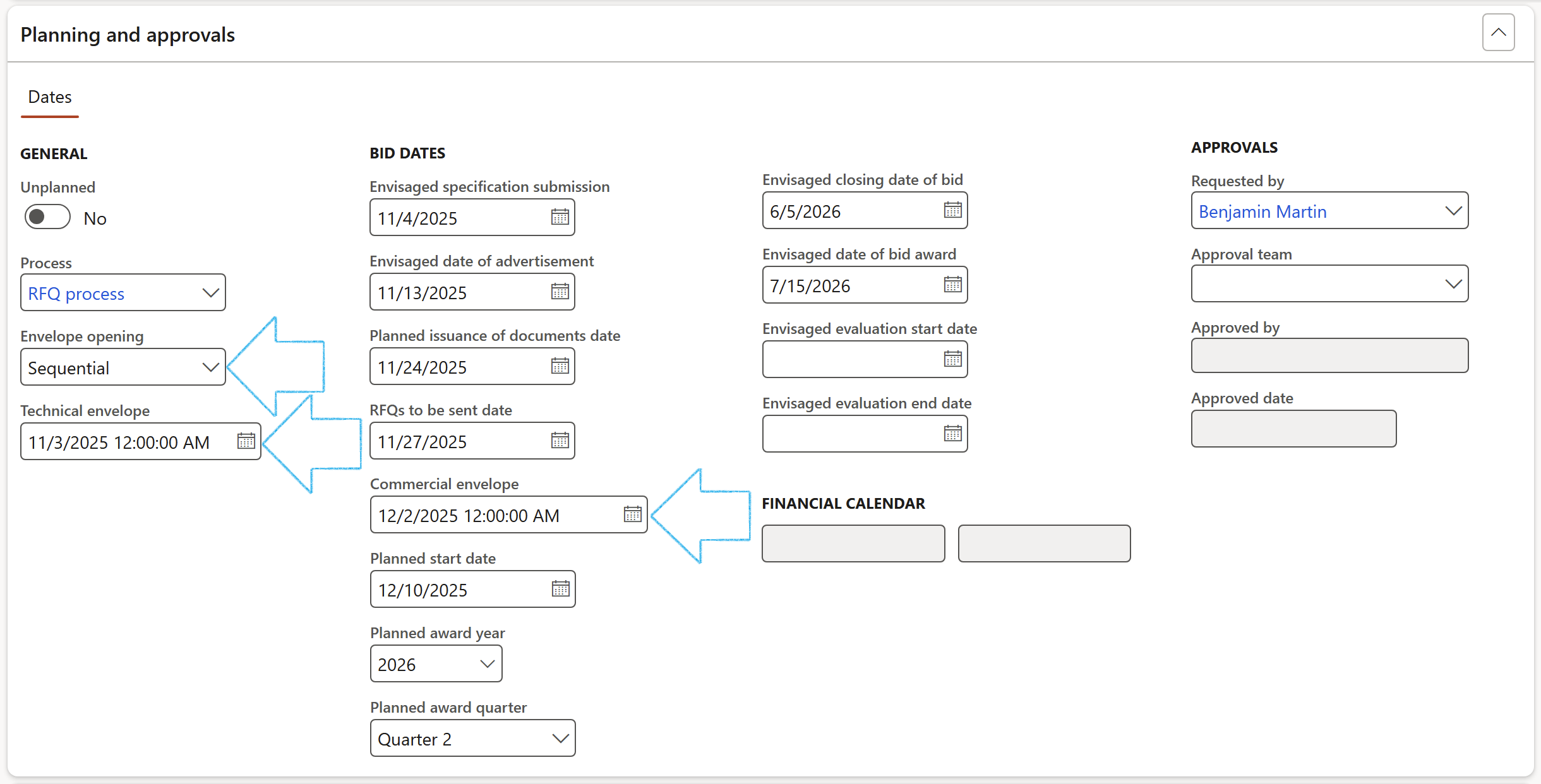
- Open the relevant Procurement plan
- Expand the Planning and approvals Fast tab
- Select the relevant value in the Envelope opening field
- Select the envisaged Technical envelope opening date
- Enter the relevant dates under the BID DATES field group
- Select the envisaged Commercial envelope opening date
- Select the Planned award year from the dropdown list
- Select the Planned award quarter from the dropdown list
- Select the Approval team from the dropdown list
- Select the relevant worker from the Requested by dropdown list
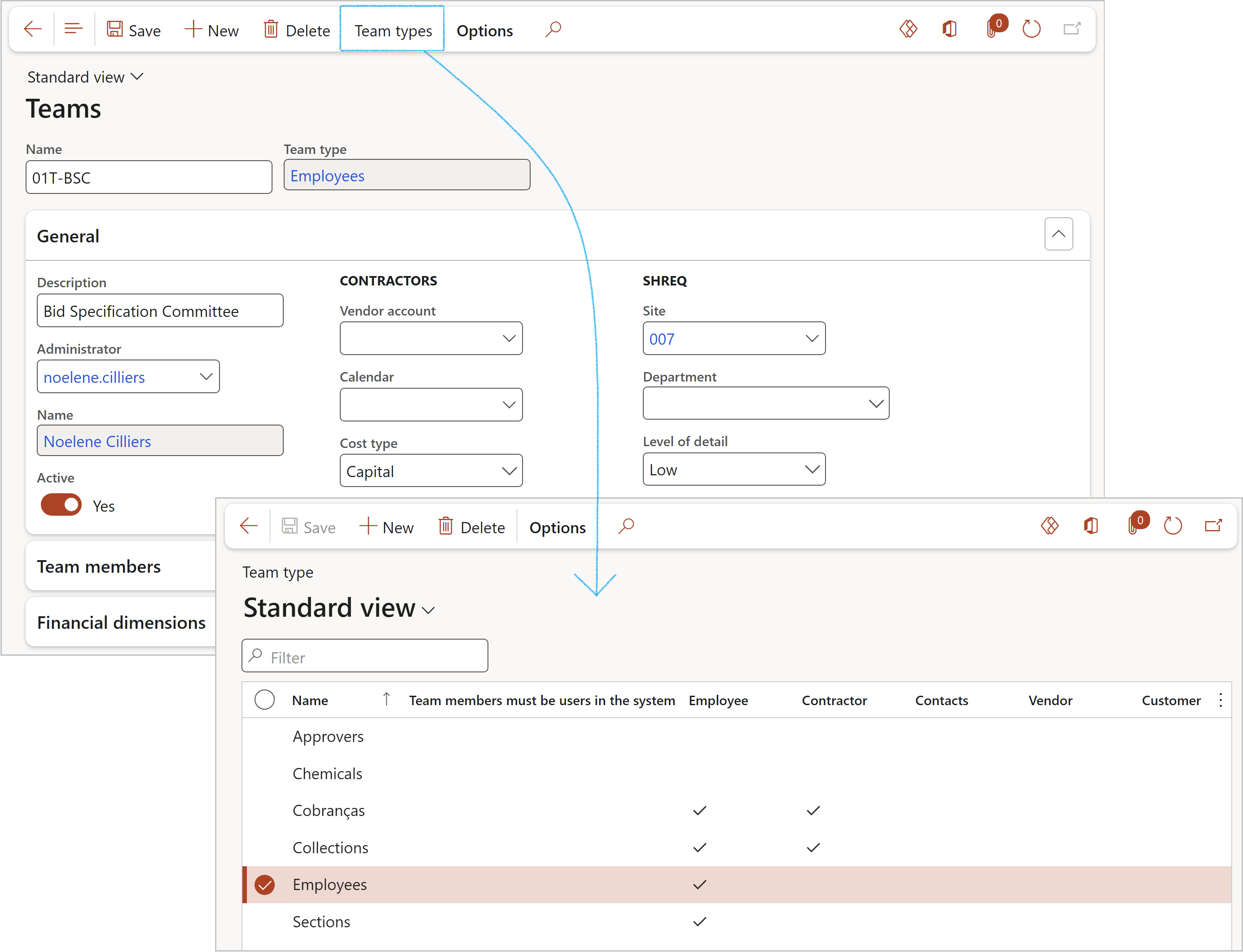
- On the Action pane, click on the New button
- Enter a Name for the team
- Select the relevant Team type from the dropdown list
- Under the General Fast tab:
- Enter a brief Description for the team
- Select the Administrator for the team from the dropdown list
- Select Yes to indicate that this team is Active
- In the Action pane on the Teams form, click the Team types button
- On the Team types form, select the team that you are choosing members for
- Select the relevant tick boxes to restrict membership to the team
- Click on the Close button
- Under the Team members Fast tab:
- In the Button strip, click on the Add team members button
- Select people that you want to add as team members, then click Add
- Select the Team leader by ticking the box next to the relevant person’s name
- Under the Governance Fast tab, open the Committee Index tab
- In the Button strip, click on the Add button
- Choose the Role that the selected team will perform during the RFQ process
- Select the relevant Team from the dropdown list
- On the RFQ header, expand the Governance Fast tab and open the Committee Index tab
- Select the team that you want to change the members of and click on the Change team member button
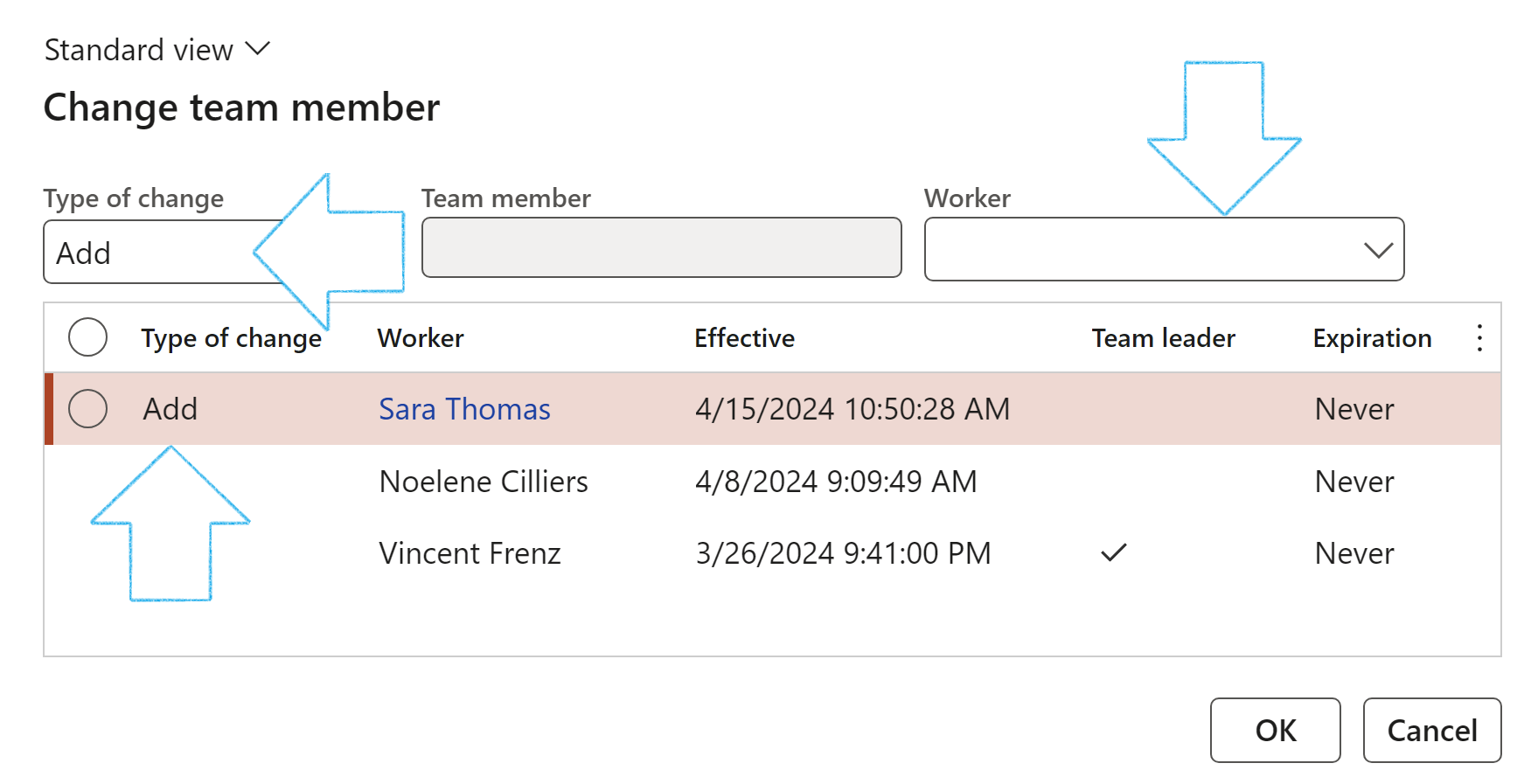
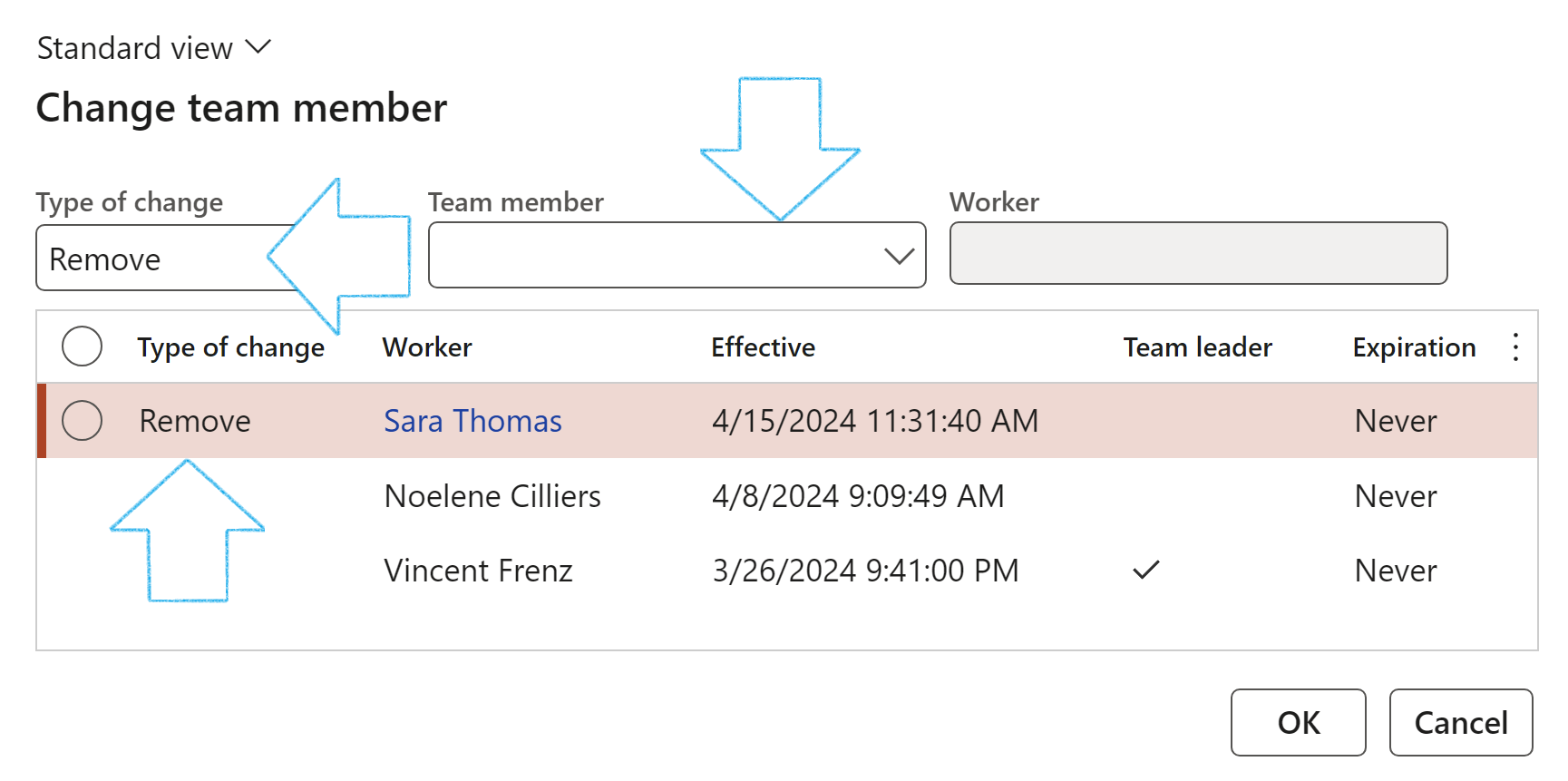
- On the Change team member dialog, select the relevant Type of change from the dropdown list
- If Add is selected, a Worker can be selected from the HR worker list
- If Remove is selected, a Team member can be selected form the dropdown list
- Click on OK
- If Assign team leader is selected, a Team member can be selected form the dropdown list
- Click on OK
- Select the relevant RFQ
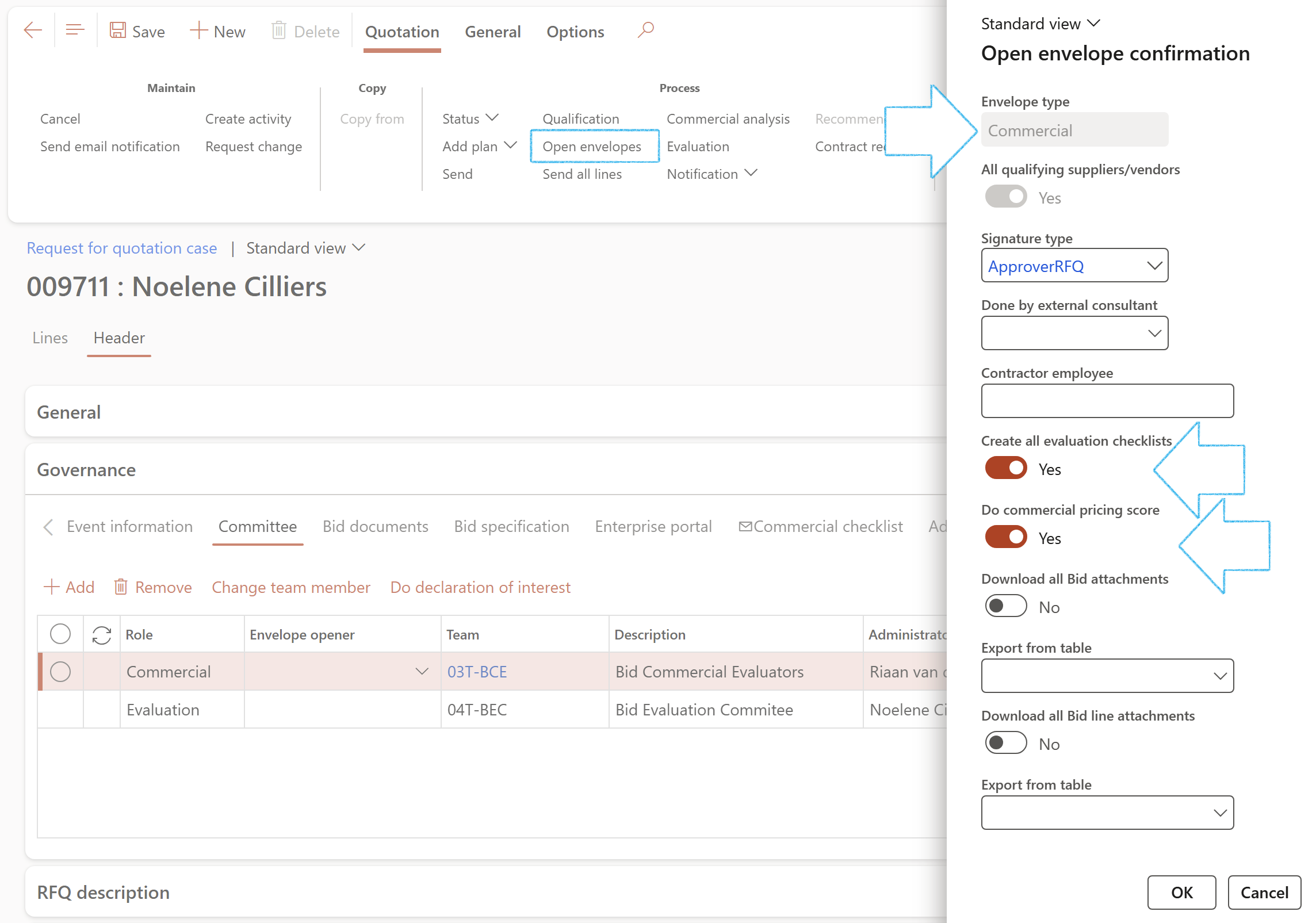
- On the RFQ, in the Action pane, in the Process group, click on the Open envelopes button
- On the Open envelope confirmation dialog:
- The value in the Envelope type field will by default be Commercial
- Select the relevant Signature type from the dropdown list
- If the envelope is to be opened by an external consultant, select the relevant consultant from the dropdown list
- Enter the name of the Contractor employee
- If the Commercial checklists have not been created yet, move the Create all evaluation checklists slider to Yes
- The system will then create the Commercial checklists before opening the Commercial envelope
- If the Do commercial pricing score slider is moved to Yes, the Score column on the Commercial checklist will be auto populated
- If you want to download all the documents that were uploaded by all the vendors on the RFQ (via the Vendor portal), move the Download all Bid attachments slider to Yes
- Click on OK
- Note that Commercial checklists will not be created if the highest status of at least one vendor/supplier is sent/received
- The Job plan can only be changed by members in the Scoring team/committee
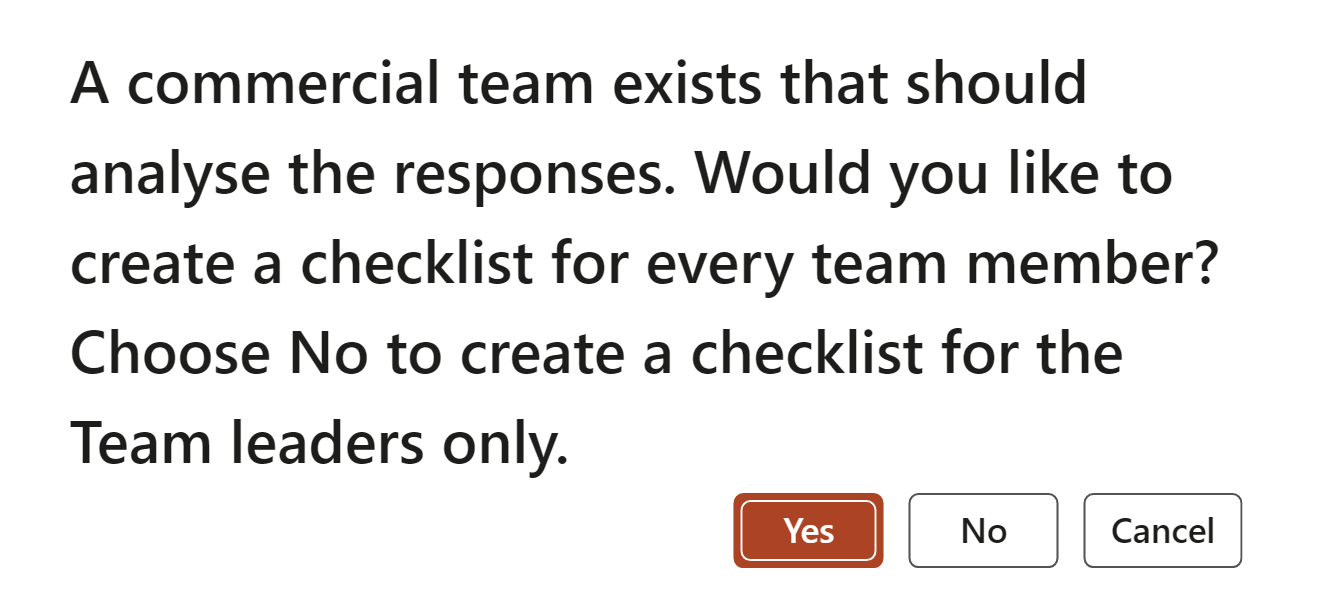
- Click Yes to create a checklist for each team member, or
- Click No to create a checklist for the team leader only, or
- Click Cancel
- To members in the Evaluation team
- If the Commercial envelope was opened for all qualifying vendors
- Select the relevant RFQ
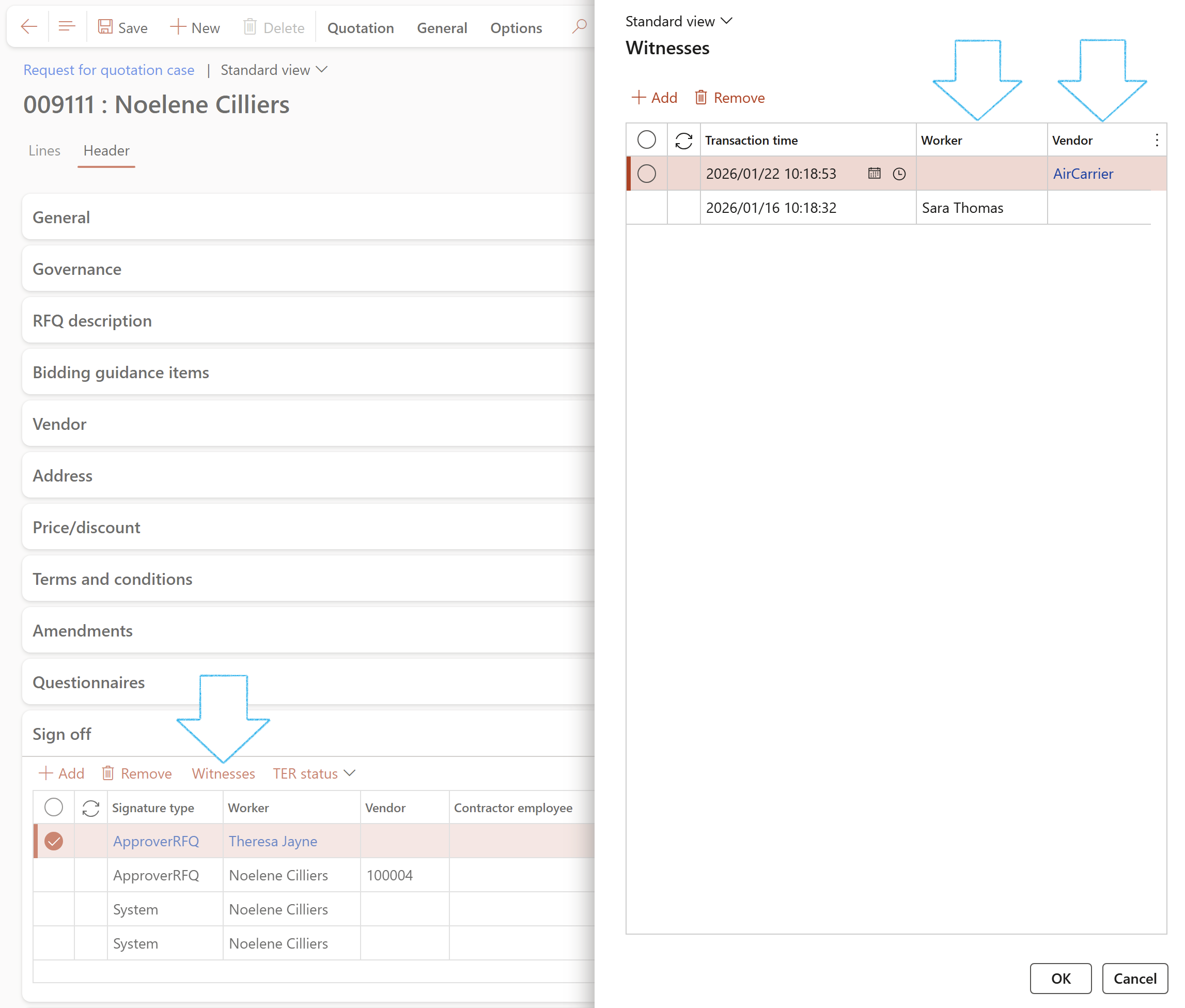
- Expand the Sign off Fast tab
- Click on the Witnesses button
- On the Witnesses dialog, click on the Add button
- Select the Date and time
- Select the name of the Worker or Vendor that witnessed the envelope opening
- Click on the OK button
- Open the Quotation tab on the RFQ Action pane
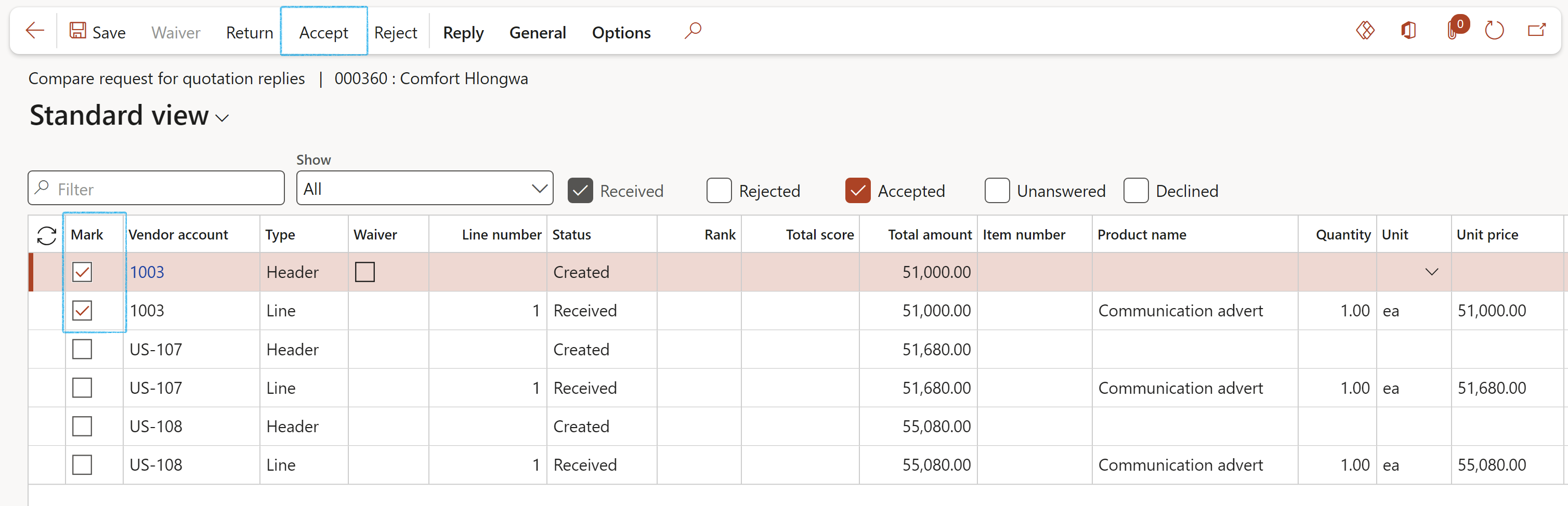
- Click on the Compare replies button on the Action pane in the Replies group
- Mark the Header line of the quote that you want to accept
- In the Action pane, click on the Accept button
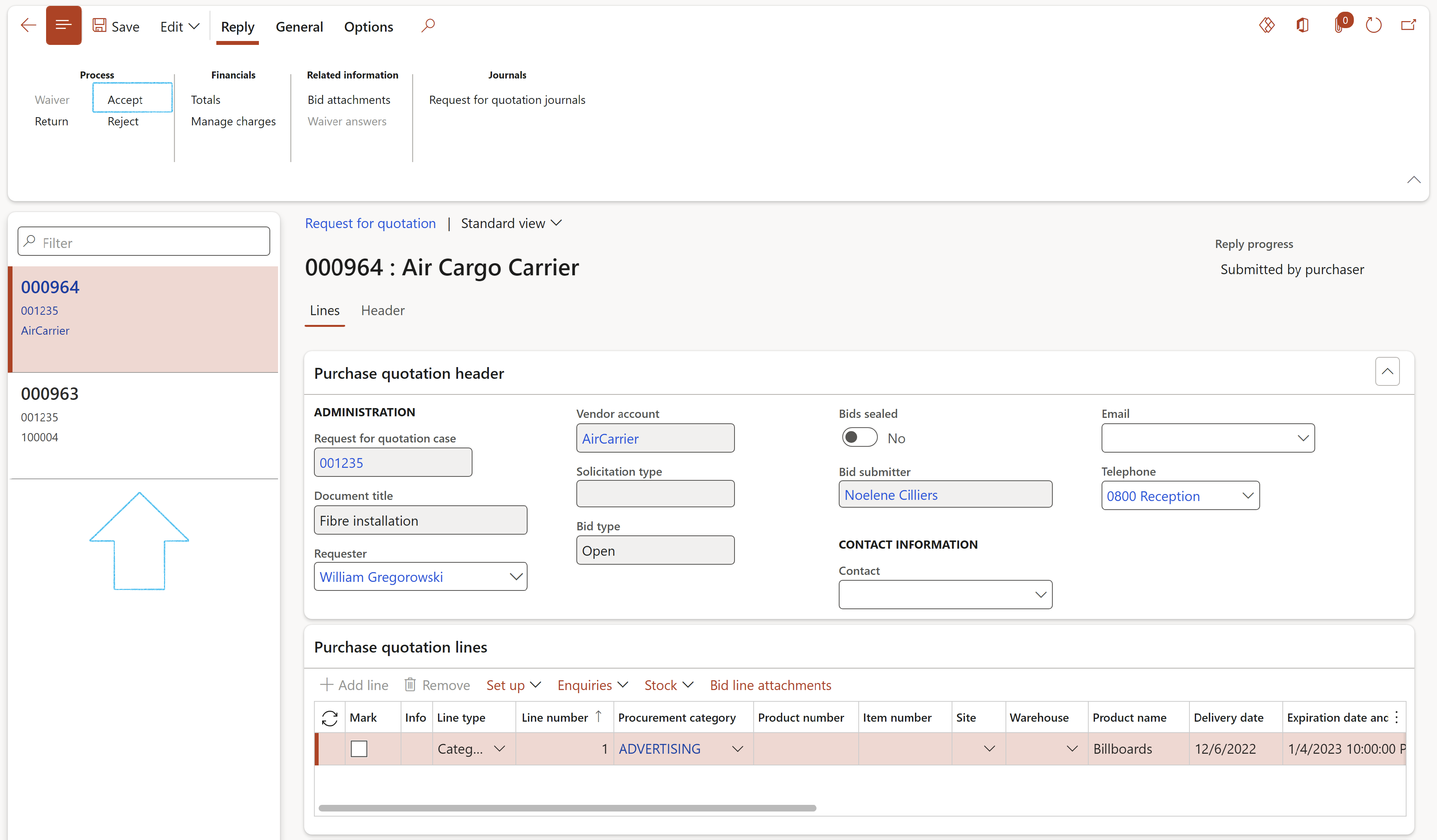
- On the Action pane, open the Reply tab
- Select the relevant vendor from the list on the left
- On the Action pane, in the Process group, click on the Accept button
- On the Accepting request for quotation form, click OK
- Select the relevant RFQ
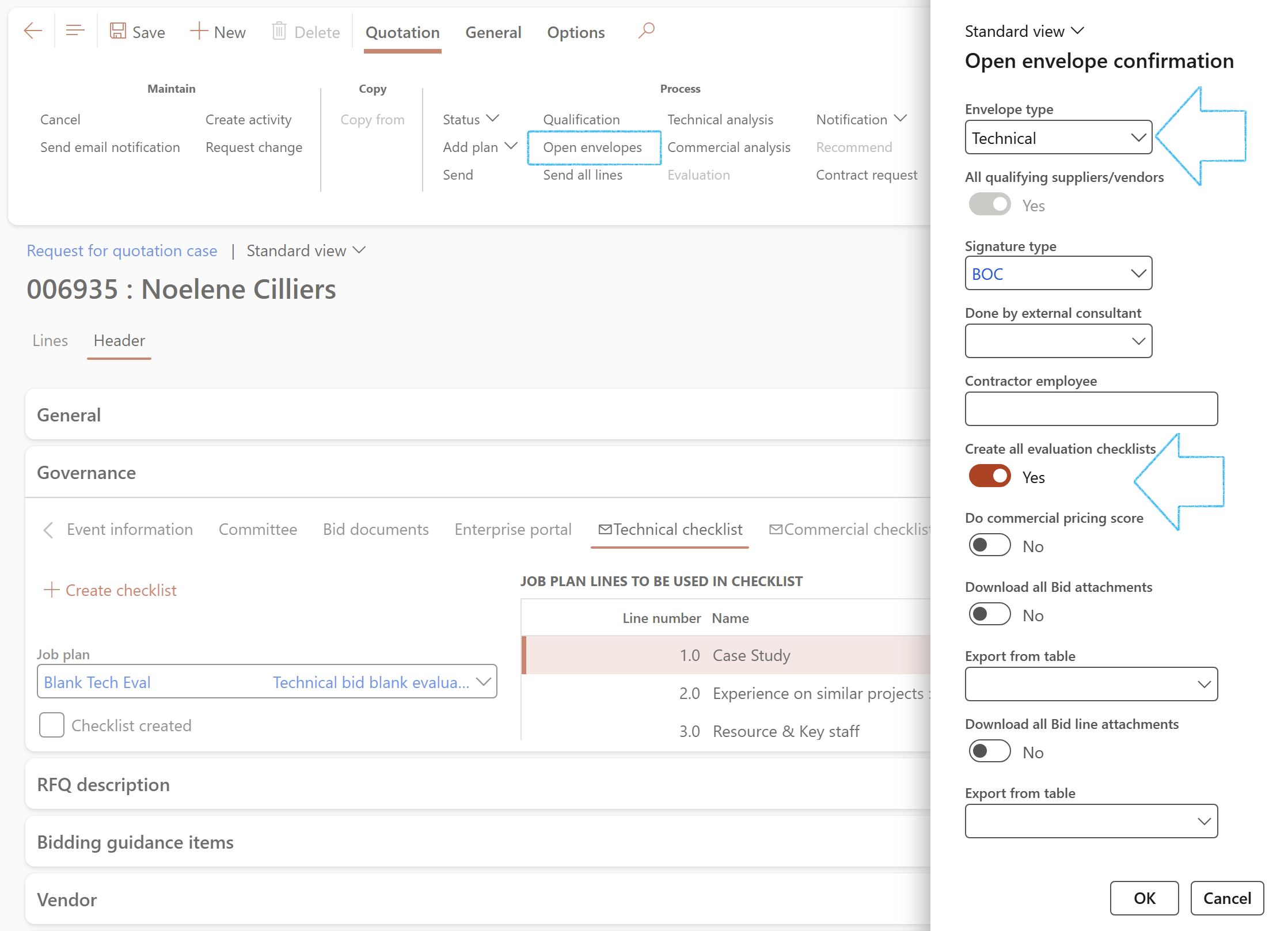
- On the RFQ, in the Action pane, in the Process group, click on the Open envelopes button
- On the Open envelope confirmation dialog:
- In the Envelope type field, select either Technical or Commercial (The Technical envelope was opened first in the example below)
- Select the relevant Signature type from the dropdown list
- If the envelope is to be opened by an external consultant, select the relevant consultant from the dropdown list
- Enter the name of the Contractor employee
- If the evaluation checklists have not been created yet, move the Create all evaluation checklists slider to Yes
- The system will then create the checklists (Technical or Commercial, depending on the value selected in the Envelope type field) before opening the envelope
- If you want to download all the documents that were uploaded by all the vendors on the RFQ (via the Vendor portal), move the Download all Bid attachments slider to Yes
- Click on OK
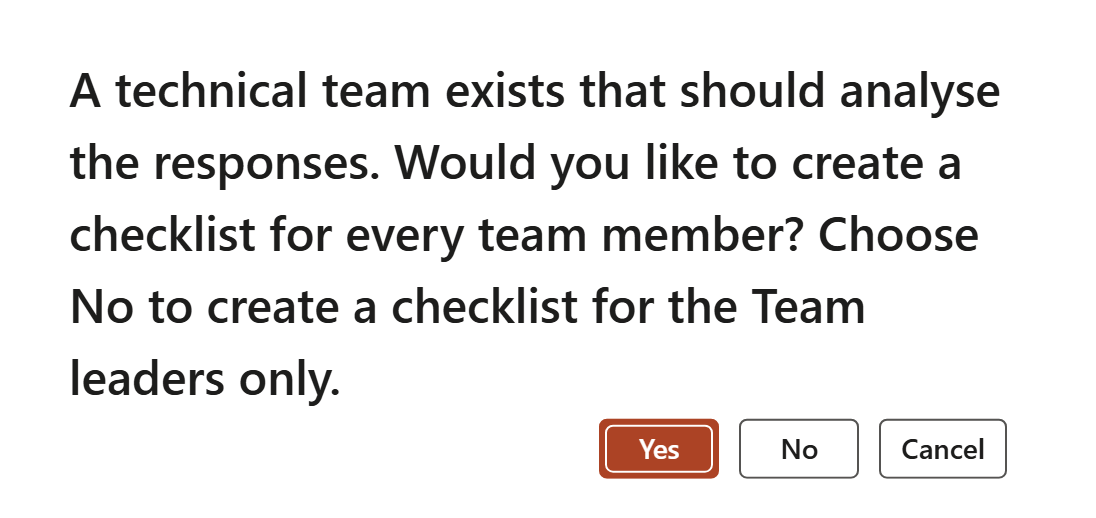
- Click Yes to create a checklist for each team member, or
- Click No to create a checklist for the team leader only, or
- Click Cancel
- On the RFQ, in the Action pane, in the Process group, click on the Open envelopes button
- On the Open envelope confirmation dialog:
- In the Envelope type field, select either Technical or Commercial (The Commercial envelope was opened second in the example below)
- Select the relevant Signature type from the dropdown list
- If the envelope is to be opened by an external consultant, select the relevant consultant from the dropdown list
- Enter the name of the Contractor employee
- If the Commercial checklists have not been created yet, move the Create all evaluation checklists slider to Yes
- The system will then create the checklists (Technical or Commercial, depending on the value selected in the Envelope type field) before opening the envelope
- If the Do commercial pricing score slider is moved to Yes, the Score column on the Commercial checklist will be auto populated
- If you want to download all the documents that were uploaded by all the vendors on the RFQ (via the Vendor portal), move the Download all Bid attachments slider to Yes
- Click on OK
- Click Yes to create a checklist for each team member, or
- Click No to create a checklist for the team leader only, or
- Click Cancel
- Note that Commercial checklists will not be created if the highest status of at least one vendor/supplier is sent/received
- The Job plan can only be changed by members in the Scoring team/committee
- To members in the Evaluation team
- If the Commercial envelope was opened for all qualifying vendors
- Select the relevant RFQ
- On the RFQ, in the Action pane, in the Process group, click on the Open envelopes button
- On the Open envelope confirmation dialog:
- The value in the Envelope type field will by default be Technical
- Select the relevant Signature type from the dropdown list
- If the envelope is to be opened by an external consultant, select the relevant consultant from the dropdown list
- Enter the name of the Contractor employee
- If the Technical checklists have not been created yet, move the Create all evaluation checklists slider to Yes
- The system will then create the Technical checklists before opening the Technical envelopes
- If you want to download all the documents that were uploaded by all the vendors on the RFQ (via the Vendor portal), move the Download all Bid attachments slider to Yes
- Click on OK
- Click Yes to create a checklist for each team member, or
- Click No to create a checklist for the team leader only, or
- Click Cancel
- On the Action pane, in the Replies group, click on the Manage replies button
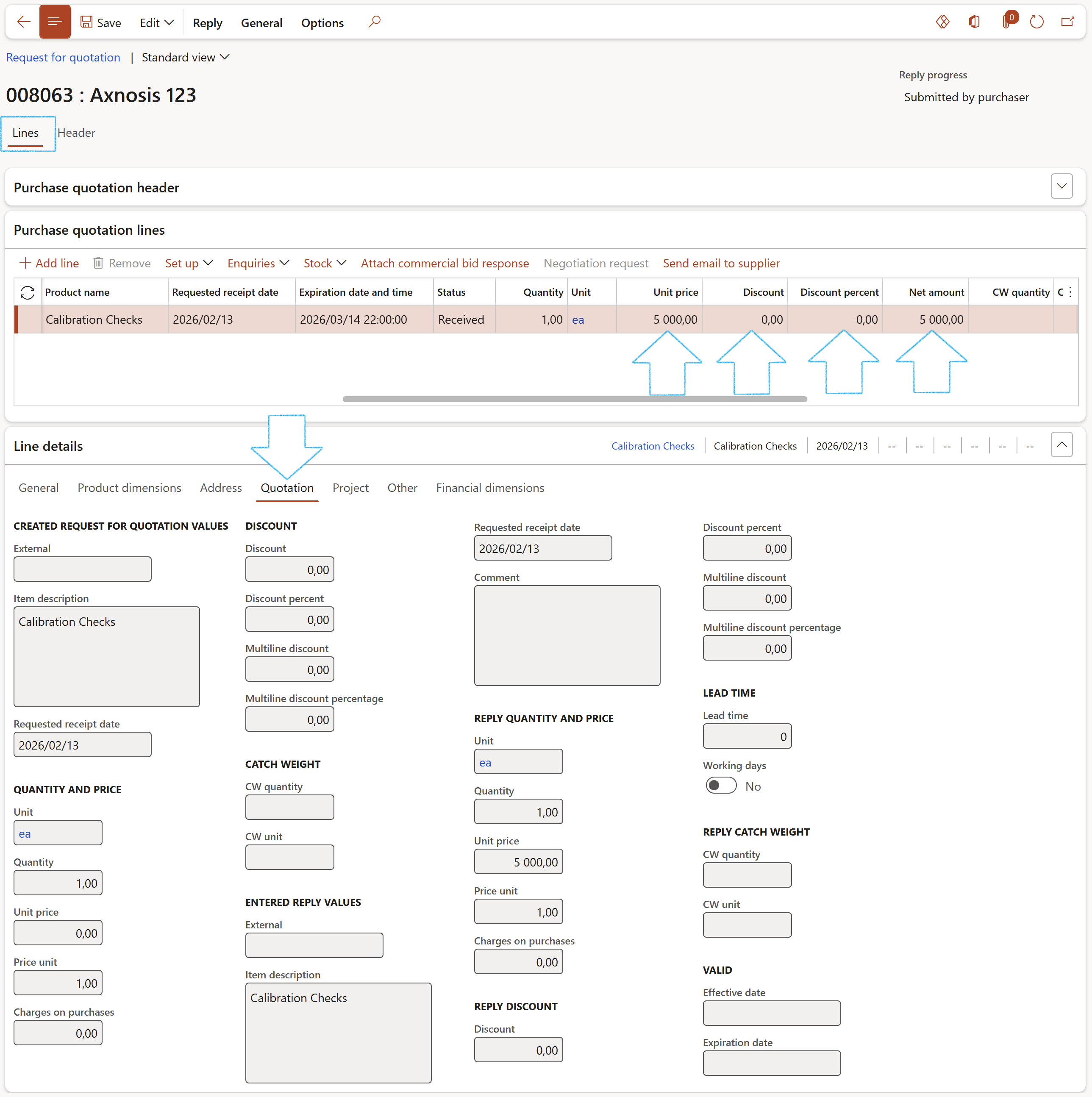
- Under the Purchase quotation lines Fast tab, the Unit price, Discount, Discount percent and Net amount columns
- Under the Line details Fast tab, the Quotation Index tab
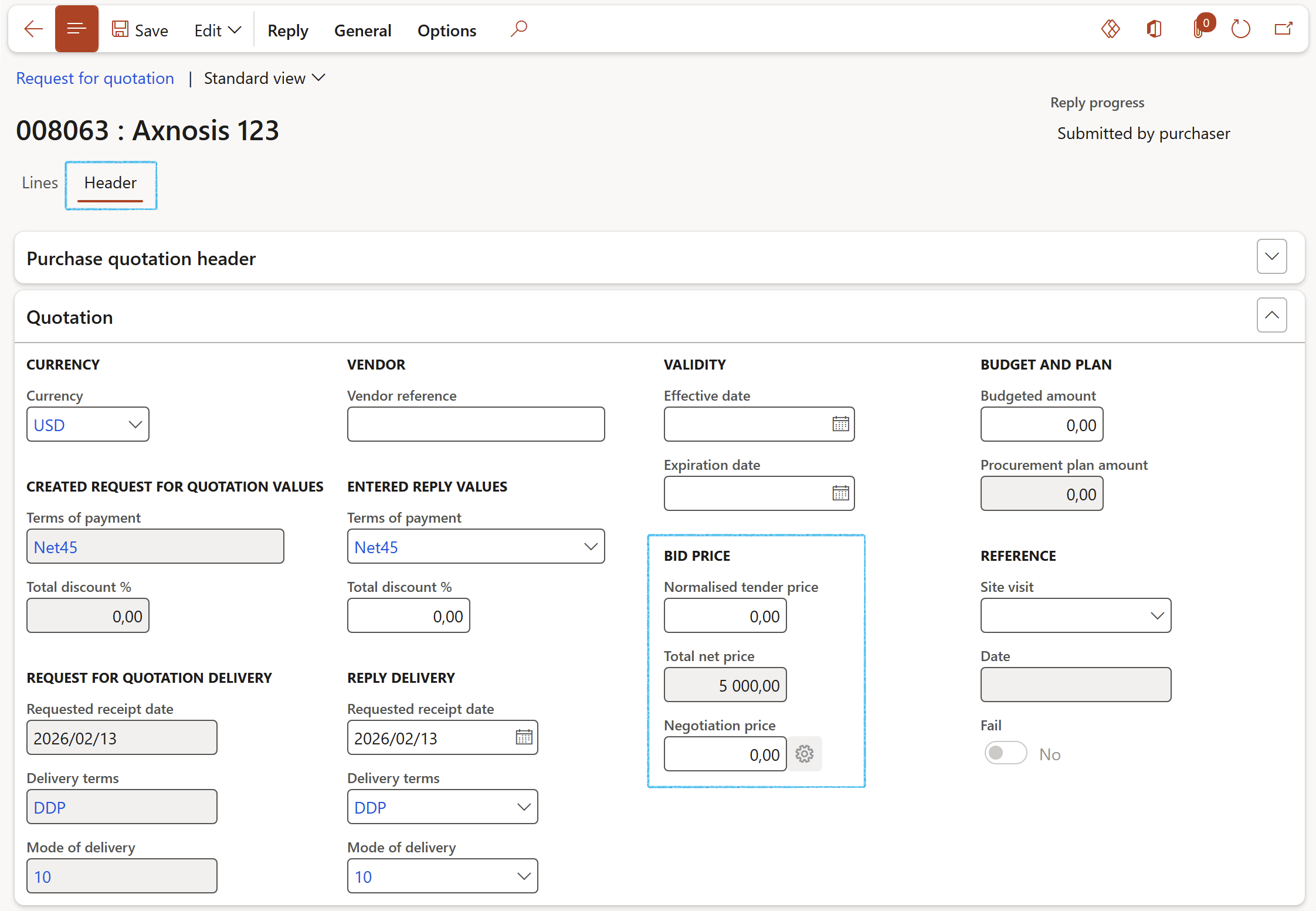
- Under the Quotation Fast tab, the Bid price field group
- Witnesses for the Technical envelope opening have been added under the Sign off Fast tab
- The Technical scoring has been done
- Technical scores have been frozen
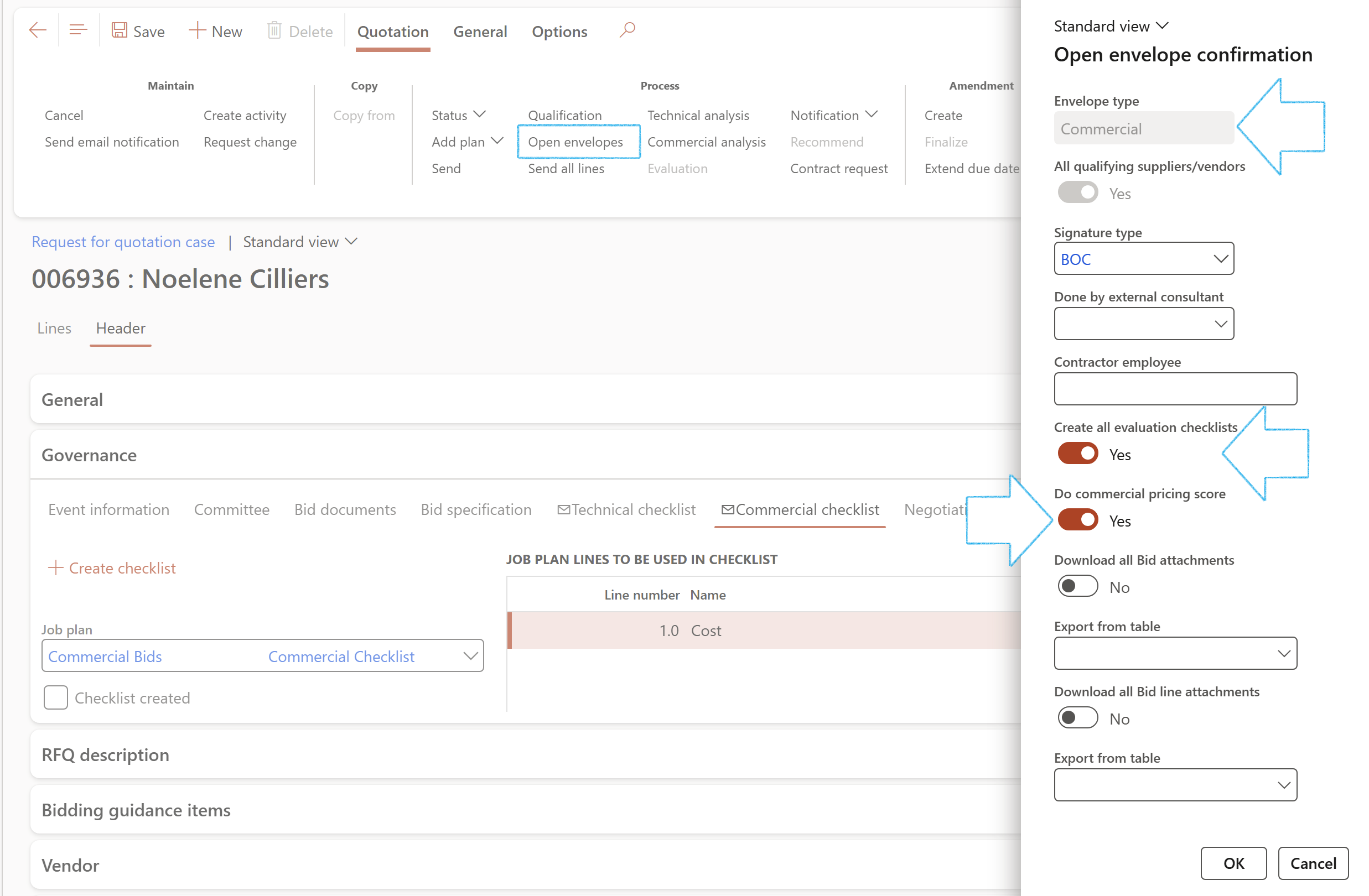
- On the RFQ, in the Action pane, in the Process group, click on the Open envelopes button
- On the Open envelope confirmation dialog:
- The value in the Envelope type field will by default be Commercial
- Select the relevant Signature type from the dropdown list
- If the envelope is to be opened by an external consultant, select the relevant consultant from the dropdown list
- Enter the name of the Contractor employee
- If the Commercial checklists have not been created yet, move the Create all evaluation checklists slider to Yes
- The system will then create the Commercial checklists before opening the Commercial envelopes
- If the Do commercial pricing score slider is moved to Yes, the Score column on the Commercial checklist will be auto populated
- If you want to download all the documents that were uploaded by all the vendors on the RFQ (via the Vendor portal), move the Download all Bid attachments slider to Yes
- Click on OK
- Click Yes to create a checklist for each team member, or
- Click No to create a checklist for the team leader only, or
- Click Cancel
- After the Commercial scores have been frozen
- Once vendors have sent responses to the negotiation requests
- The loggedin user is in the Negotiation team
- On the RFQ, in the Action pane, in the Process group, click on the Open envelopes button
- On the Open envelope confirmation dialog:
- The value in the Envelope type field will by default be Negotiation
- Select the relevant Signature type from the dropdown list
- If the envelope is to be opened by an external consultant, select the relevant consultant from the dropdown list
- Enter the name of the Contractor employee
- If the Negotiation checklists have not been created yet, move the Create all evaluation checklists slider to Yes
- The system will then create the Negotiation checklists before opening the Negotiation envelopes
- Click on OK
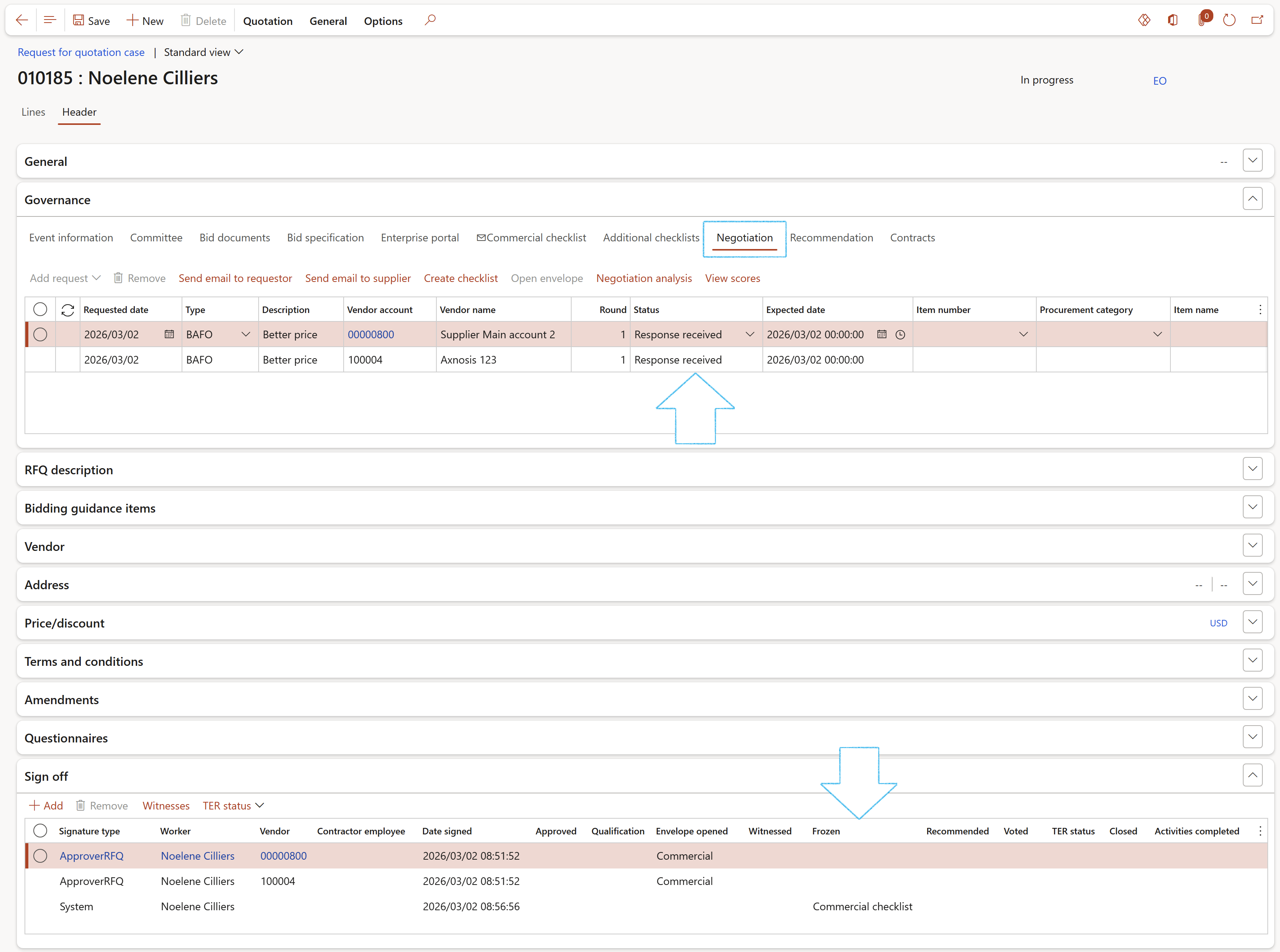
- On the RFQ, Governance Fast tab, open the Negotiation Index tab
- In the Button strip, click on the Open envelope button
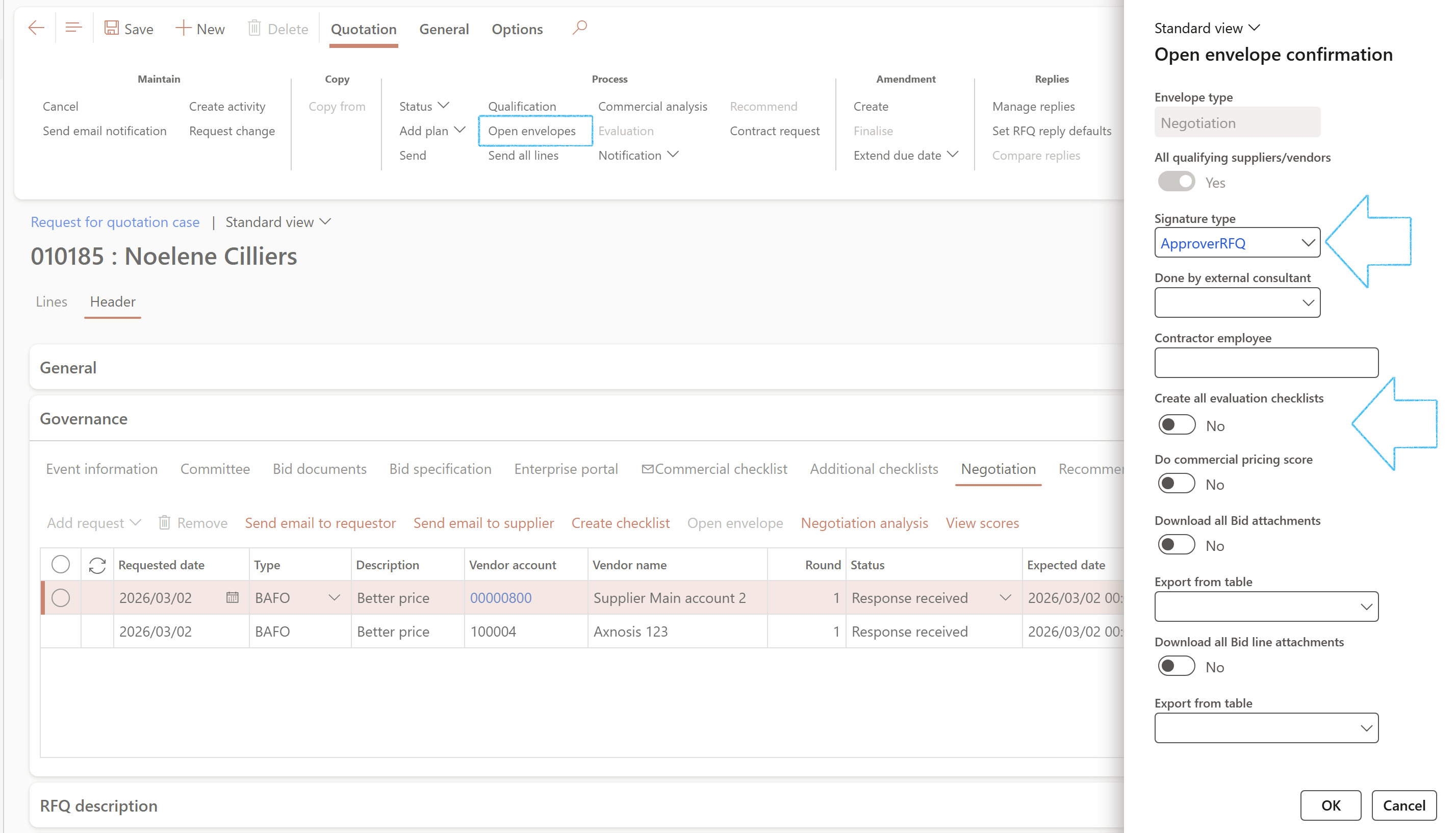
- On the Open envelope confirmation dialog:
- The value in the Envelope type field will by default be Negotiation
- Select the relevant Signature type from the dropdown list
- If the envelope is to be opened by an external consultant, select the relevant consultant from the dropdown list
- Enter the name of the Contractor employee
- If the Negotiation checklists have not been created yet, move the Create all evaluation checklists slider to Yes
- The system will then create the Negotiation checklists before opening the Negotiation envelope
Bid teams are explained below in Step 4.
There is a validation to check that the sum of the Technical weight %, Commercial weight %, Risk weight %, Safety weight % and Other weight % will always be 100 %
¶ Common
A typical process
¶ Step 3: Bid dates
On the Procurement plan header, under the Planning and approvals Fast tab, users can determine how and when envelopes will be opened by selecting the relevant value in the Bid opening field. If this was specified on the selected Solicitation type, the Envelope opening type will be populated accordingly.
Go to: GRC > Governance > Tender management > All procurement plans
¶ Step 4: Bid teams (committees)
It is important to choose the right evaluation team for your procurement bids. Small groups work better, bringing a balanced perspective to the scoring process. Ideally organisations should include a combination of financial, technical, and purchasing expertise within a bid team. Properly done, bid teams will ensure proper segragation of duties and proper governance.
¶ Step 4.1: Create teams
Inside GRC, a Team is a collection of workers (and system users) who are getting together for a temporary assignment. An example is a bid adjudication committee.
Go to: GRC > Governance > Setup for governance > Teams
¶ Step 4.1.1: Choose Team types
¶ Step 4.1.2: Add teams members
Go to: GRC > Governance > Setup for governance > Teams
The Add team members form will open

You can filter the list of people by name or by skill and add them in bulk
¶ Step 4.2: Assign Bid committees
Bid committees are crucial to mitigate the risk of corruption and fraud. Different roles are assigned to these committees. One such example would be the Bid Evaluation Committee (BEC). They are responsible for the evaluation of bids submitted in response to a public invitation for bids.
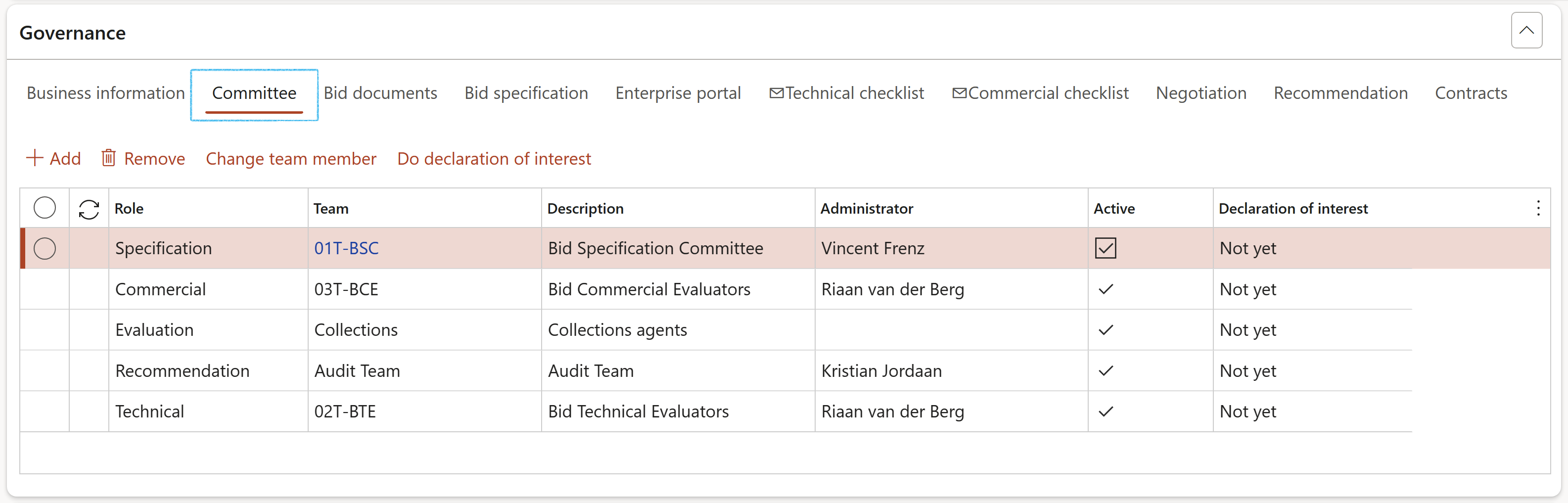
The Scoring role ensures segregation of duties when the Scoring criteria button is clicked on the Action pane.
¶ Step 4.2.1: Change team members
There might be a scenario where team/committee members change during the tender process. To change team members from the RFQ, follow the steps below.
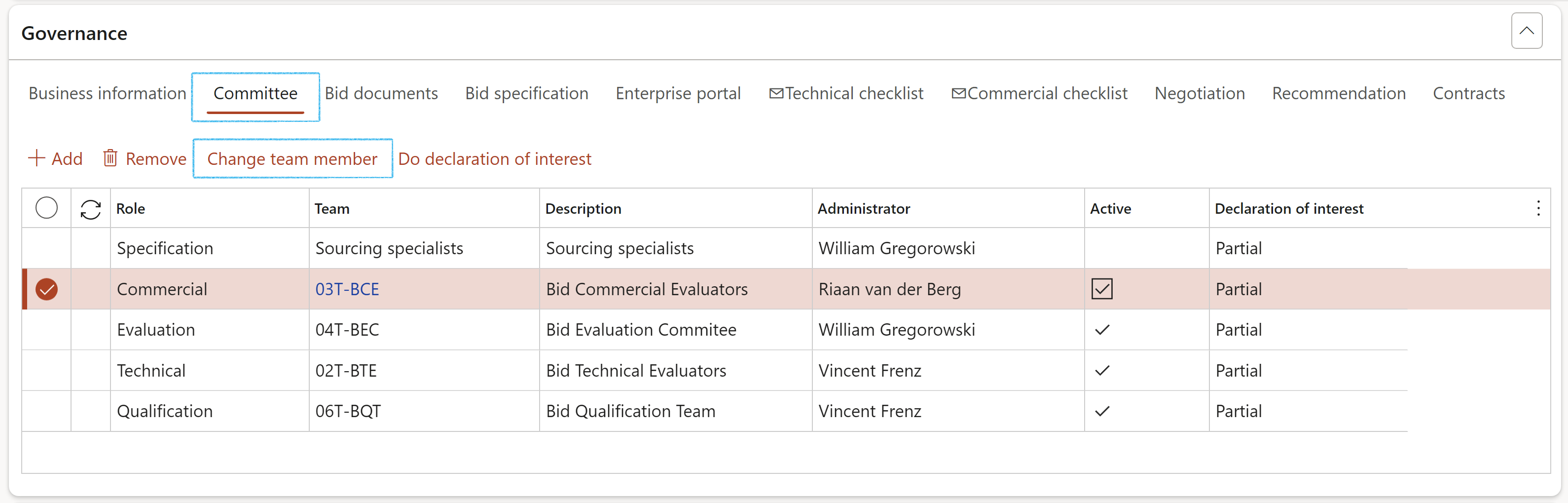
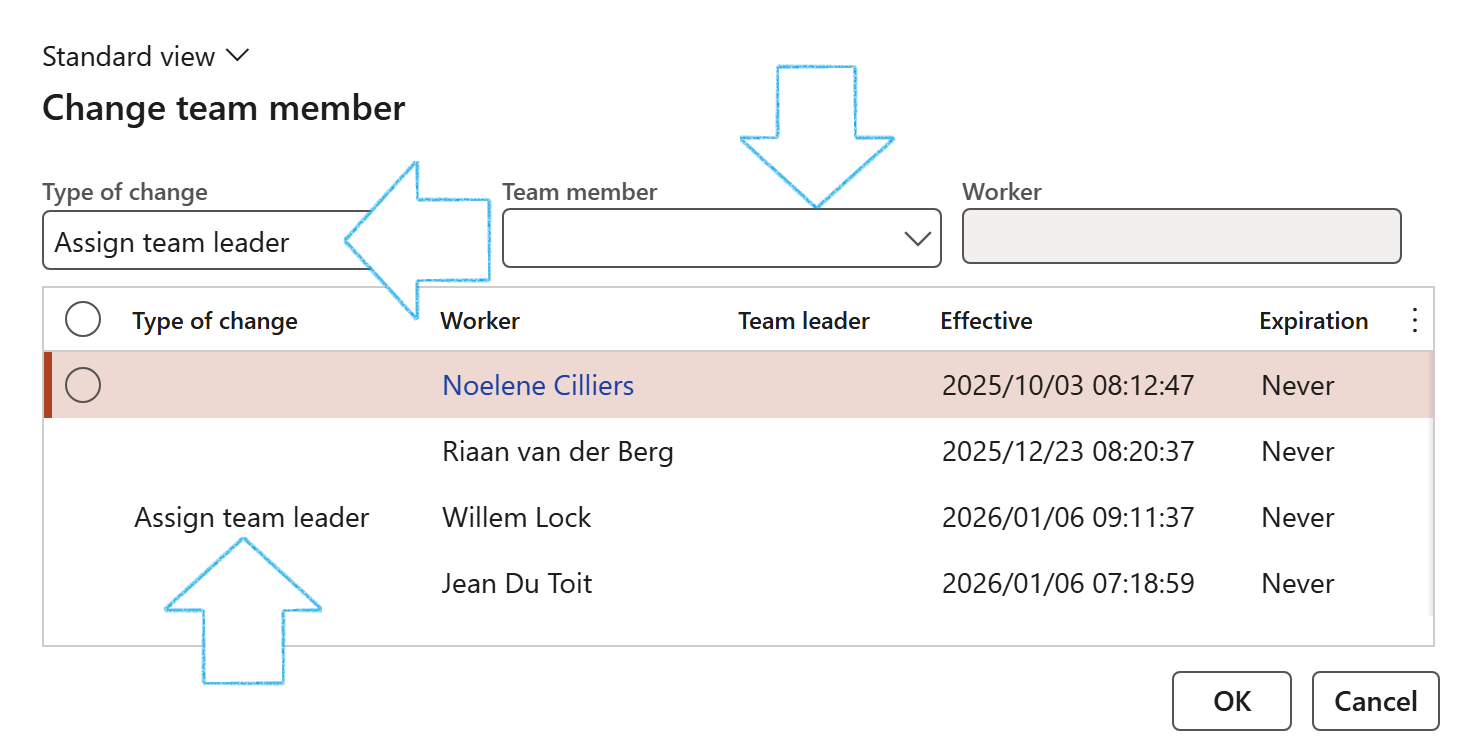
The Teams setup form will NOT be updated with changes made to a team on the Change team member dialog
The RFQ case ID will be added, in brackets, to the Team name
¶ Daily use - Single envelope opening
Single envelope opening implies that only Commercial evaluation will be done.
¶ Step 5: Opening the bid envelope
It is important to note that the Role selected for the committee has to be Commercial
If the Non-team member to open envelope slider on the Solicitation type is set to Yes, ONLY workers selected in the Envelope opener column in the Committee grid on the RFQ, can click on the Open envelopes button in the Action pane
Go to: GRC > Governance > Tender management > All requests for quotations
If the Commercial checklists must be created, a pop-up will appear to confirm that a Commercial team exists and that a checklist will be created for each team member, or only for the team leader.
A blue confirmation message will appear. The number on the right hand side is an indication of the number of checklists that were created. (Plus 1 for the envelope that was opened)
Example: If there are 2 Suppliers and 7 Commercial committee members, 14 Commercial checklists will be created

A sign off record will be created for all qualifying vendors under the Sign off Fast tab

The following buttons on the RFQ will be disabled until there is a Commercial envelope opening record under the Sign off Fast tab for each qualifying vendor: Manage replies, Totals, Overal pricing

The Compare replies button will only become available after vendors have repied
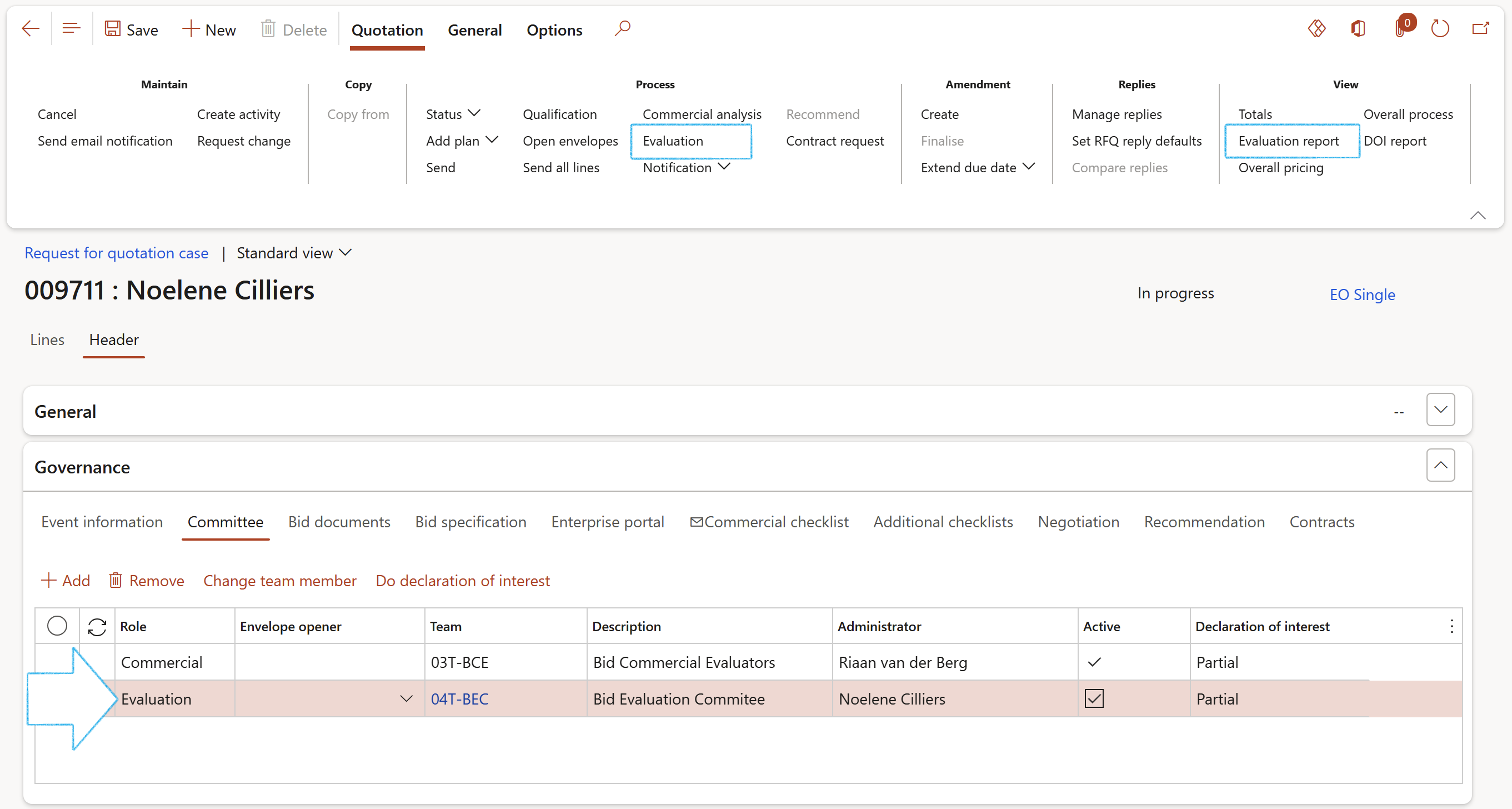
The Evaluation and Evaluation report buttons on the RFQ Action pane are only available:
¶ Step 6: Recording witnesses
Go to: GRC > Governance > Tender management > All requests for quotations
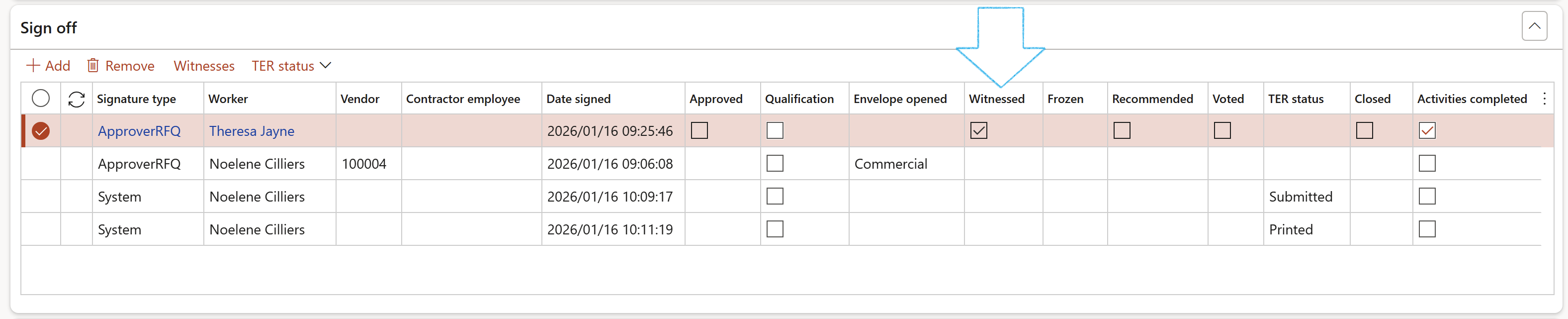
A record will be added under the Sign off Fast tab
¶ Step 7: View overall pricing
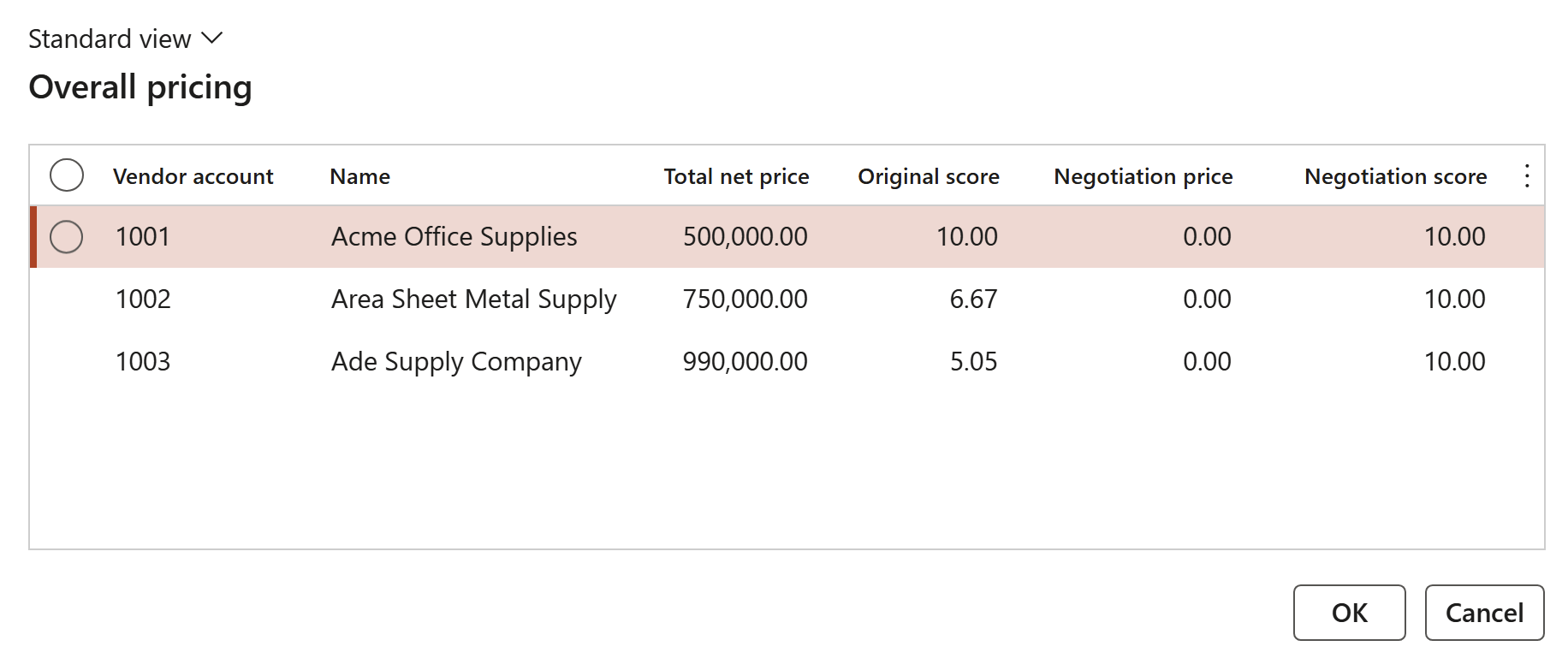
The user can view a summary of the overall pricing of all the bidding vendors by clicking on the Overall pricing button on the Action pane, in the View button group

¶ Step 8: Compare Vendor responses (optional)
Replies from suppliers can be compared as follows:

A warning will come up if a baseline contract does not exist on the selected solicitation type.
On the Compare request for quotation replies, a summary of the Header and Lines of the vendor’s quotes can be viewed
The accepting of a quote can also be done from the Manage replies form:
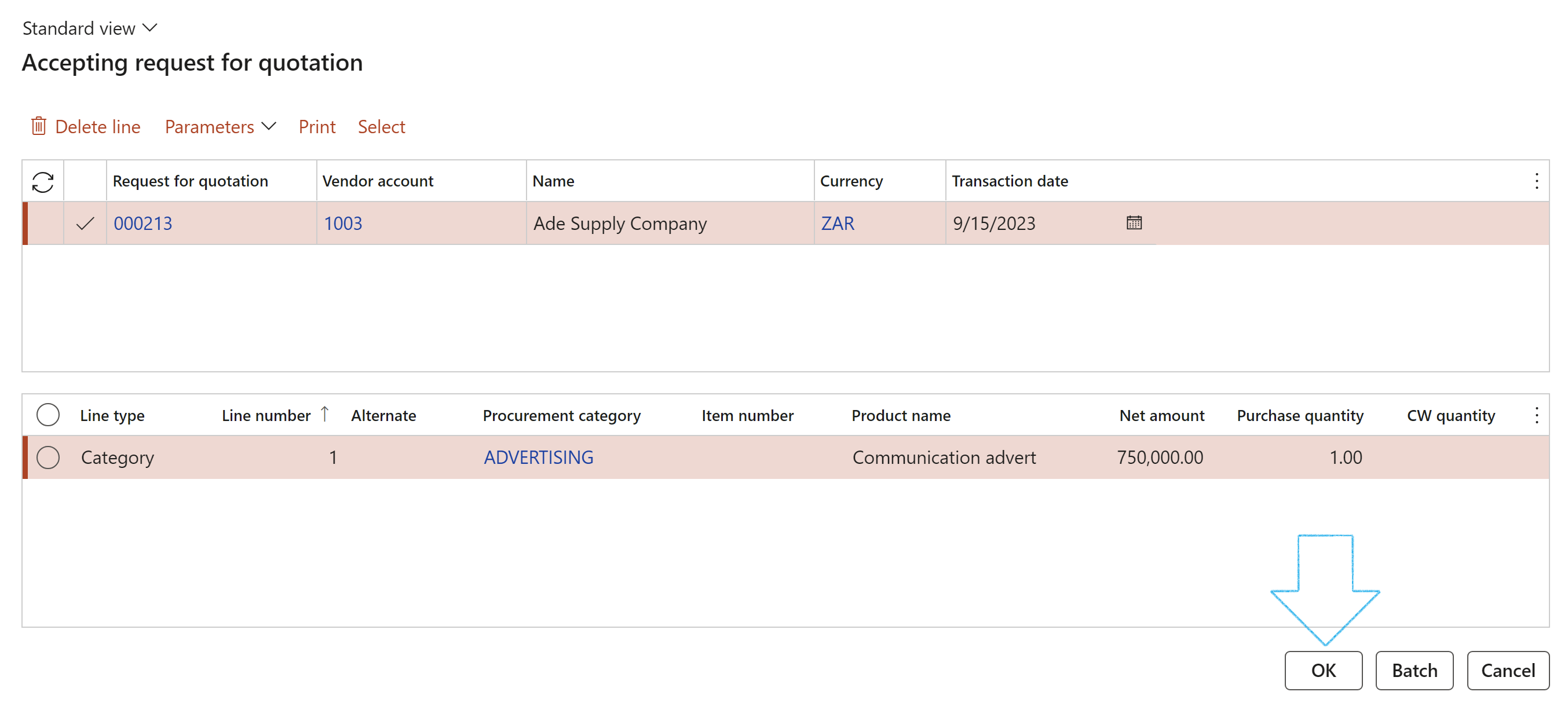
On acceptance of the RFQ, the Financial dimensions of the RFQ will be passed to the contract
After accepting the RFQ, the Rejecting request for quotation form will open with the RFQ details of the vendor(s) that was not accepted.
After accepting the vendor’s bid on the RFQ, the status of the Procurement plan will be updated to Awarded
¶ Daily use - Parallel envelope opening
If the Non-team member to open envelope slider on the Solicitation type is set to Yes, ONLY workers selected in the Envelope opener column in the Committee grid on the RFQ, can click on the Open envelopes button in the Action pane
¶ Step 5: Opening the bid envelopes
Go to: GRC > Governance > Tender management > All requests for quotations
If the Technical checklists must be created, a pop-up will appear to confirm that a Technical team exists and that a checklist will be created for each team member, or only for the team leader.
A blue confirmation message will appear. The number on the right hand side is an indication of the number of checklists that were created. (Plus 1 for the envelope that was opened)
Example: If there are 2 Suppliers and 7 Technical committee members, 14 Technical checklists will be created
A sign off record will be created for all qualifying vendors under the Sign off Fast tab

Workers or vendors that winessed the envelope opening can be added under the Sign off Fast tab. Refer to Step 6 under Daily use - Single envelope opening
For Parallel envelope opening, both Technical and Commercial envelopes can be opened before any scoring is done
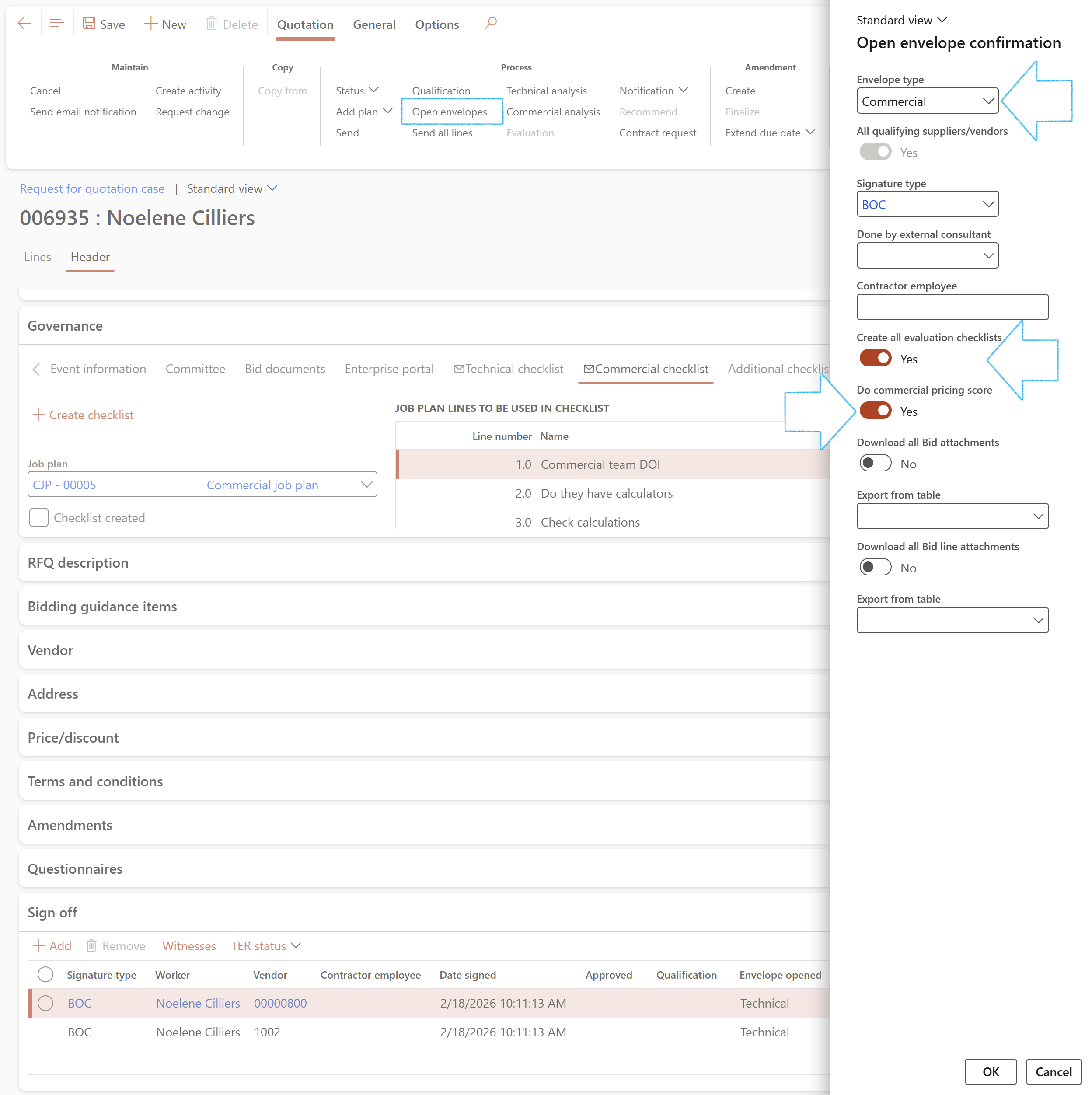
If the checklists must be created, a pop-up will appear to confirm that an evaluation team exists and that a checklist will be created for each team member, or only for the team leader.
A blue confirmation message will appear. The number on the right hand side is an indication of the number of checklists that were created. (Plus 1 for the envelope that was opened)
A sign off record will be created for all qualifying vendors under the Sign off Fast tab

The following buttons on the RFQ will be disabled until there is a Commercial envelope opening record under the Sign off Fast tab for each qualifying vendor: Manage replies, Totals, Overal pricing
The Compare replies button will only become available after vendors have repied
The Evaluation and Evaluation report buttons on the RFQ Action pane are only available:
For viewing the Overall pricing, refer to Step 7 under Daily use - Single envelope opening
¶ Daily use - Sequential envelope opening
If the Non-team member to open envelope slider on the Solicitation type is set to Yes, ONLY workers selected in the Envelope opener column in the Committee grid on the RFQ, can click on the Open envelopes button in the Action pane
¶ Step 5: Opening the bid envelopes
¶ Step 5.1: Opening the Technical envelopes
Go to: GRC > Governance > Tender management > All requests for quotations
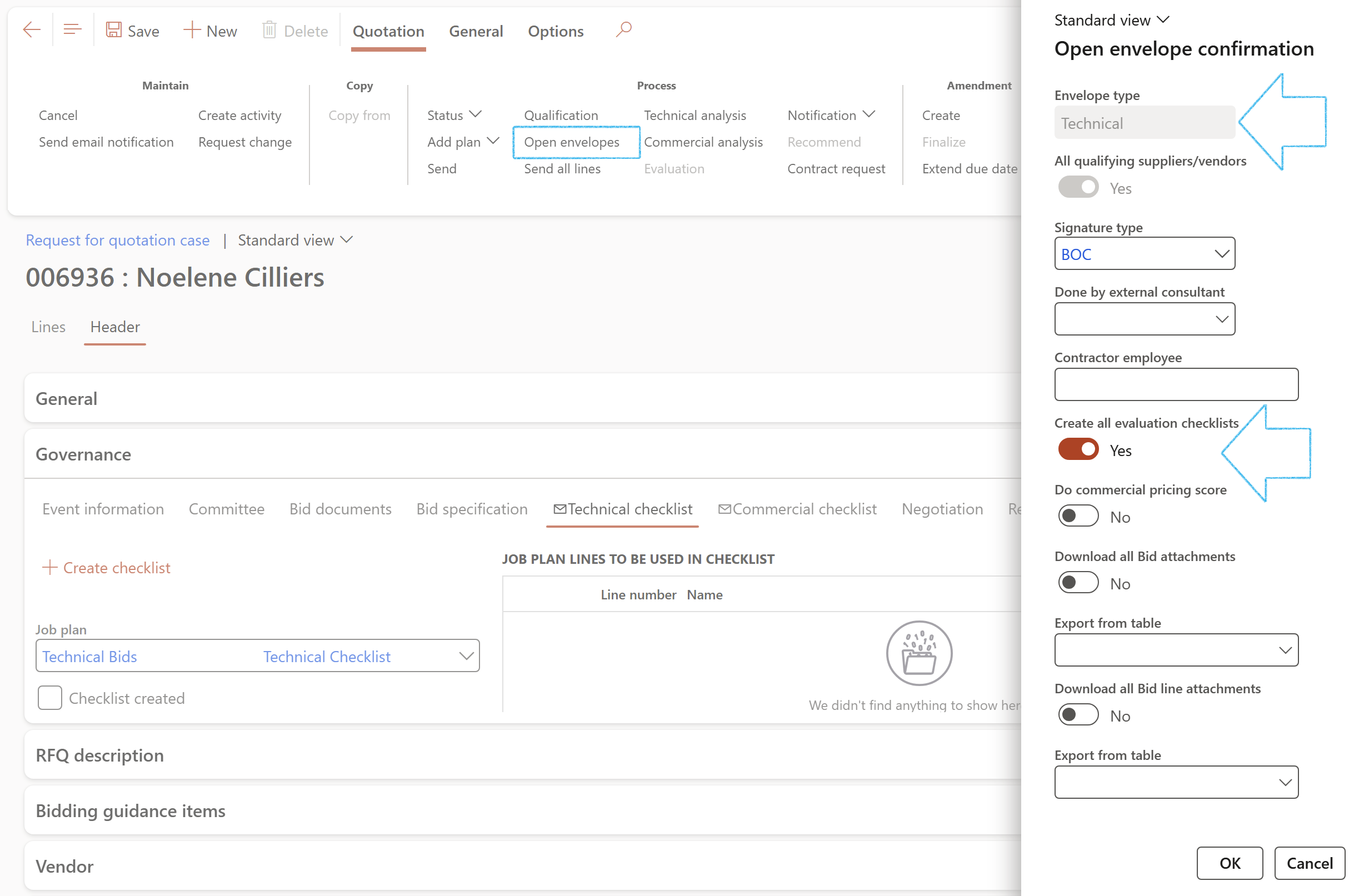
If the Technical checklists must be created, a pop-up will appear to confirm that a Technical team exists and that a checklist will be created for each team member, or only for the team leader.
A blue confirmation message will appear. The number on the right hand side is an indication of the number of checklists that were created. (Plus 1 for the envelope that was opened)
Example: If there are 2 Suppliers and 2 Technical committee members, 4 Technical checklists will be created

A sign off record will be created for all qualifying vendors under the Sign off Fast tab

Workers or vendors that winessed the envelope opening can be added under the Sign off Fast tab. Refer to Step 6 under Daily use - Single envelope opening
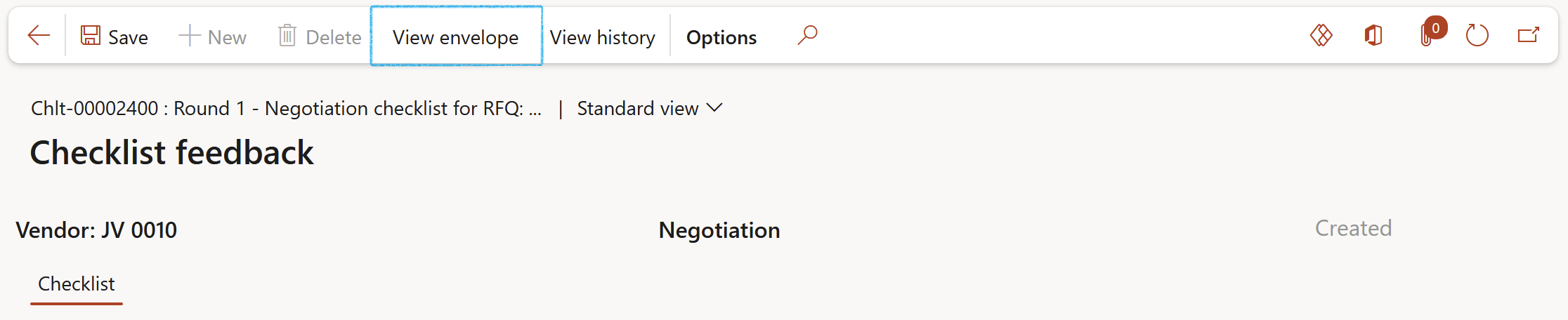
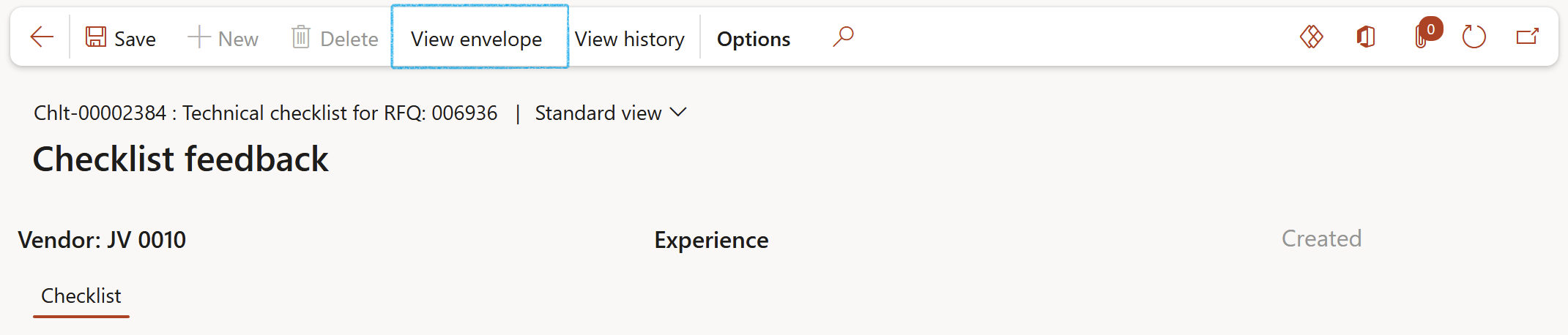
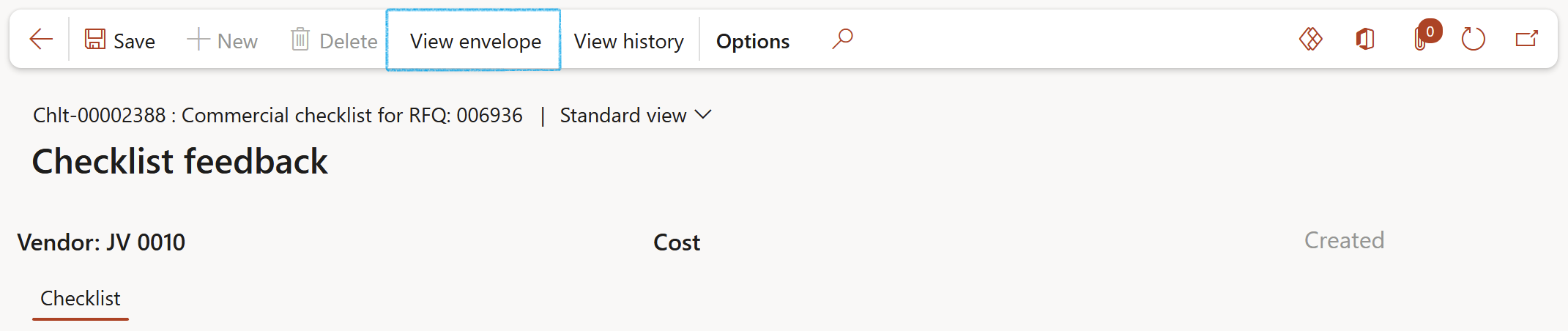
Once the envelopes have been opened, the View envelope button on the Checklist feedback form, will be available
The Overall pricing button will be hidden, and the Compare replies and Evaluation report buttons on the RFQ Action pane will be disabled until there is a Commercial envelope opening record under the Sign off Fast tab for each qualifying vendor.

The Manage replies button will be disabled until there is a Technical envelope opening record under the Sign off Fast tab for each qualifying vendor
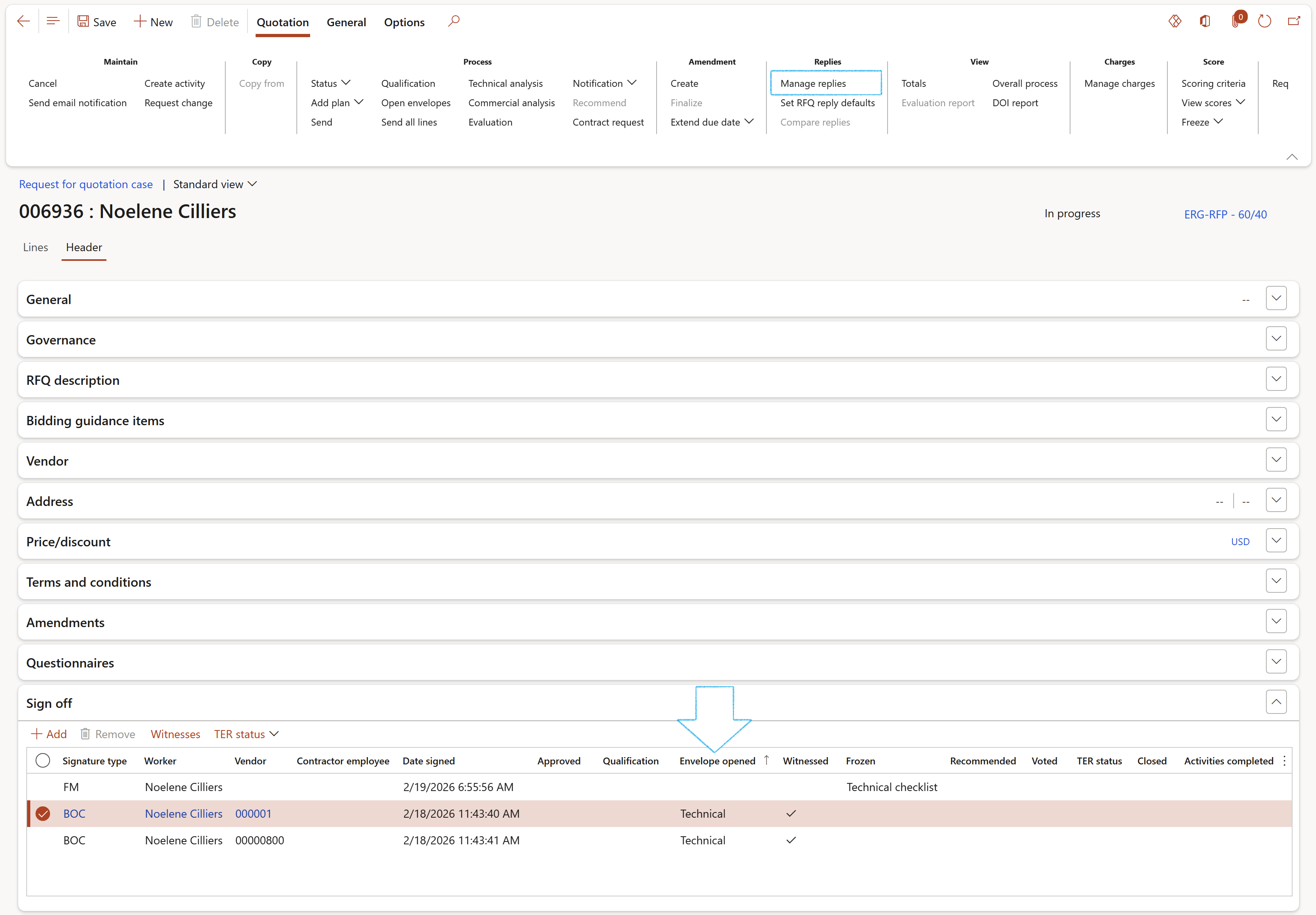
The following is not visible on the Manage replies until the Commercial envelopes are opened:
Under the Lines:
Under the Header:
¶ Step 5.2: Opening the Commercial envelopes
The following is assumed:

If the checklists must be created, a pop-up will appear to confirm that an evaluation team exists and that a checklist will be created for each team member, or only for the team leader.
A blue confirmation message will appear. The number on the right hand side is an indication of the number of checklists that were created. (Plus 1 for the envelope that was opened)
A sign off record will be created for all qualifying vendors under the Sign off Fast tab
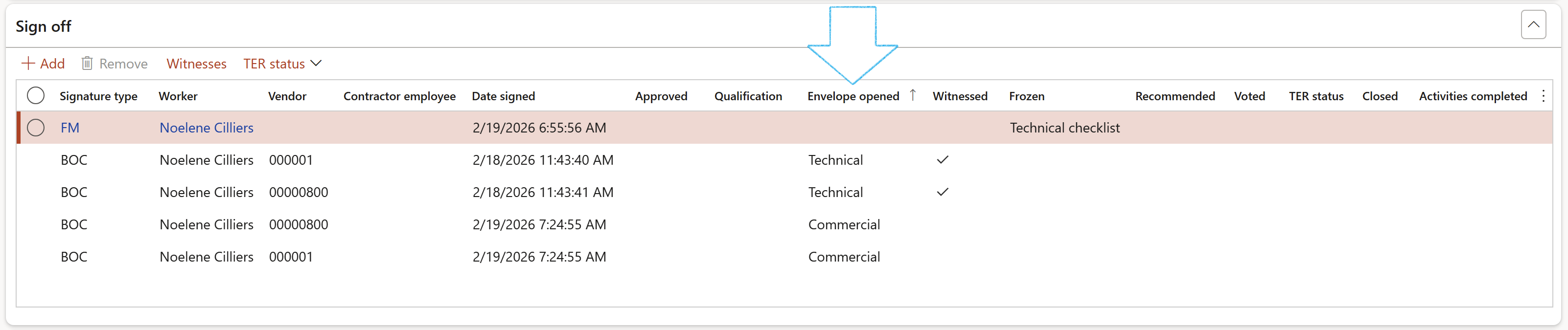
Workers or vendors that winessed the envelope opening can be added under the Sign off Fast tab. Refer to Step 6 under Daily use - Single envelope opening
Once the envelopes have been opened, the View envelope button on the Checklist feedback form, will be available
Refer to the Tender management Wiki page for evaluation of checklists and freezing of scores
For viewing the Overall pricing, refer to Step 7 under Daily use - Single envelope opening
¶ Daily use - Negotiation envelope opening
¶ Step 5: Open the negotiation envelopes
The Negotiation envelopes can be opened:
¶ Step 5.1: Header level negotiations
On the Solicitation type, the Negotiation level is specified as Header
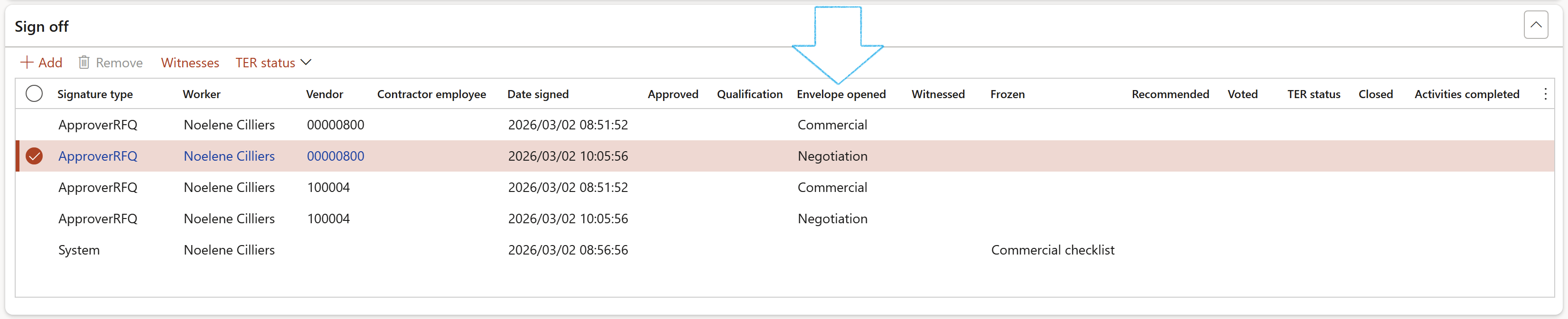
A blue confirmation message that an envelope was opened, will appear at the top of the screen
A sign off record will be created for all vendors under the Sign off Fast tab
¶ Step 5.2: Line level negotiations
On the Solicitation type, the Negotiation level is specified as Line
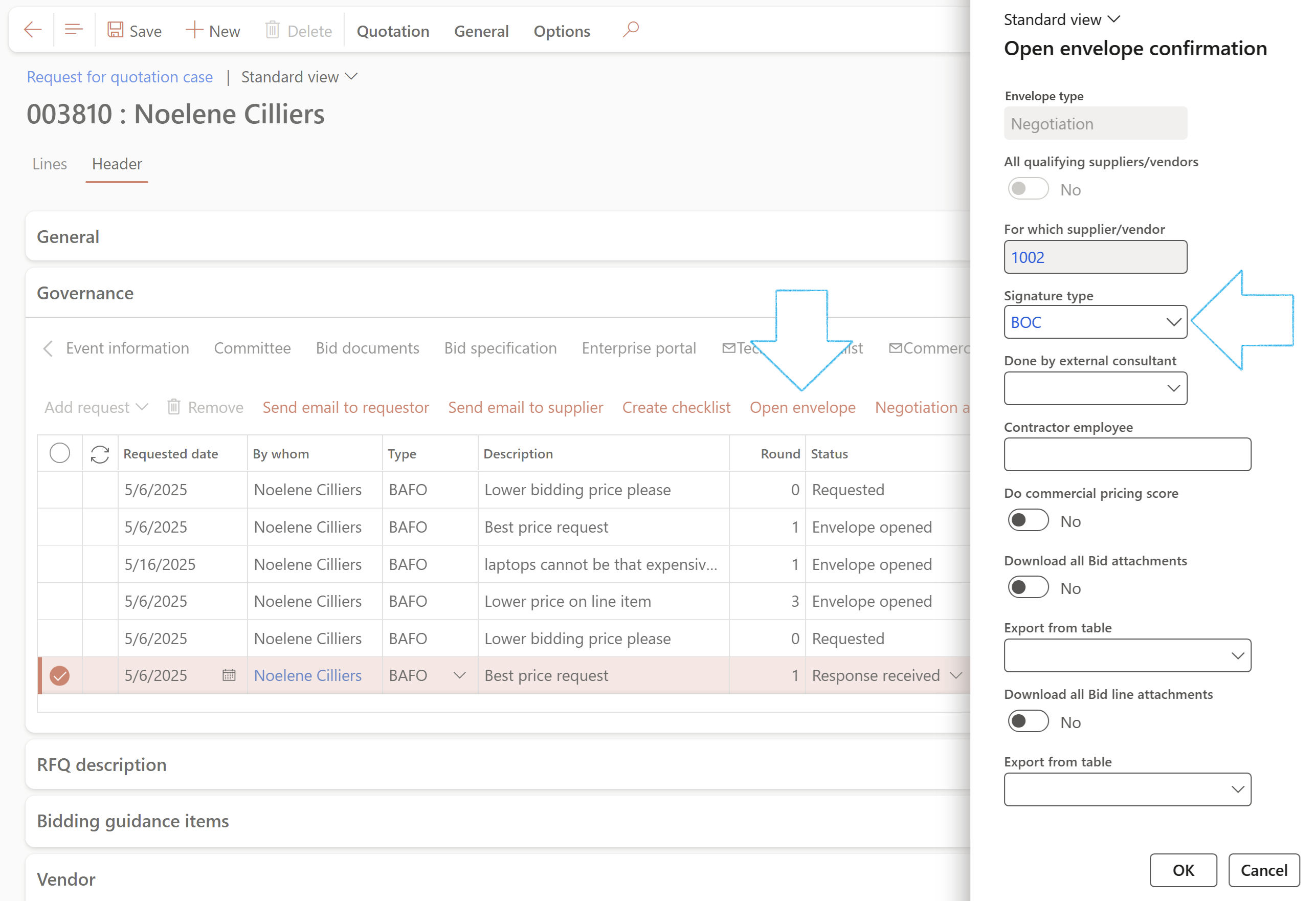
If the Negotiation checklists were created, blue confirmation messages will appear. The number on the right hand side is an indication of the number of checklists that were created. (Plus 1 for the envelope that was opened)
A record will be created under the Sign off Fast tab
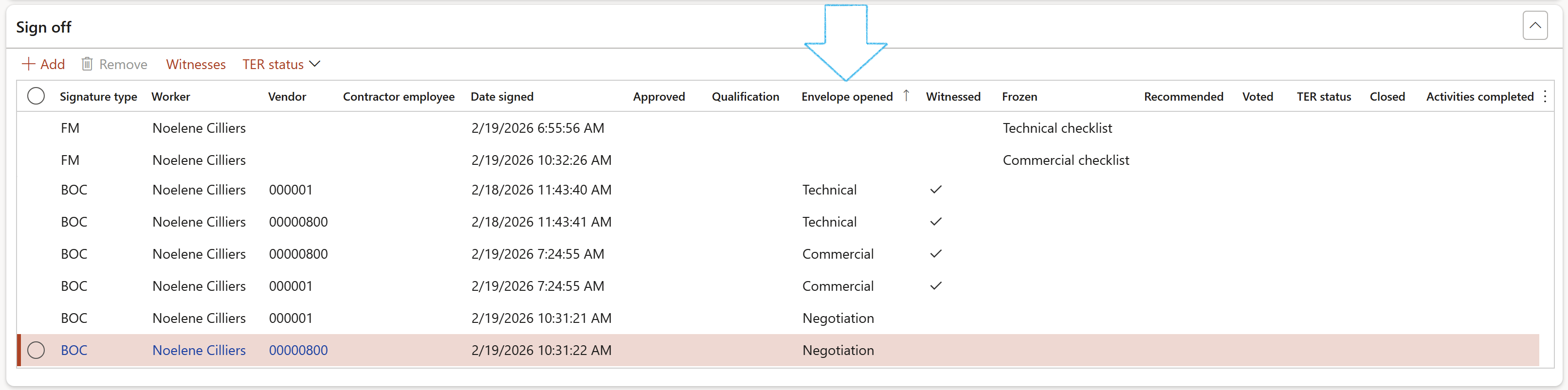
Workers or vendors that winessed the envelope opening can be added under the Sign off Fast tab. Refer to Step 6 under Daily use - Single envelope opening
Once the envelopes have been opened, the View envelope button on the Checklist feedback form, will be available