¶ Introduction
Case management software is sofware that allows companies to organize information and data related to their cases. For example, case management software helps companies track daily tasks, client contact information and billings. It also lets them communicate with clients and merge case information. The platforms can also manage, store and track legal cases and records such as intakes, documents and events. in short: "an issue that requires a resolution"!
Advanced case management is used to record, update, track, follow up on and close issues raised by Workers and/or Customers. An explicit focus is placed on confidentiality and cases of type; forensic, legal and audit.
Cases can be used within multiple modules of D365 Finance and Operations such as Customer service, Purchasing and receiving, Human resources and payroll, Auditing and Collections. Via GRC it also extends to Medicals (occupational health) as well as Treasury (creation of loans & investments).
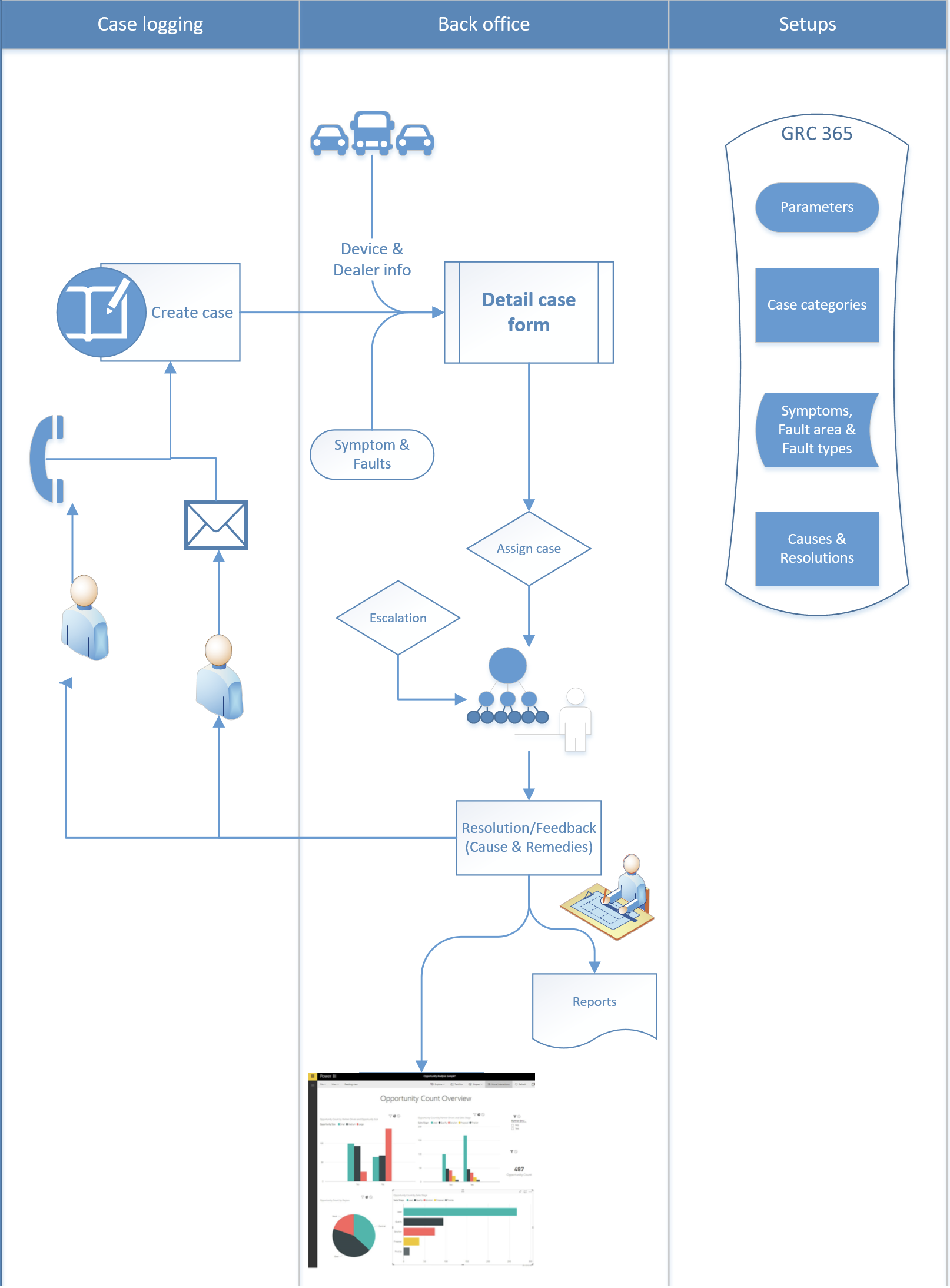
- Cases will originate from the Dealerships; the dealer is seen as the customer who logs the case. The actual customer using the machine on site will never log a Case, it will always originate from the Dealership. The call would be received via telephone call or an email that is typed into D365 Case management. Later on, as a separate phase we can look at using Email-to-case. Where an email is automatically converted into a case via the Axnosis developed ticket 365 (T365).
- Cases must automatically be assigned to the Responsible person based on Model group and Machine. There is a predefined list for this assignment.
- After a Case has been created, the fields must not be open for editing nor must the Case be deleted in any way. The Case must be cancelled and re-created if needs be.
- An Email of the newly created Case will be sent (manually from inside D365) to the Responsible person if the Created by differs from the Responsible person.
- Case resolution time -> Case date/time created until Case date/time closed.
- First response time -> Case date/time created until 1stActivity date/time logged against the Case.
- For proper reporting and “case performance” it is essential that users do proper feedback by logging symptoms, faults, causes and resolutions.
- Possible later use of Portal for dealers to load new Cases themselves, but as this will attract additional user license costs, we strongly advise to use the Email-to-case module.
¶ Navigation
¶ Specific setups
These are required and will be covered below:
- GRC parameters
- Organization email templates
- Priority
- Case categories
- Case processes
- Asset management
¶ Step 1: GRC parameters
Axnosis has increased case management functionality as part of its Governance, Risk and Compliance suite. As an extension to quality management, Advanced case management has been added.
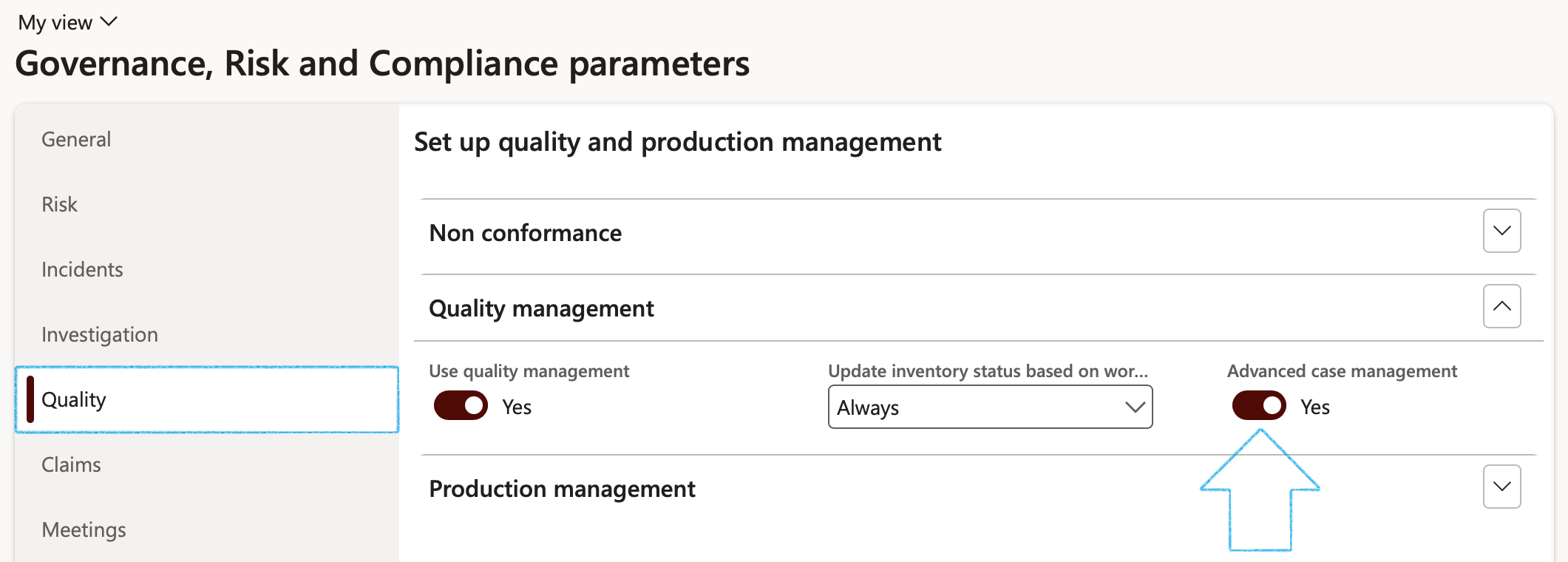
Go to: GRC > Setup > Governance, risk and compliance parameters
- Open the Quality tab
- Expand the Quality management Fast tab
- Enable Advanced case management
If Advanced case management is not enabled, the Feedback, Escalation and RACI Fast tabs on the Case form will be hidden
¶ Step 2: Setup email templates
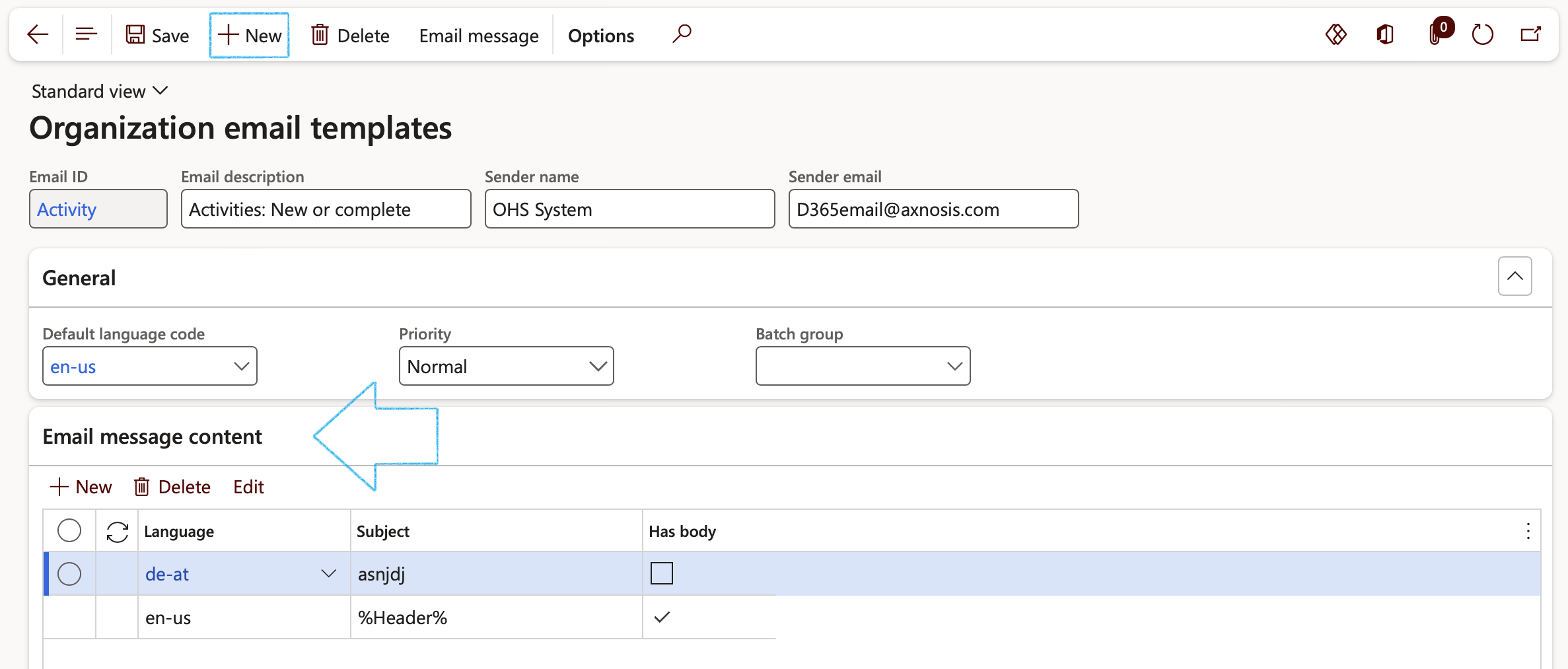
Email notification is a function in Dynamics 365 FO to auto send email messages based on triggers. This received notification enables the email recipient to open Dynamics 365 FO through a link in the email body. These emails are based on templates with %placeholders%.
In Dynamics 365 FO you can set up Email templates for sending email notifications for Retail orders, workflows, alerts, etc. Often these emails need to include some dynamic information, and this can be achieved using placeholders.
Go to: Organization administration > Setup > Organization email templates
Go to: GRC > Setup > Governance, risk and compliance parameters
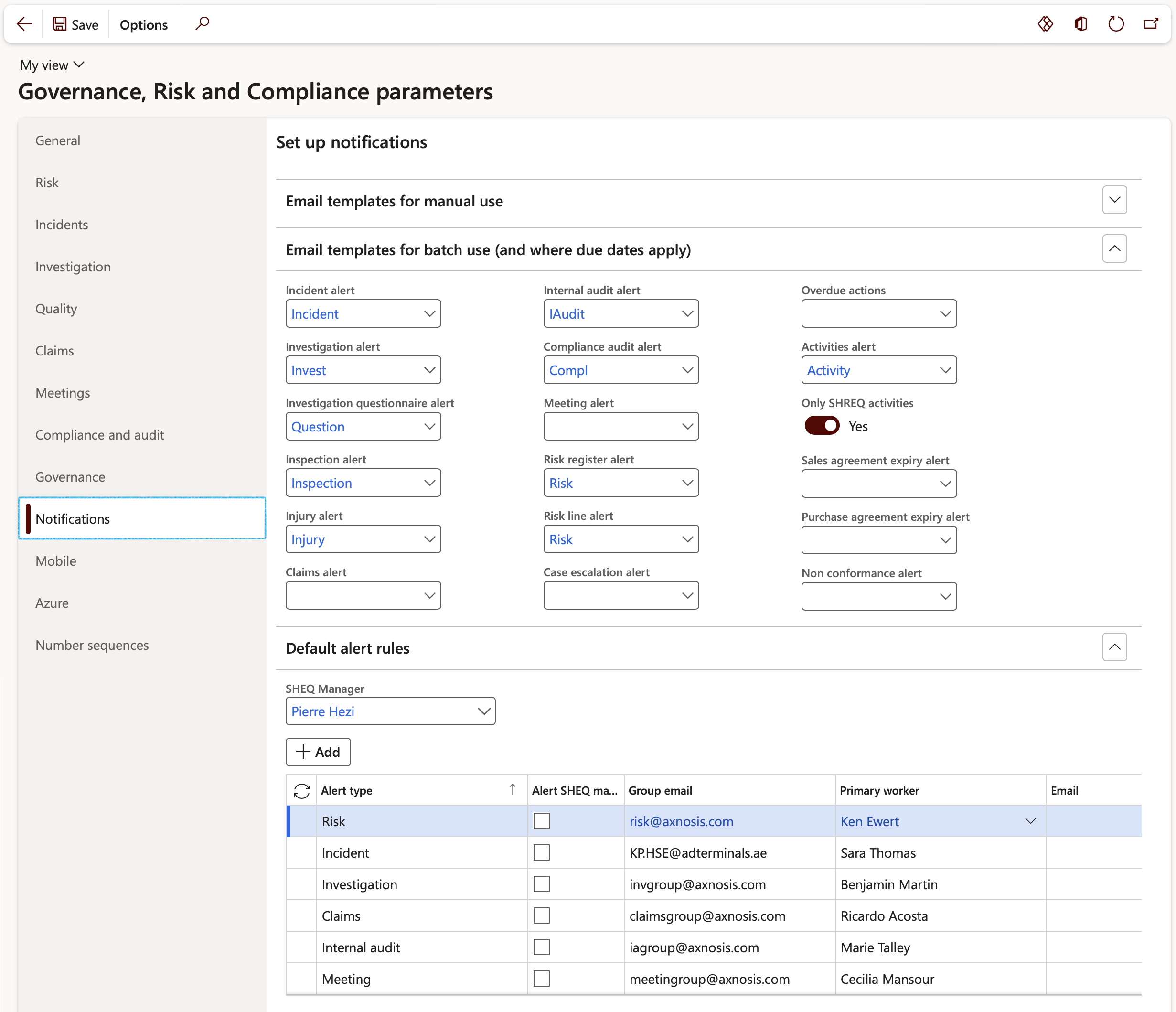
- On the Notifications tab for the Auto escalation – enter the default email address to be used as well as the email template
¶ Step 3: Setup email integration destination
Go to: System administration > Setup > Email > Email integration destination
- Click on the New button
- xxxxxxxxxxxxx
¶ Step 4: Setup Priority
Teams are a collection of workers (and system users) who are getting together for a temporary assignment, for example a bid adjudication committee.
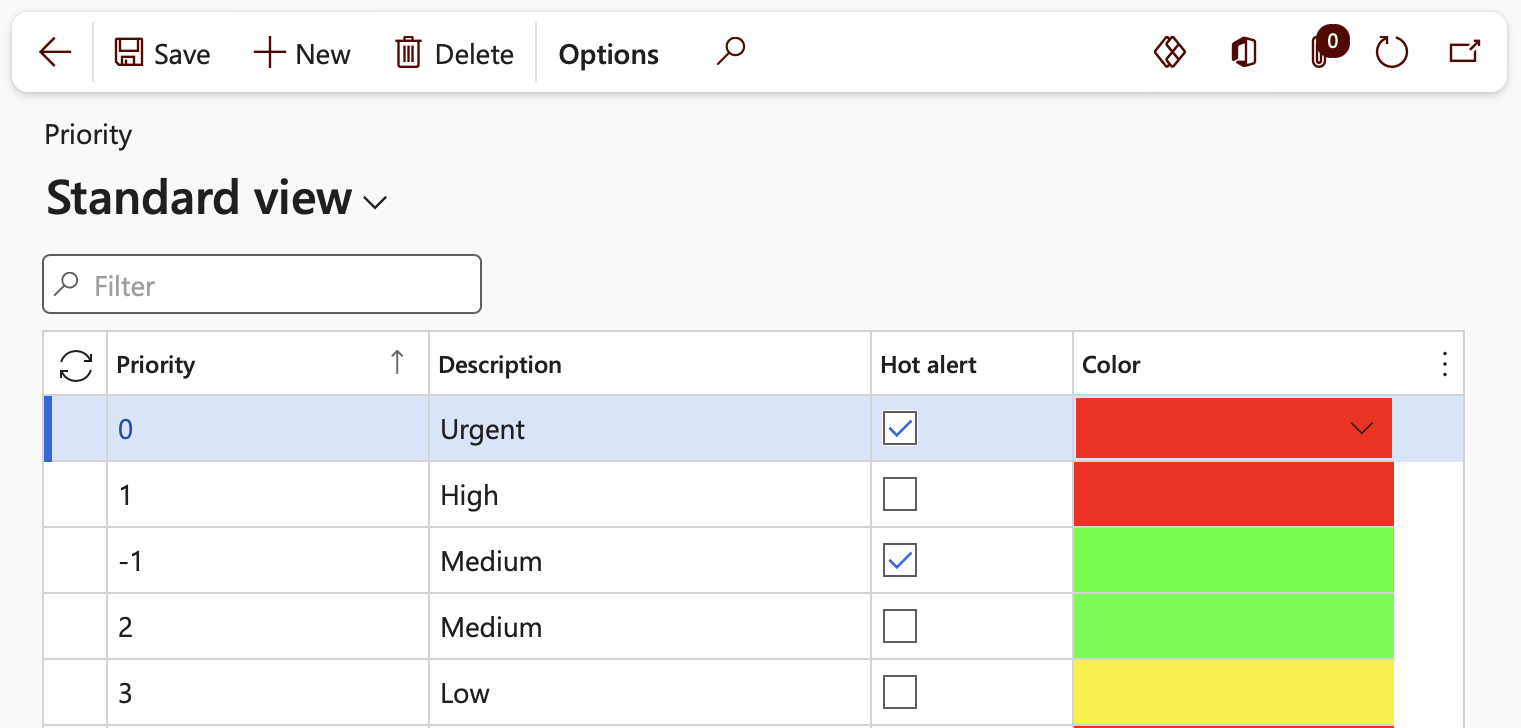
Enter a code or name for the priority of a lead record. For example, you can define High, Medium and Lowpriorities for a case, or Critical, Emergency, High impact, Medium Impact or Low impact.
Go to: GRC > Governance > Setup for governance > Priority
¶ Step 5: Setup Case processes
Processes help guarantee consistency in cases, and also help employees resolve cases faster and more efficiently. You can set up a process for each case category that cases are assigned to. Although planning a separate process for each case type takes time, case resolution will go much more smoothly if the processes are planned out.
Go to: Organization administration > Setup > Cases > Case processes
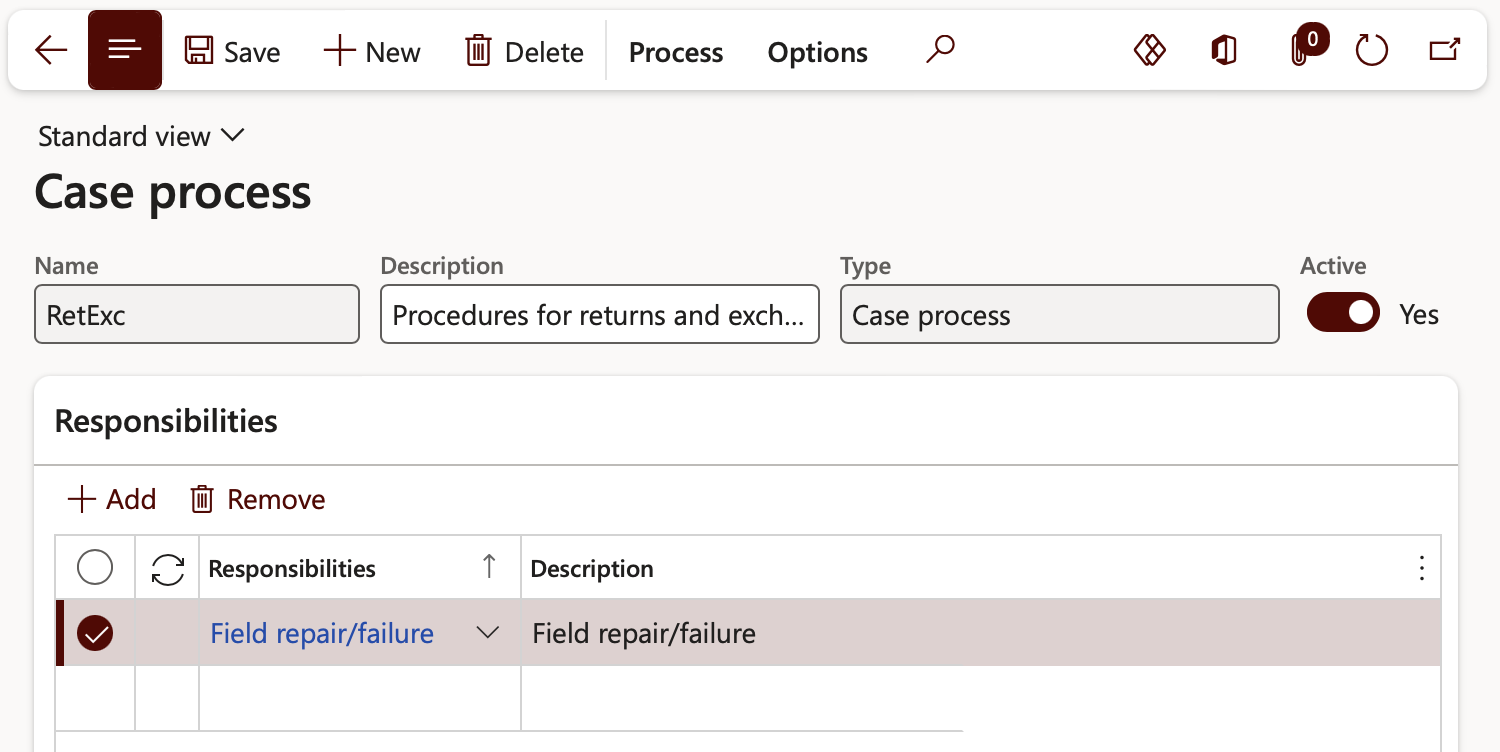
- Enter a Case name, Description and Case type
- Define Responsibilities. These responsibilities determine which Departments or sub-departments will have a role in the case process.
Three levels are displayed in the Process tree Fact box:
1. Case processes: There should be a one-to-one relationship between a Case category and a Case process. The same Case process can be used across multiple categories; it may make sense to do so if you would like to segregate similar cases by department for reporting purposes.
2. Case levels: The various stages in a case process are defined as levels. Within these levels, multiple default activities can be assigned. Depending on the importance and flow of the case, these activities can be set as required, which forces the user to complete that activity before moving on in the case. Notes can also be added about what must be done.
- In the Action pane, open the Process tab and click on the Details button
3. Case activities: Within a case level, default activities can be assigned that are commonly completed during a case. The choices for activities include appointments, tasks, action items, and events. Once again, these activities can be assigned to specific members of an organization, which can then be placed into a work queue. Once the case is opened, activities can always be added on the fly to any case level.
¶ Step 6: Setup Case categories
When designing a case hierarchy for your business, the first step is determining how each business process will fall into Case categories. Think of Case categories as a tiered structure in which your ad-hoc business processes can be centralized. For example, categories can be broken down at the highest level into 3 categories: Assets, Audit and Contracts. This is a simple example, but cases can be used across a variety of functional business departments (for example General, Service, Collections).
As and when cases are created users can and should point to the exact issue (and possible sub-issue) at hand.
¶ Step 6.1: Setup Issues and sub-issues for categories
Go to: Organisation administration > Setup > Cases > Case issue
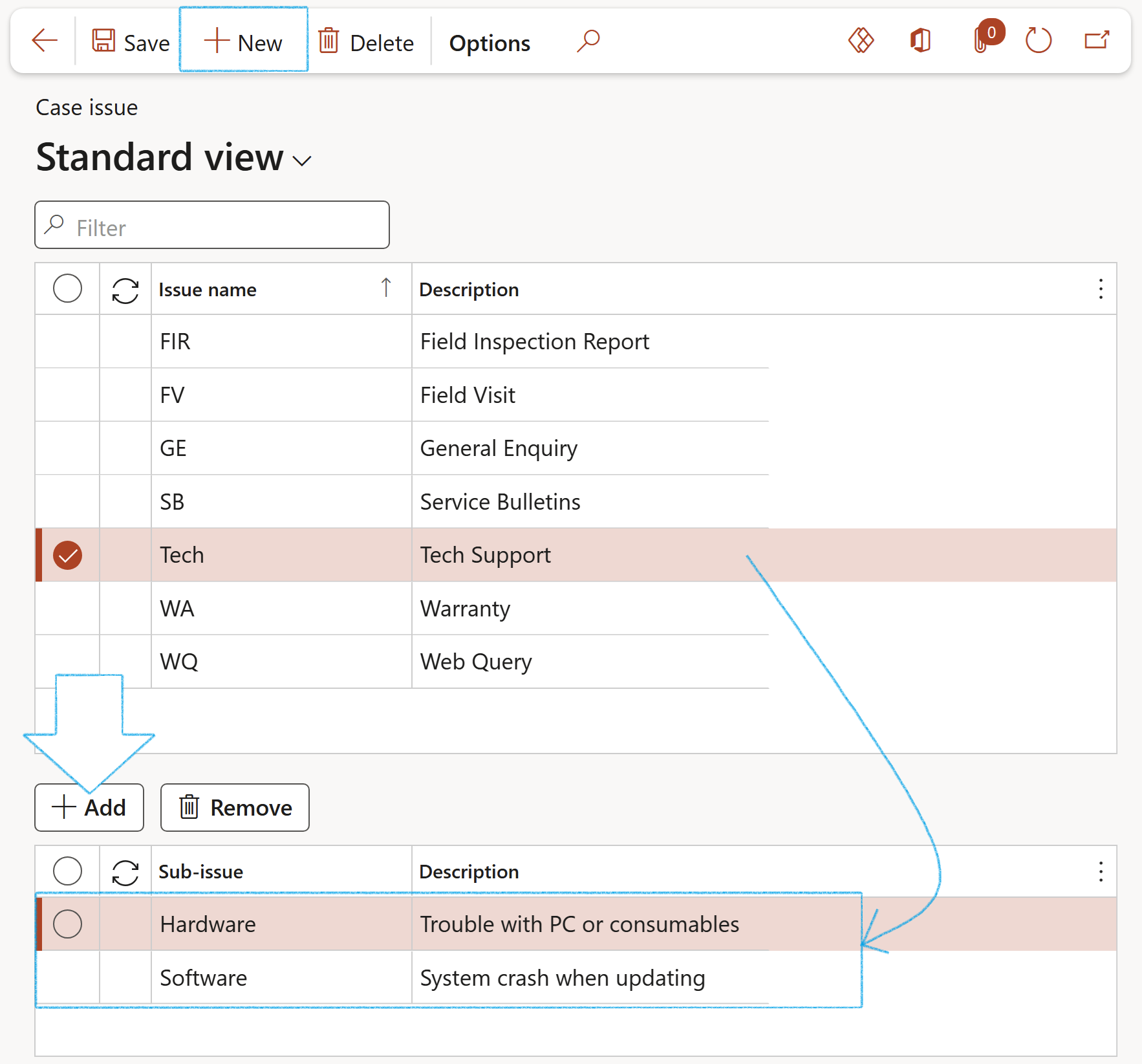
- In the Action pane, click on the New button
- Enter an Issue name
- Enter a brief Description for the Issue name
- Then create Sub-issues relating to the main issue by clicking on the Add button in the bottom half of the form
¶ Step 6.2: Configure Activity rules
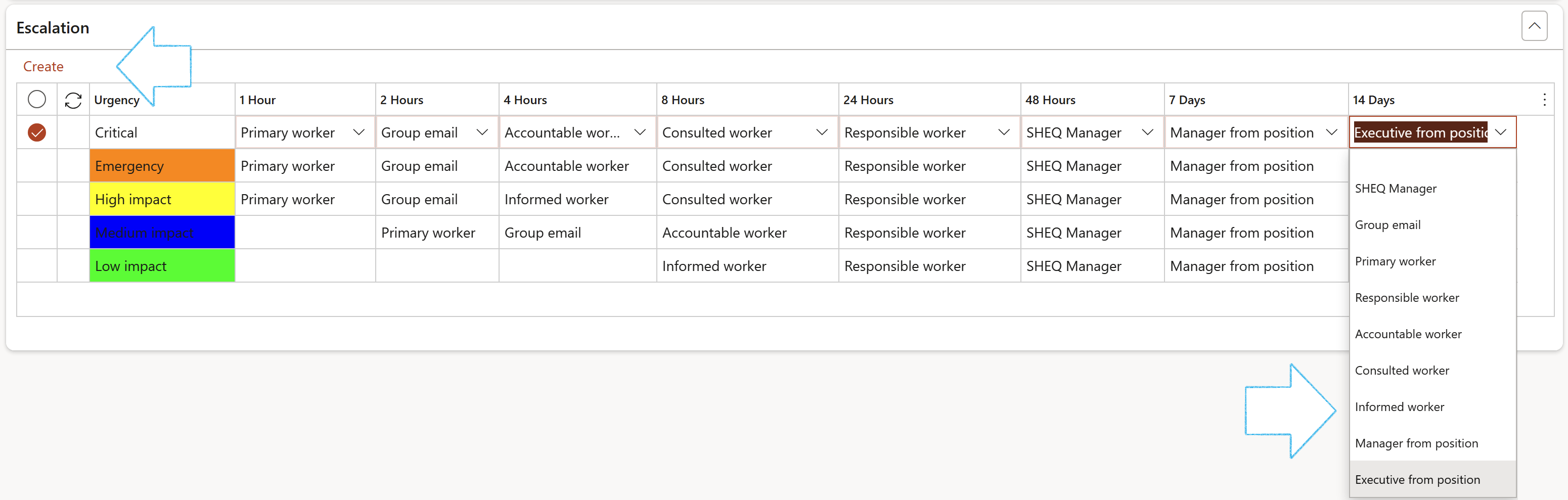
¶ Step 6.3: Setup Escalations
Go to: GRC > Governance > Setup for governance > Case categories
- Select the relevant Case category
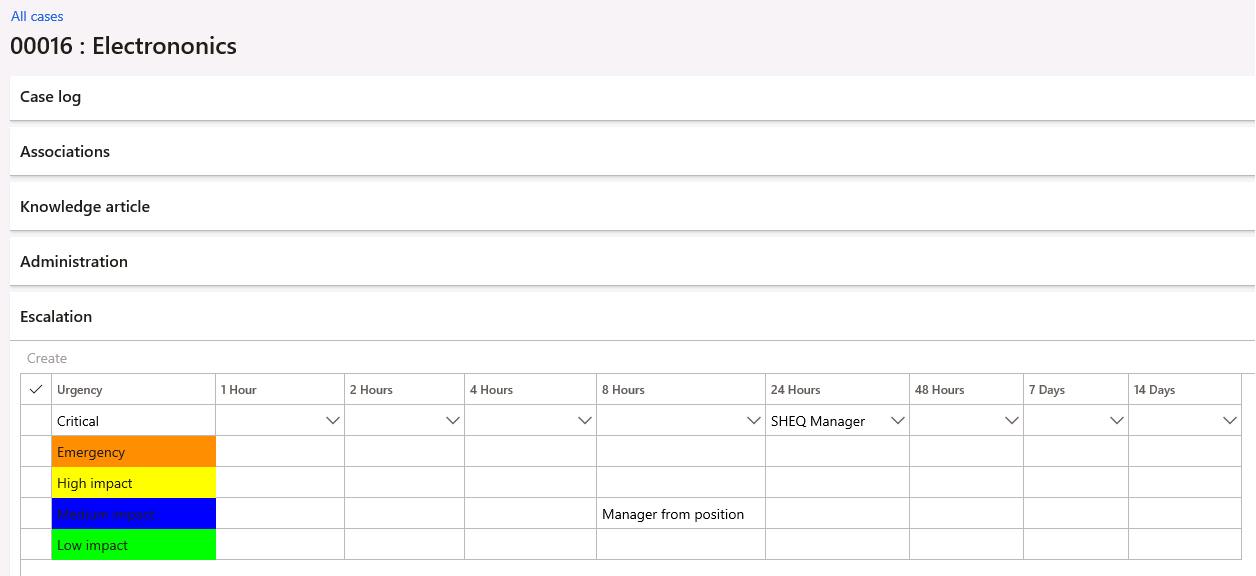
- Expand the Escalation Fast tab
- Click on the Create button
- For each level of urgency, select the relevant worker/email to escalate to
¶ Step 7: Setup Service level agreements
In order to create the right urgency and provide proper expectations of when a task (or stage) should be completed, service level agreements are used. They are used on case categories and can be created as a default or manually entered on an individual case basis.
Go to: Service management > Setup > Service agreements > Service level agreements
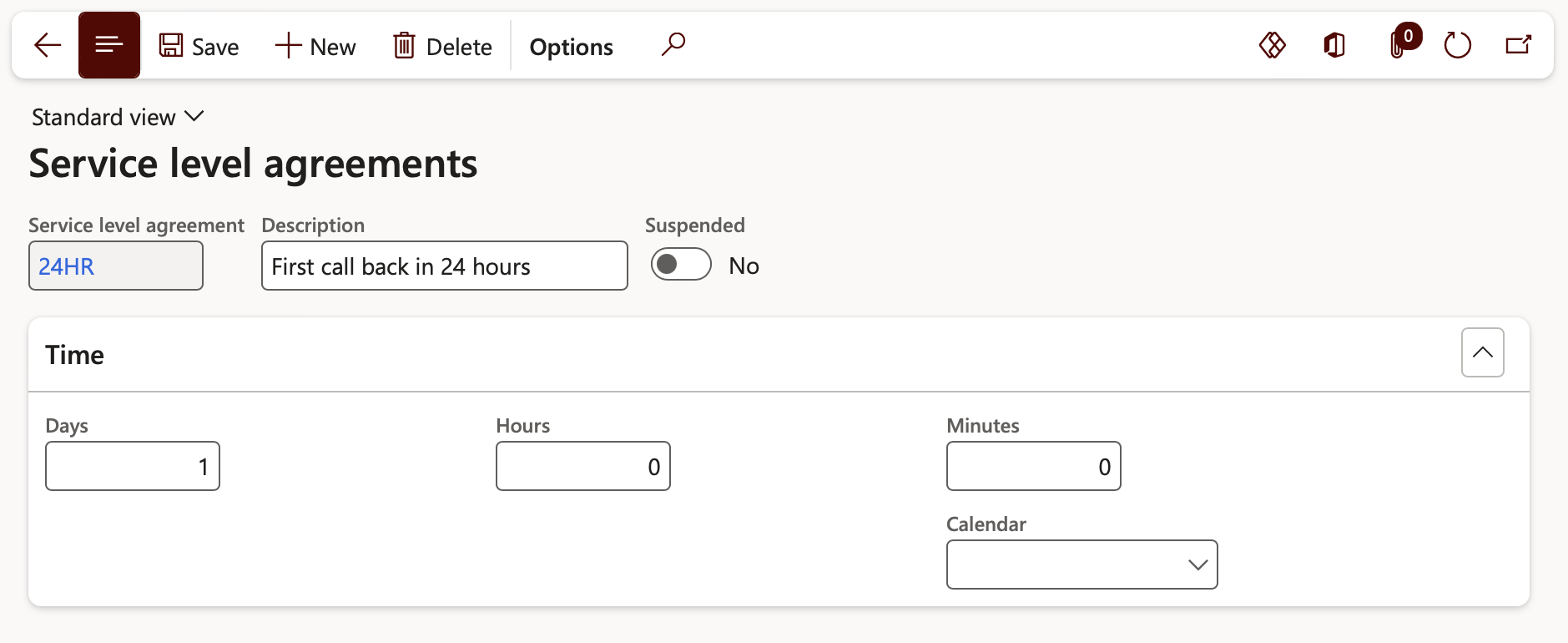
This is the preliminary setup. The previous steps was to set up a case process on how you want a process to be handled
¶ Step 8: Setup for use in asset management
¶ Step 8.1: Rules on assigning a person/team
Go to: GRC > Governance > Setup for governance > Case categories
- select Asset management Case category
- Expand the Worker assignment Fast tab
- Click on the Add button
- Select the relevant Asset type from the dropdown list
- Select the relevant worker in the Allocation field
- Select the relevant Team from the dropdown list

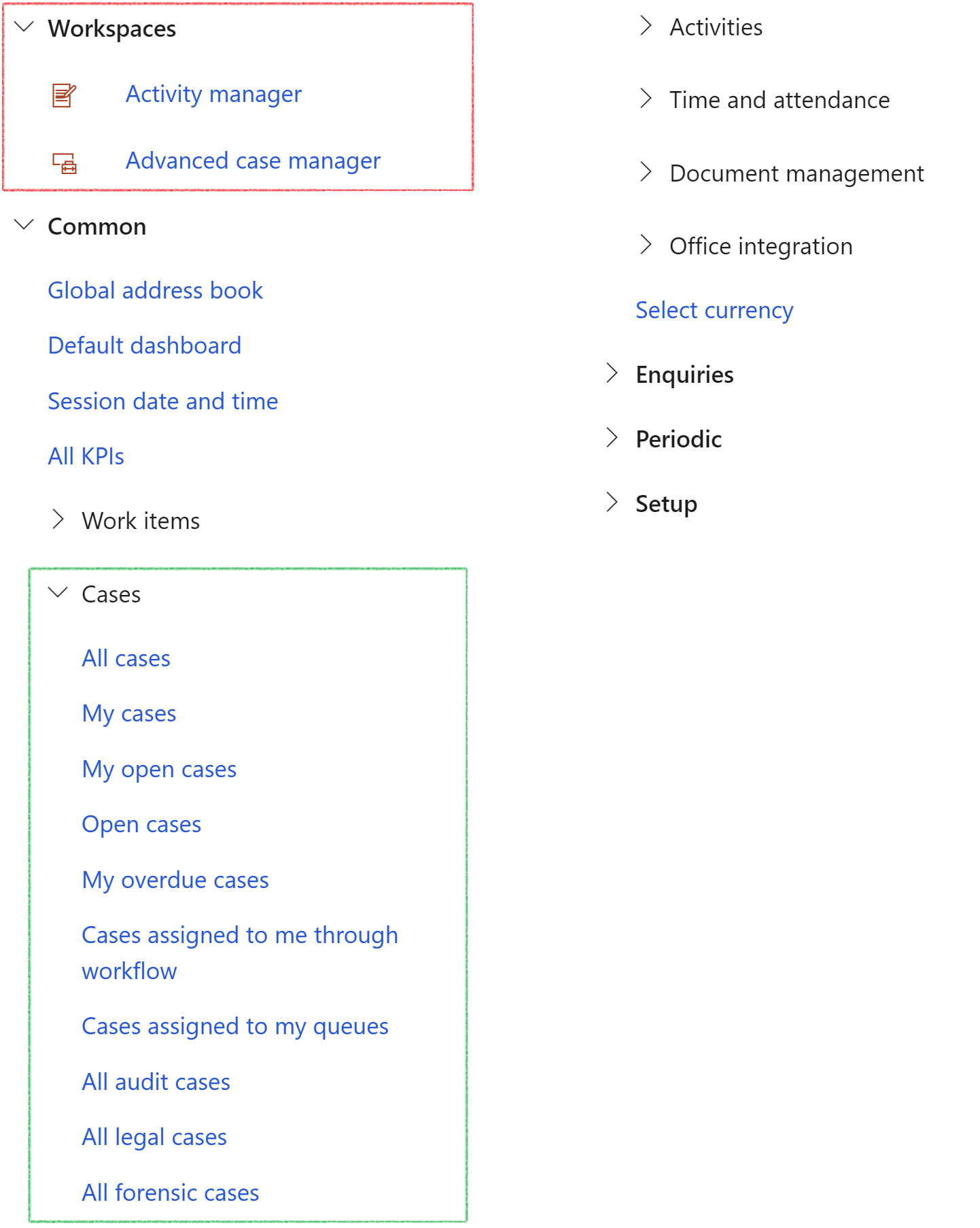
Cases are grouped according to the Category type, and can be found under specific menu items. E.g. All audit cases
Axnosis uses the following Case category types:
- Contracts, Documents
- Internal audit, Legal
- Forensic, Asset management
- Treasury, LIMS
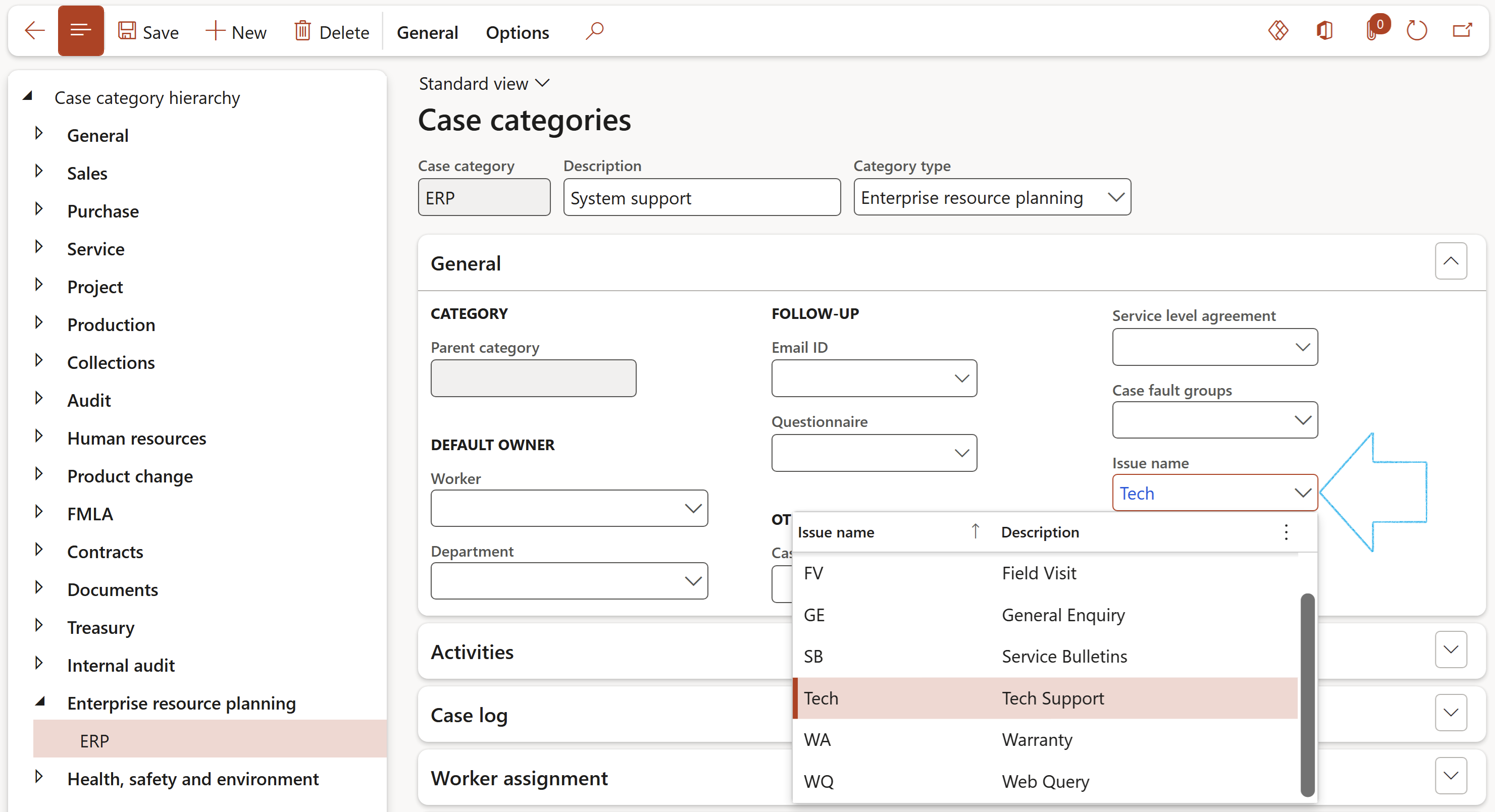
- Expand the General Fast tab
- Select an Issue name from the dropdown list
Each Case category can be linked to one issue name (group). The list of sub-issues that are linked to the selected issue group, will then be available to select from, when creating a case.
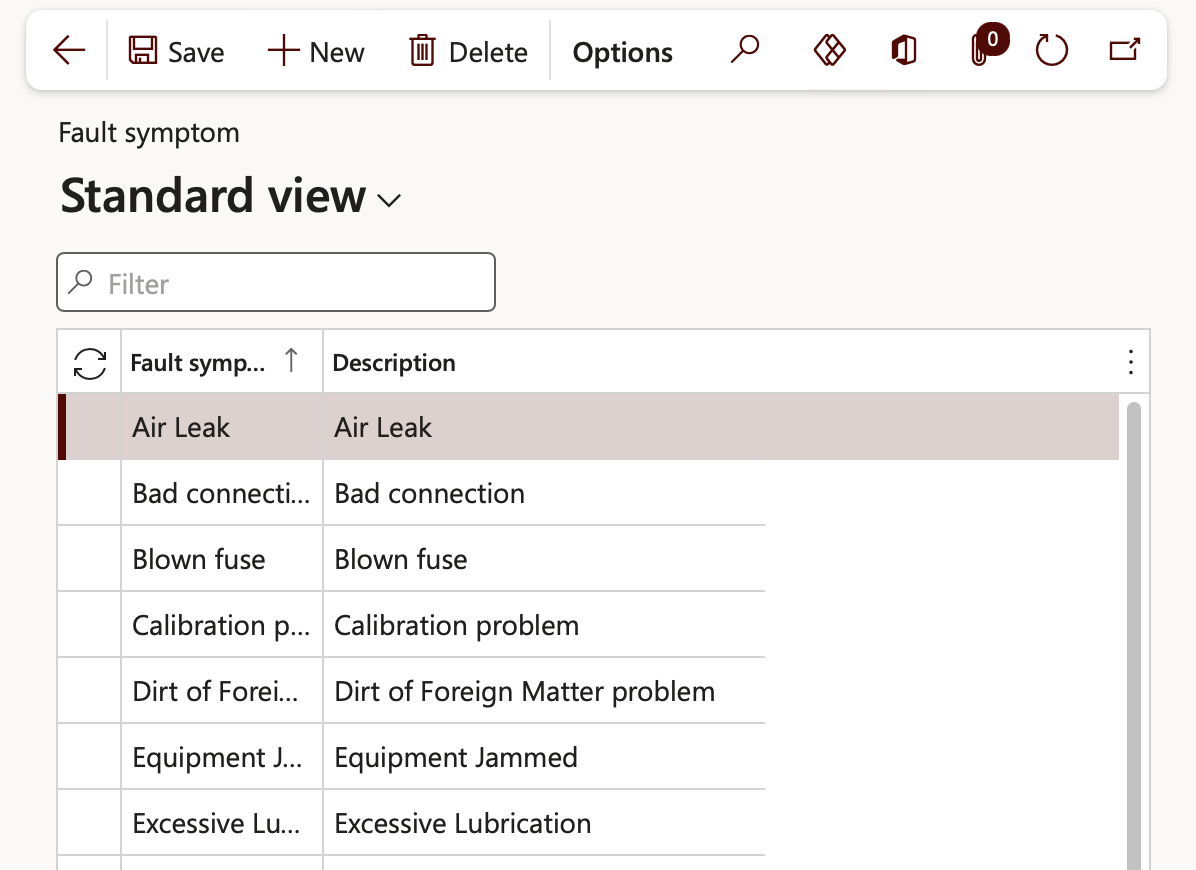
Grouping of Symptoms, Fault area, Fault types, Causes and remedies set up under the Asset management module.
Go to: Asset management > Setup > Fault > Fault symptoms
Go to: Asset management > Setup > Fault > Fault areas
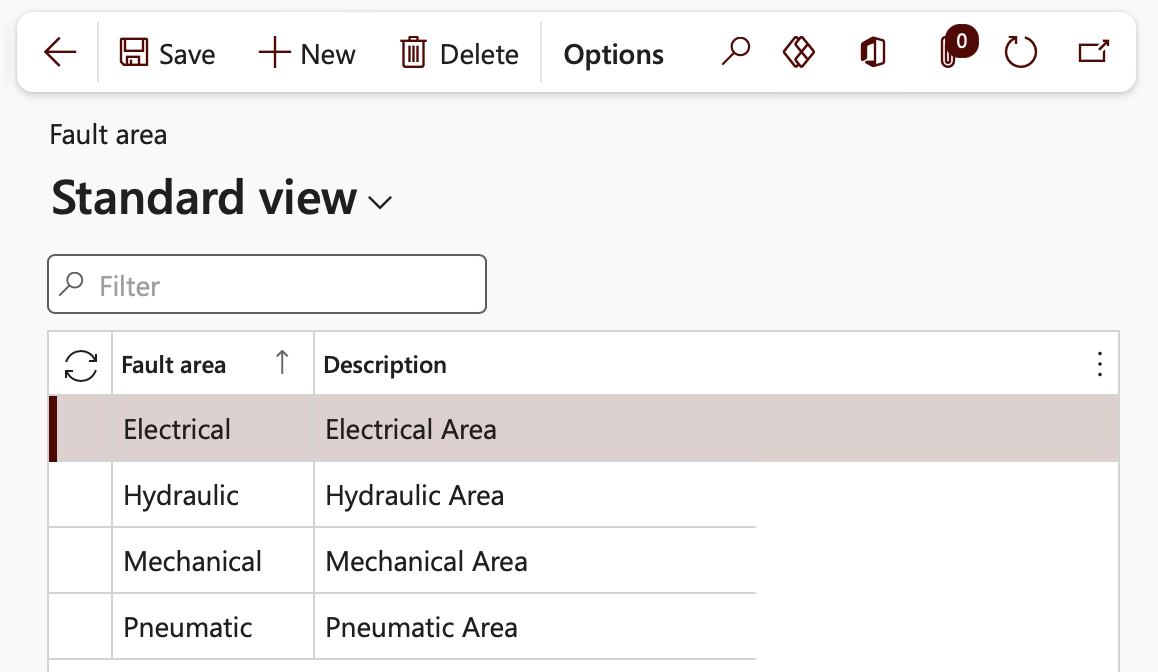
Go to: Asset management > Setup > Fault > Fault types
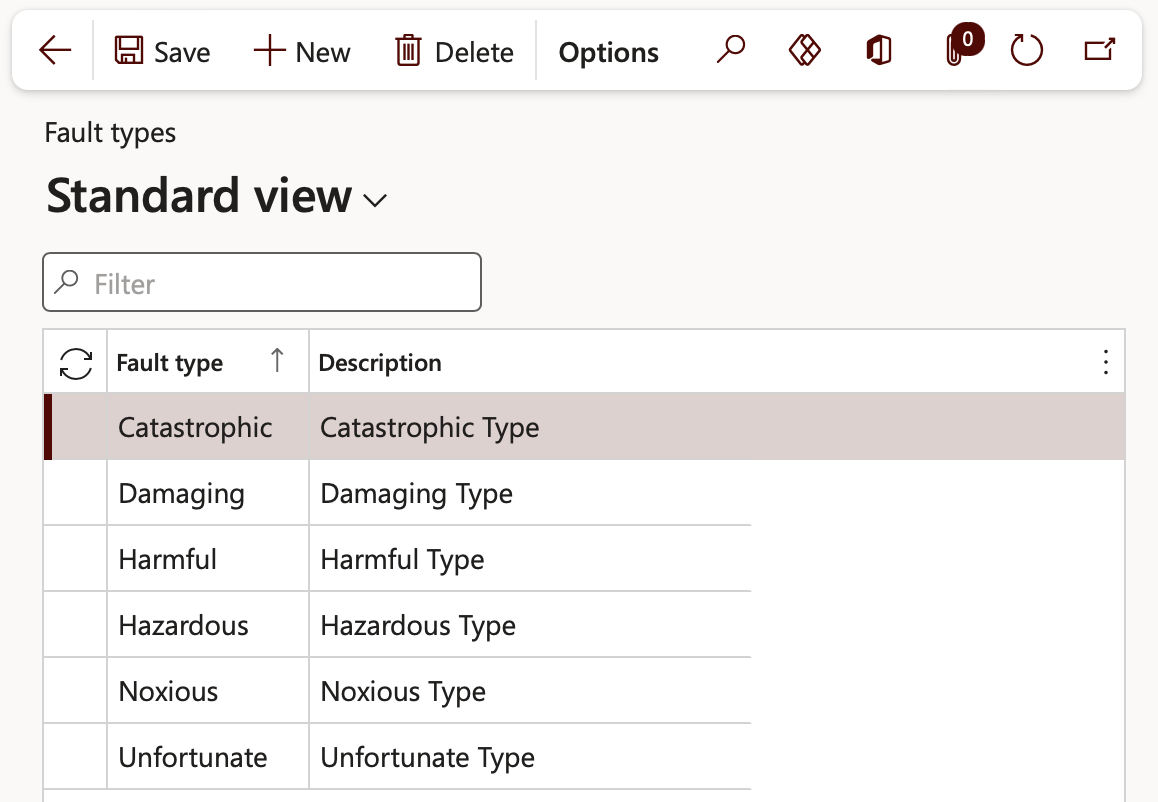
Go to: Asset management > Setup > Fault > Fault causes
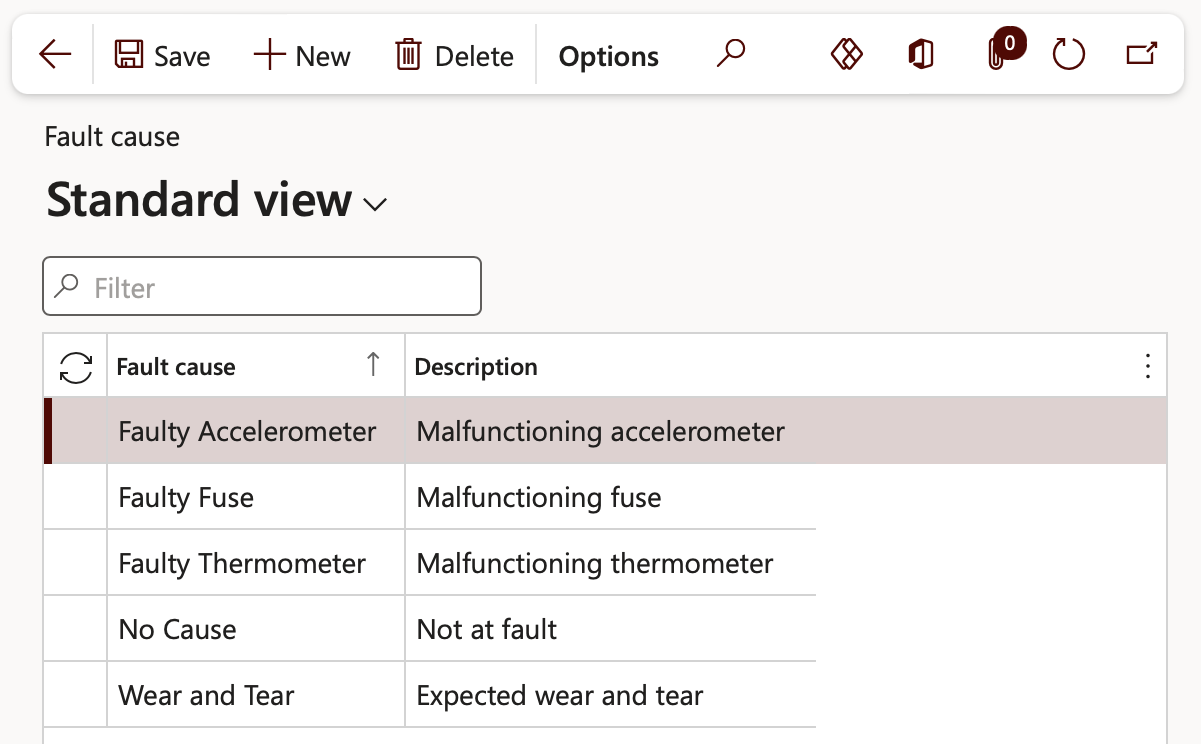
Go to: Asset management > Setup > Fault > Fault remedies
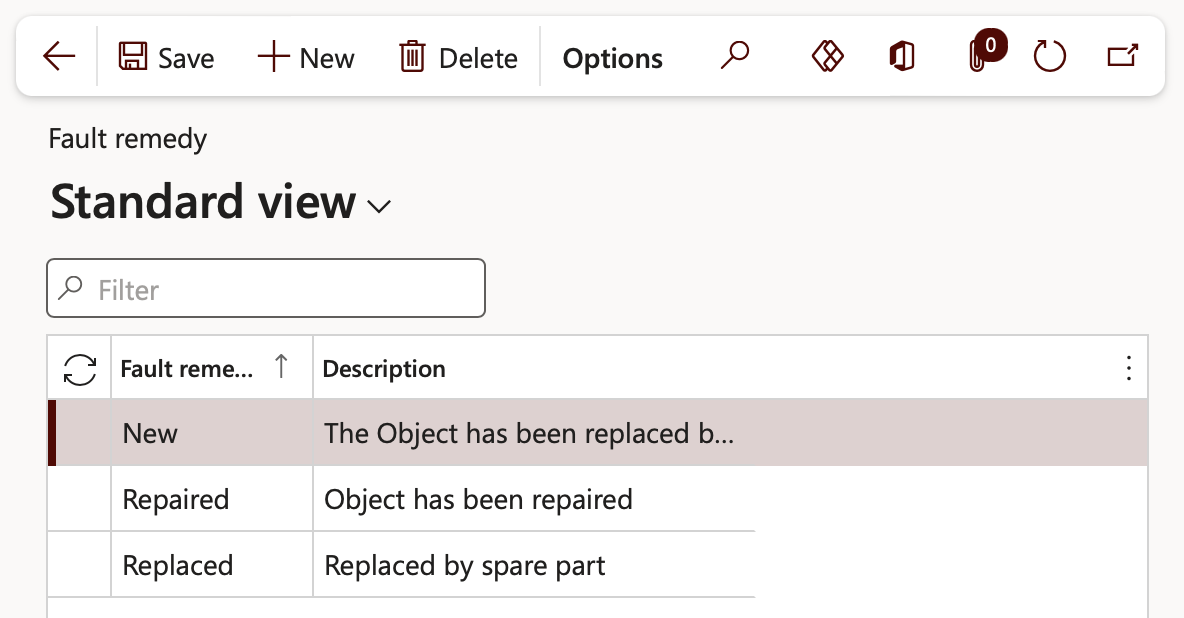
Go to: Asset management > Setup > Fault > Fault designer
Fault symptoms, areas and types are added to the Fault designer form
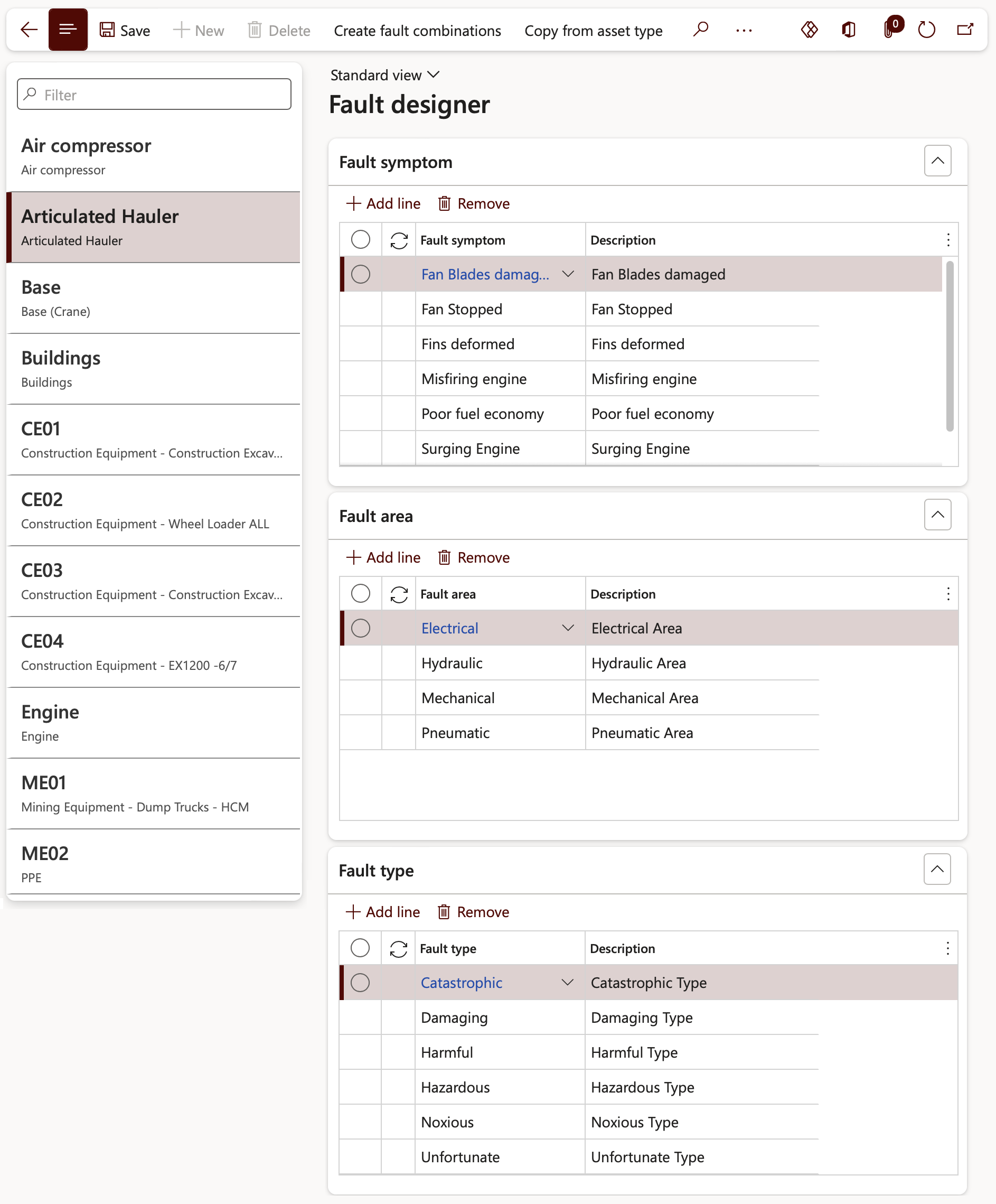
The Fault designer form does not allow you to create a new Asset
To create a new asset type
Go to: Asset management > Setup > Asset types > Asset types
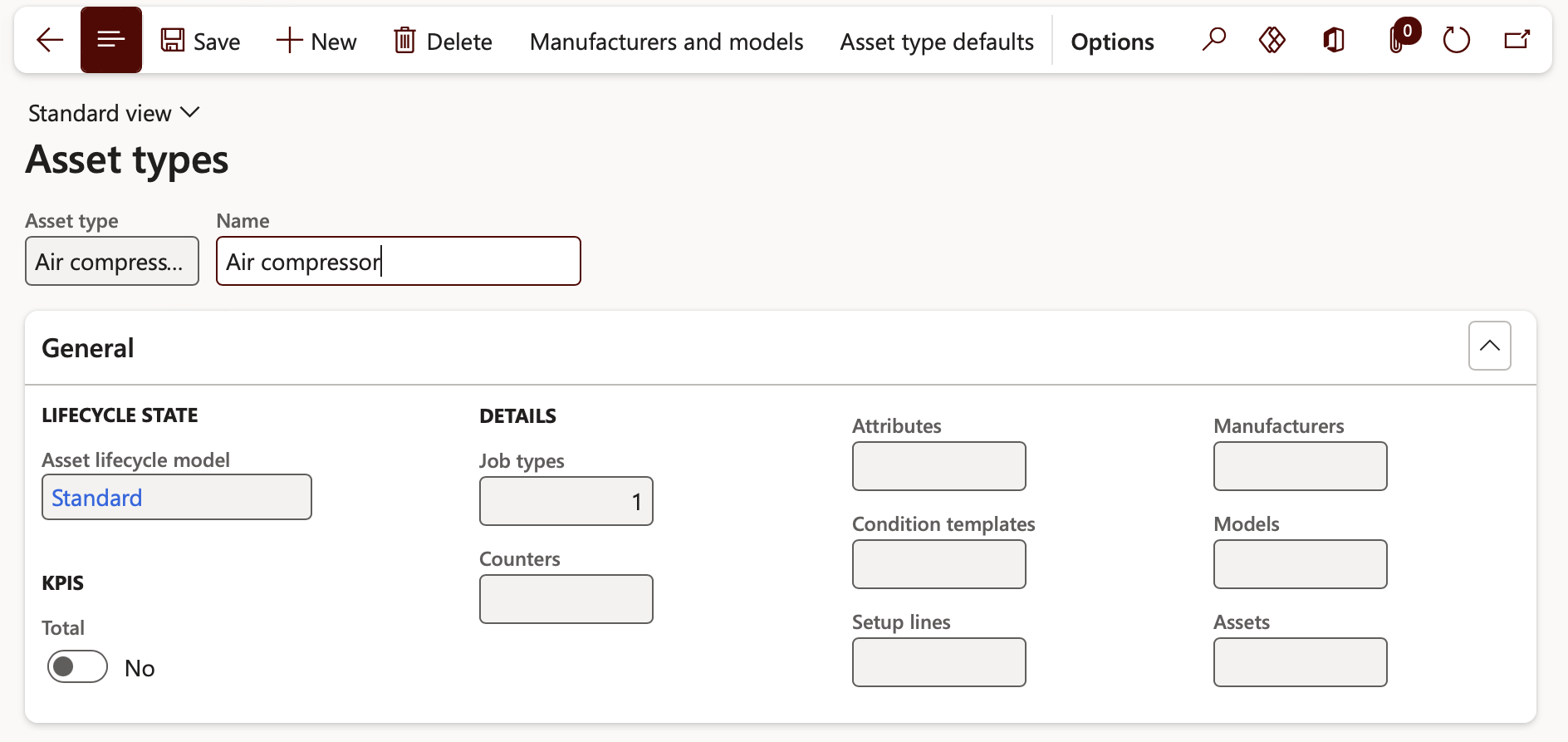
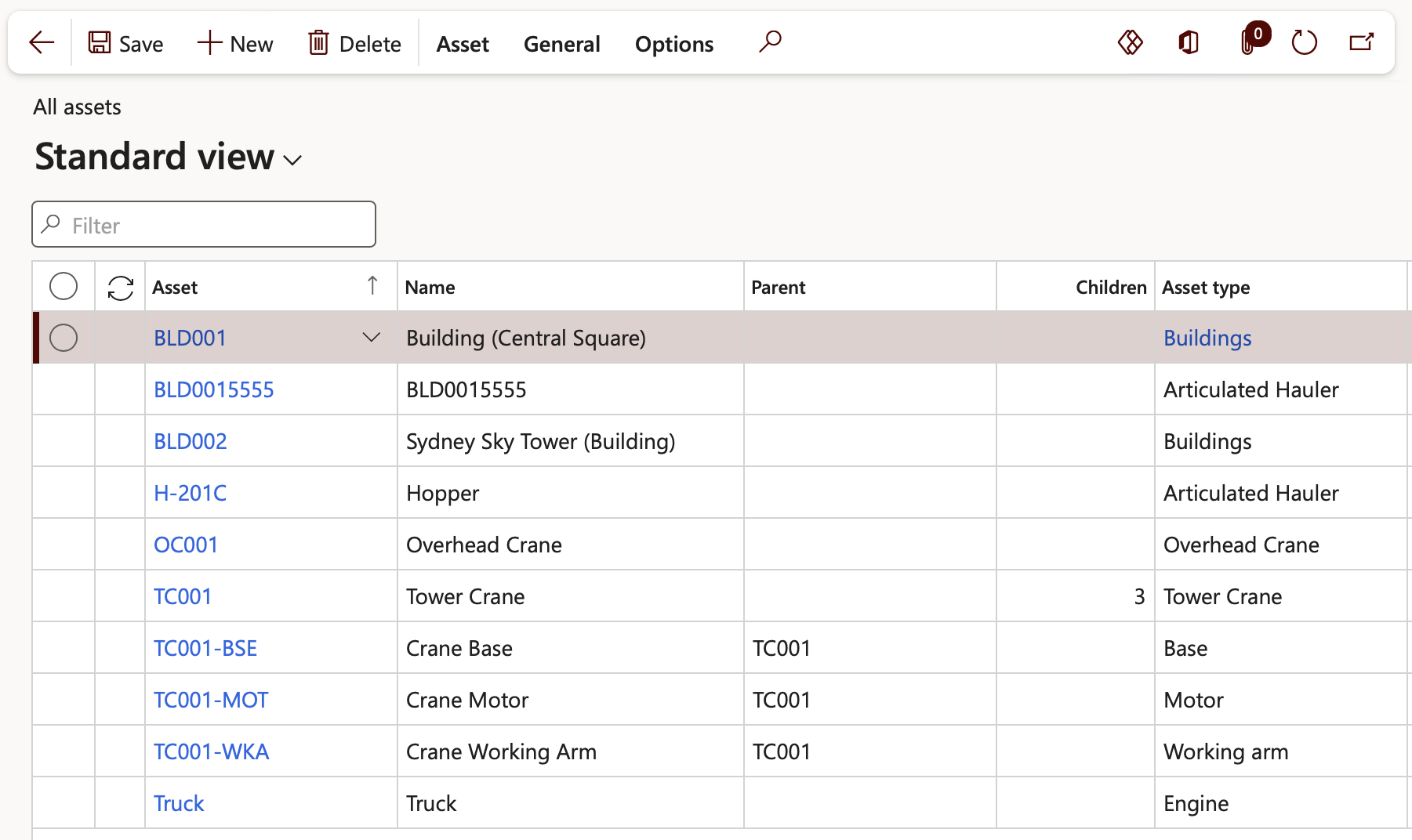
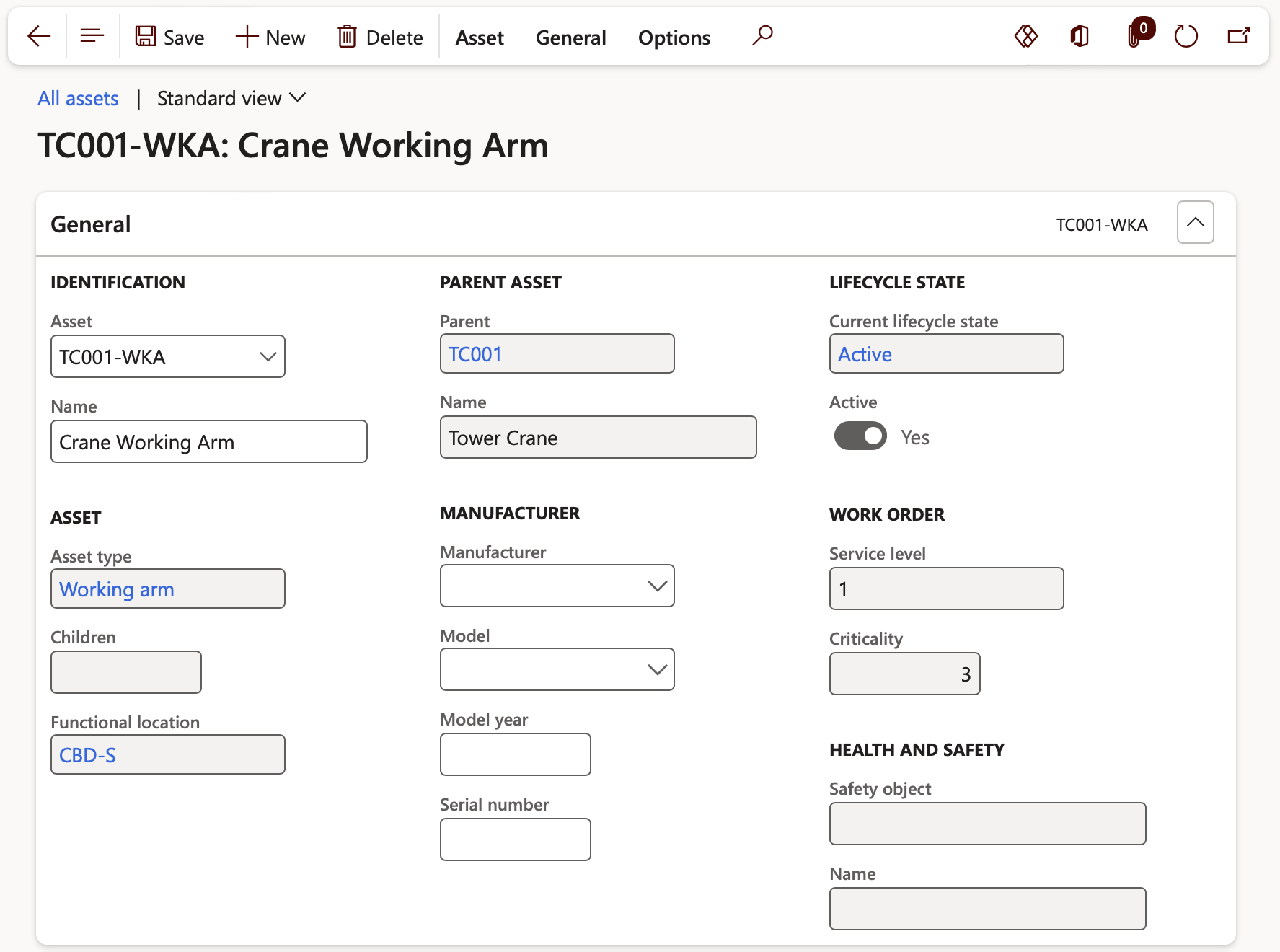
To create a new asset
Go to: Asset management > Assets > All assets
¶ Daily use
¶ Step 9: Creating a case
After case setups are completed, employees with the appropriate permissions can create cases as issues are raised. Cases can be logged via Dynamics 365 FO web form or using the "email to case" option described below.
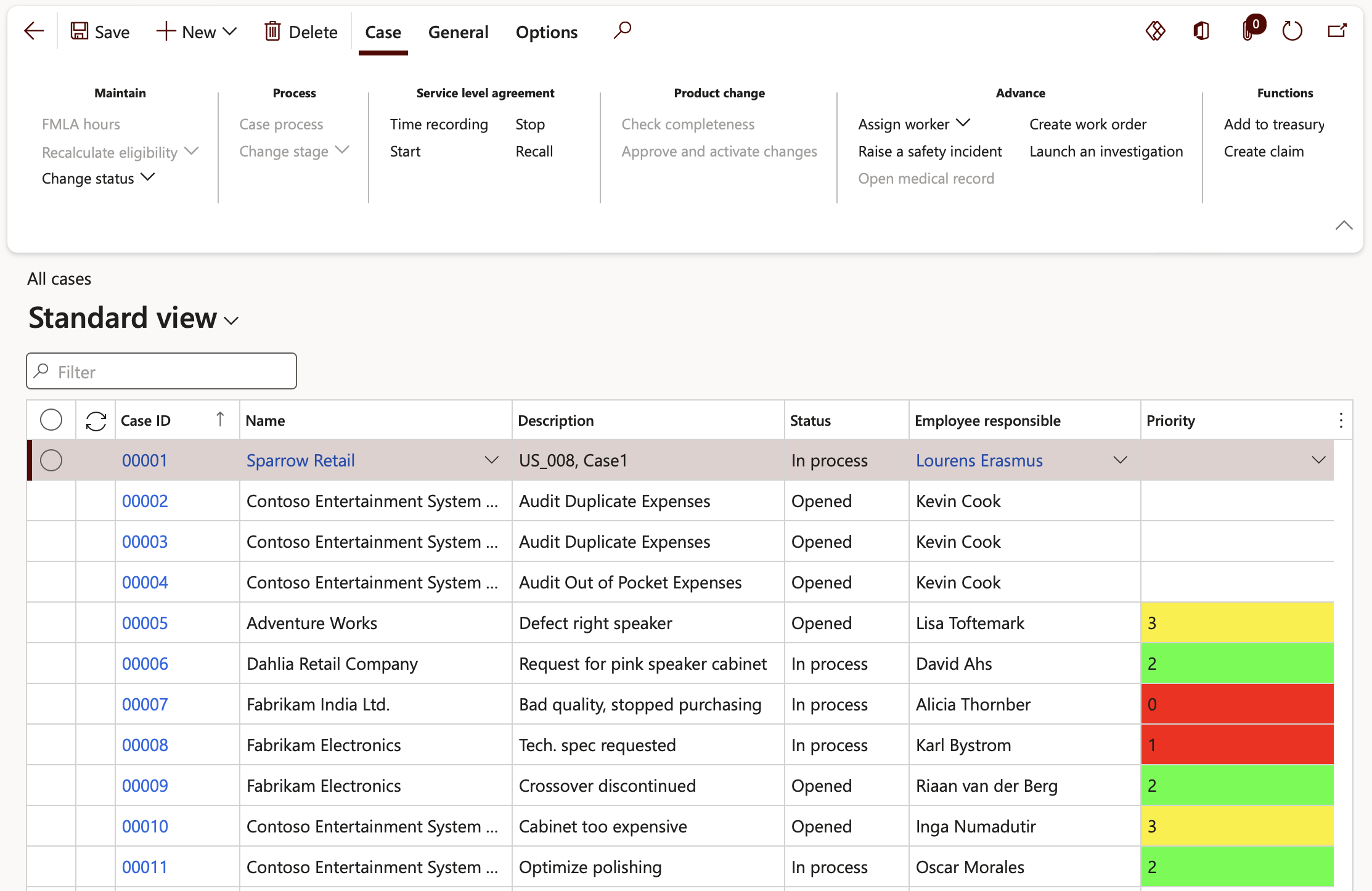
Go to: Common > Cases > All Cases
- Click on the New button and select Case
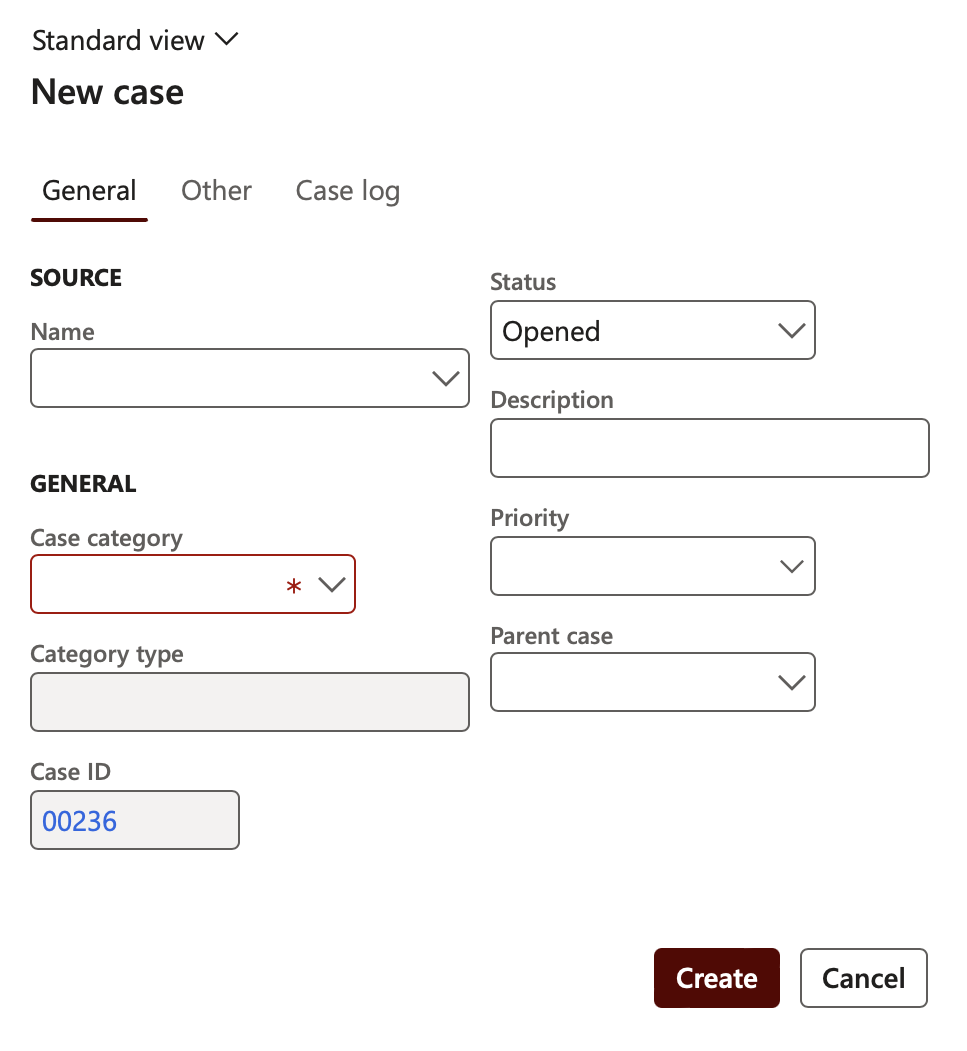
On the New case dialog, under the General Index tab, enter the following information:
- In the Name field, select either a Customer, Employee or Vendor
- The Case category dropdown provides the default case information, drives downstream reporting, and provides consistency across cases. This is a mandatory field
- The Status dropdown defaults to “Opened”, but can be changed to “In progress” upon creation
- The Priority dropdown provides rank of importance
- Select a Parent case from the dropdown list if a case is dependent on the outcome of another case. The Parent case field does not drive functionality but provides a reference that the case is related to another case in the system
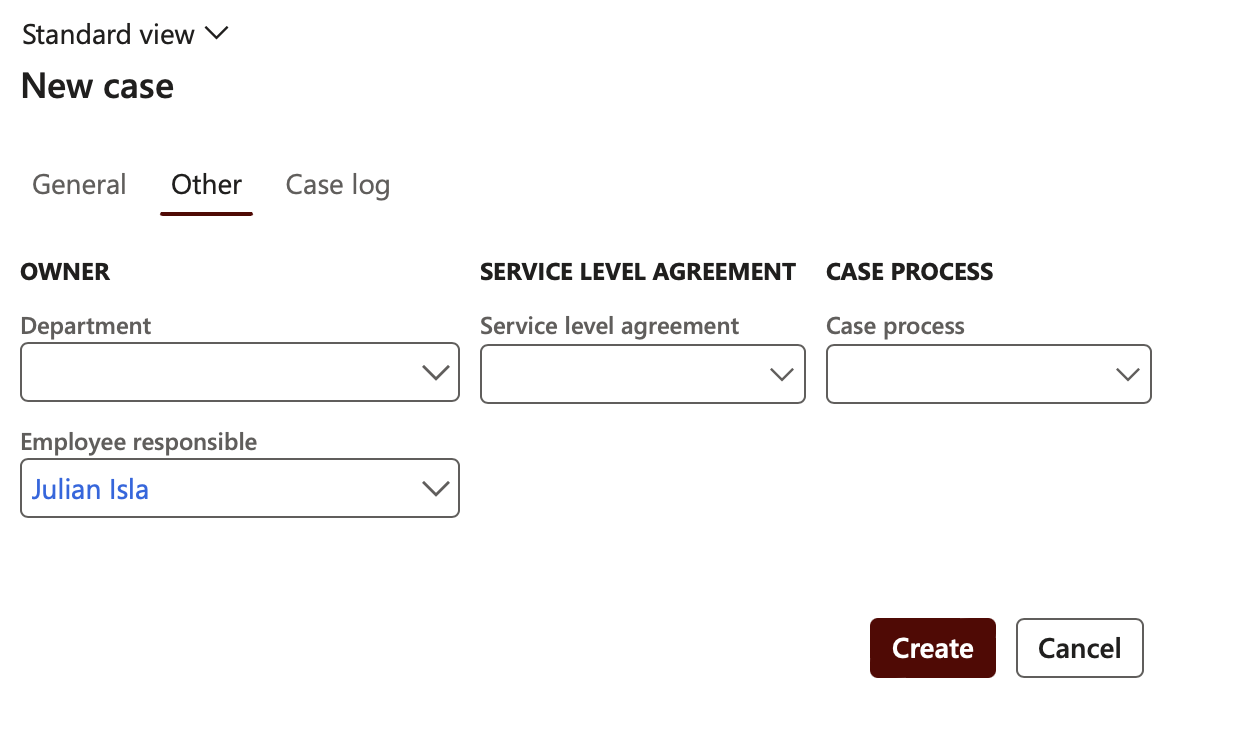
Open the Other Index tab and enter the following information:
- In the Department field, select the department responsible for the case. The department can be inherited from the Case category selected
- In the Employee responsible field, select the person who is assigned to the case
- Select the Service level agreement from the dropdown list. The SLA defines the default time allotted to complete the case
- In the Case process field, select the steps that the employee will take to complete a case. A default Case process can be setup for each Case category
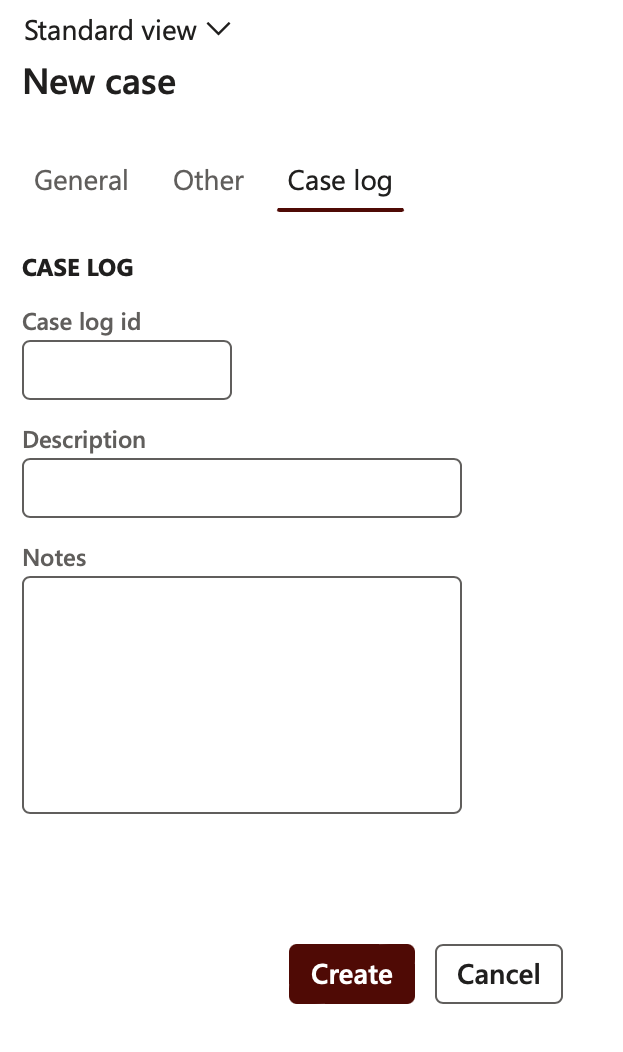
The Case log Index tab:
- Activities that have been created and are linked to a case, are recorded here. Communications can manually be added to track the ongoing discussions that happen with customers, vendors, and employees during the case lifecycle. Any changes to the case stage are tracked in the case log.
- Click Create
¶ Step 10: Case collaboration
Using the Case log users can keep track and even create activities with trading partners or other workers to complete an investigation and bring a case to completion.
Within a case level, default activities can be assigned that are commonly executed during a case. The choices for activities include appointments, tasks, action items, and events. Once again, these activities can be assigned to specific members of an organization, which can then be placed into a work queue or even made part of an action plan.
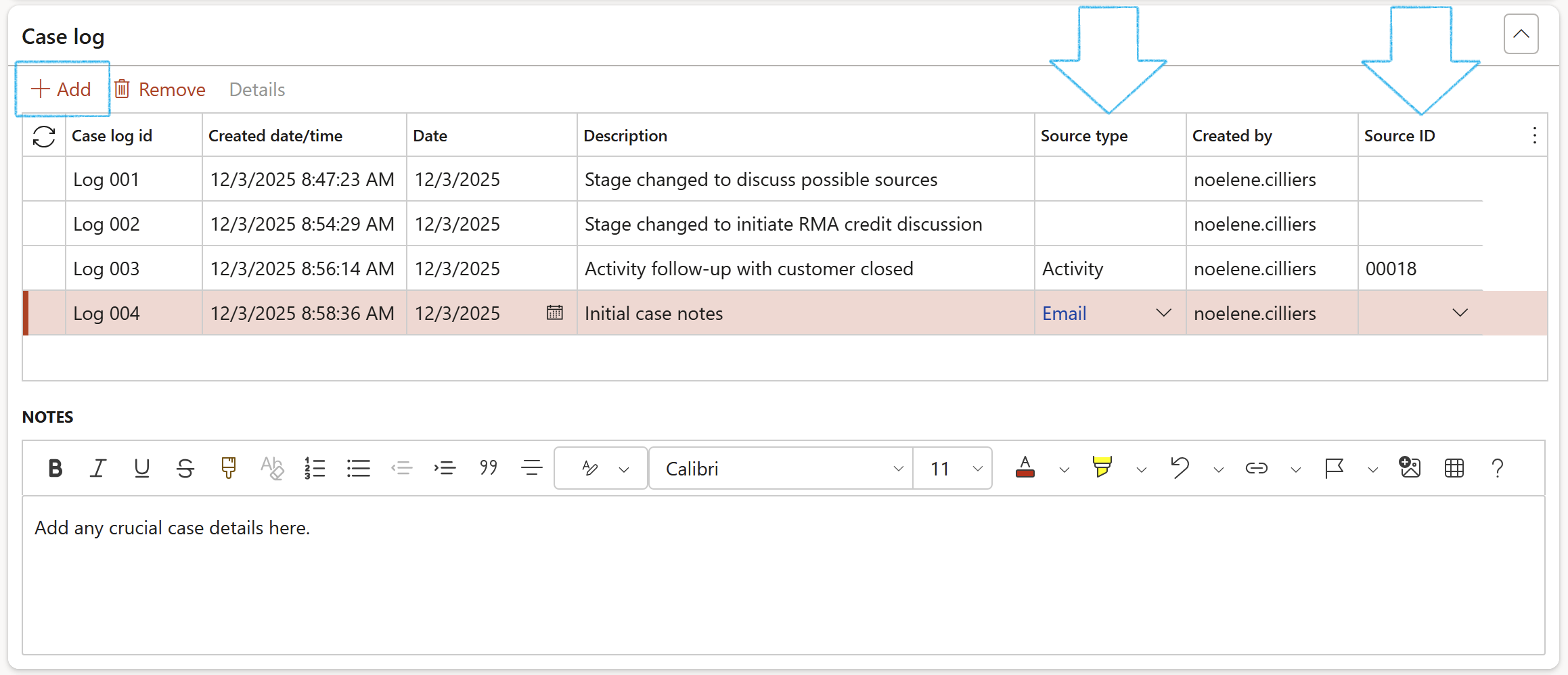
- On the Case, expand the Case log Fast tab
- In the Button strip, click on the Add button
- Enter a Case log id
- The Created date and time field will be populated by the system
- Enter the transaction Date
- Enter a Description
- Select the relevant Source type from the dropdown list
- The Created by field will be populated by the system (logged in user's name)
- Select the relevant Source ID from the dropdown list
- Enter additional information in the Notes box provided under the grid
¶ Step 11: Case process
A sequence of events or steps to follow to get to a resolution. Useful in aiding workers through a formal and guided process.
The case process represents the backbone of your case. This is where users can define a recurring template of sequential tasks that are commonly completed for a given Case category. As a rule of thumb, there should be a one to one relationship between a Case category and a Case process. There is nothing stopping you from using the same Case process across multiple categories, and it may make sense to do so if you would like to segregate similar cases by department for reporting purposes.
When defining a new process, you must start by giving the case a name, description, and case type. There is also an Active flag to toggle between active and inactive case processes, if they are no longer relevant to the company. Beyond those initial required fields, we also must define responsibilities. These responsibilities determine which departments will have a role in the Case process. Choose all departments or sub-departments that have a role in the case.
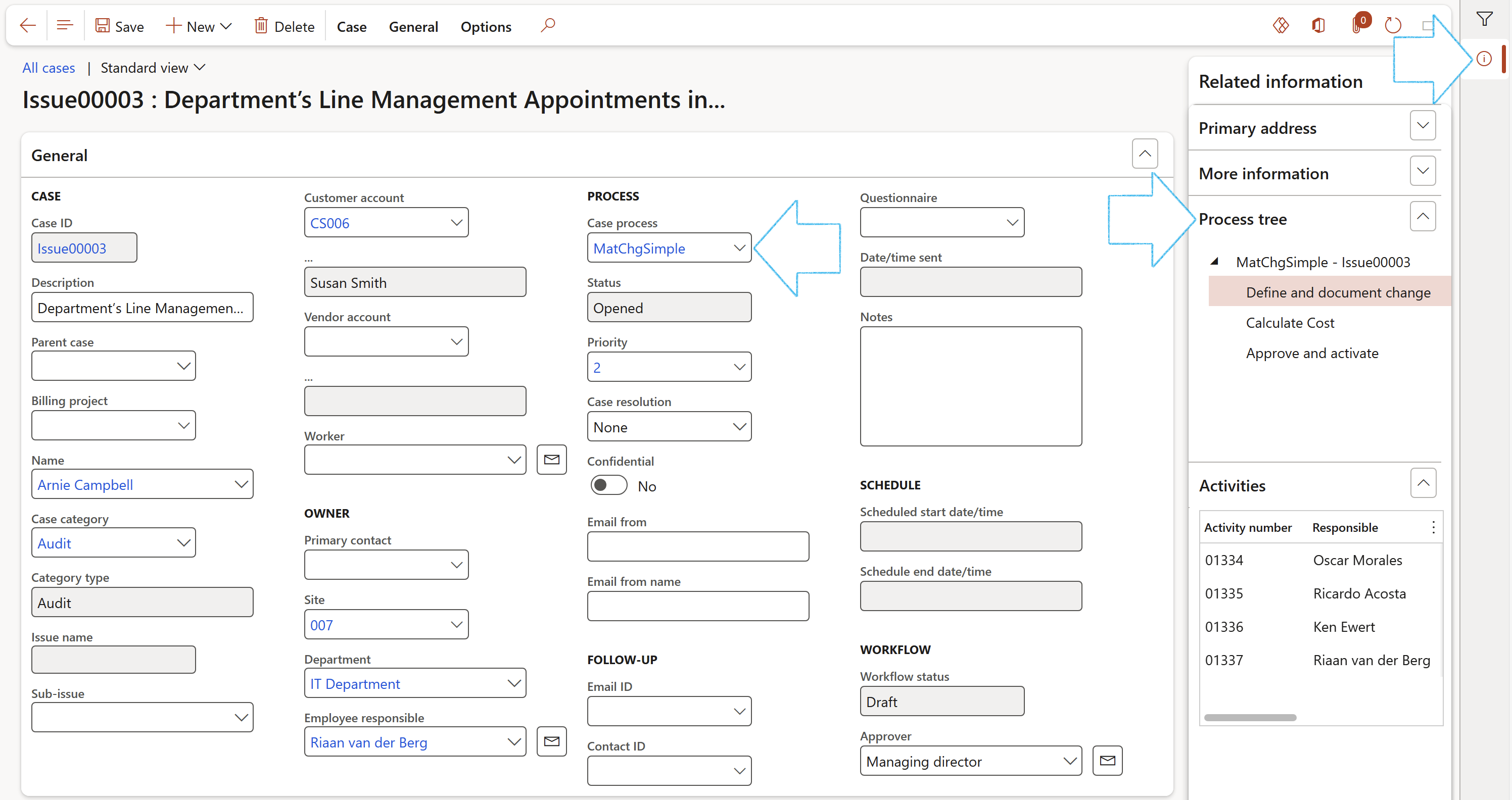
- On the Case, under the General Fast tab, select the relevant Case process from the dropdown list
- Refresh the page and expand the Related information pane
- Open the Process tree Fact box to view the Case process steps
¶ Step 11.1: Case activities
Case activities can be created on the fly or can be automatically created upon advancing to specific stages of our case process. Activities are best used when the completion of a case is dependent upon multiple employees from multiple departments. For example, if we need to create a credit for the cost of the material on the original sales order, we may want to assign an activity to the AP department to create and issue that credit. Tasks and Appointment activity types can also be integrated with Outlook.
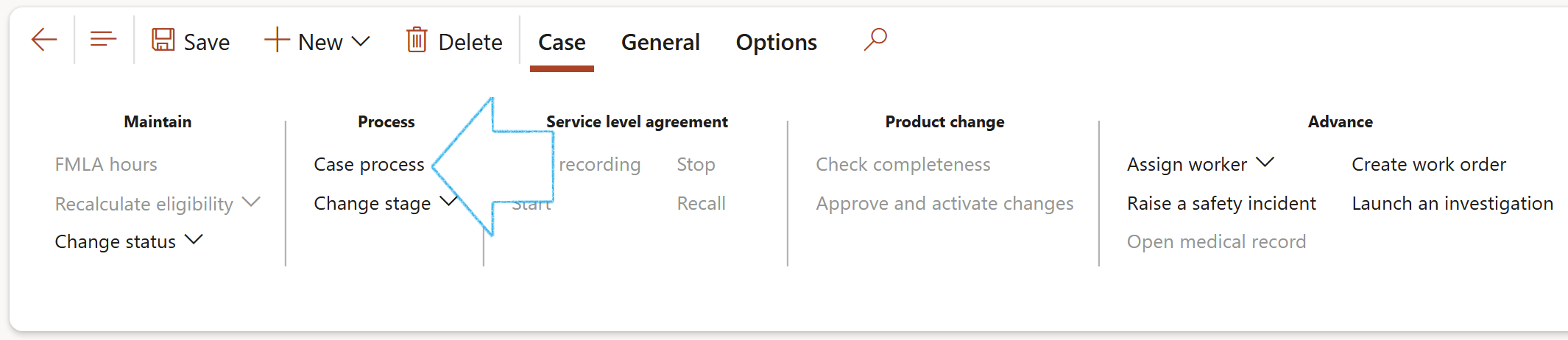
- In the Action pane, click on the Case process button
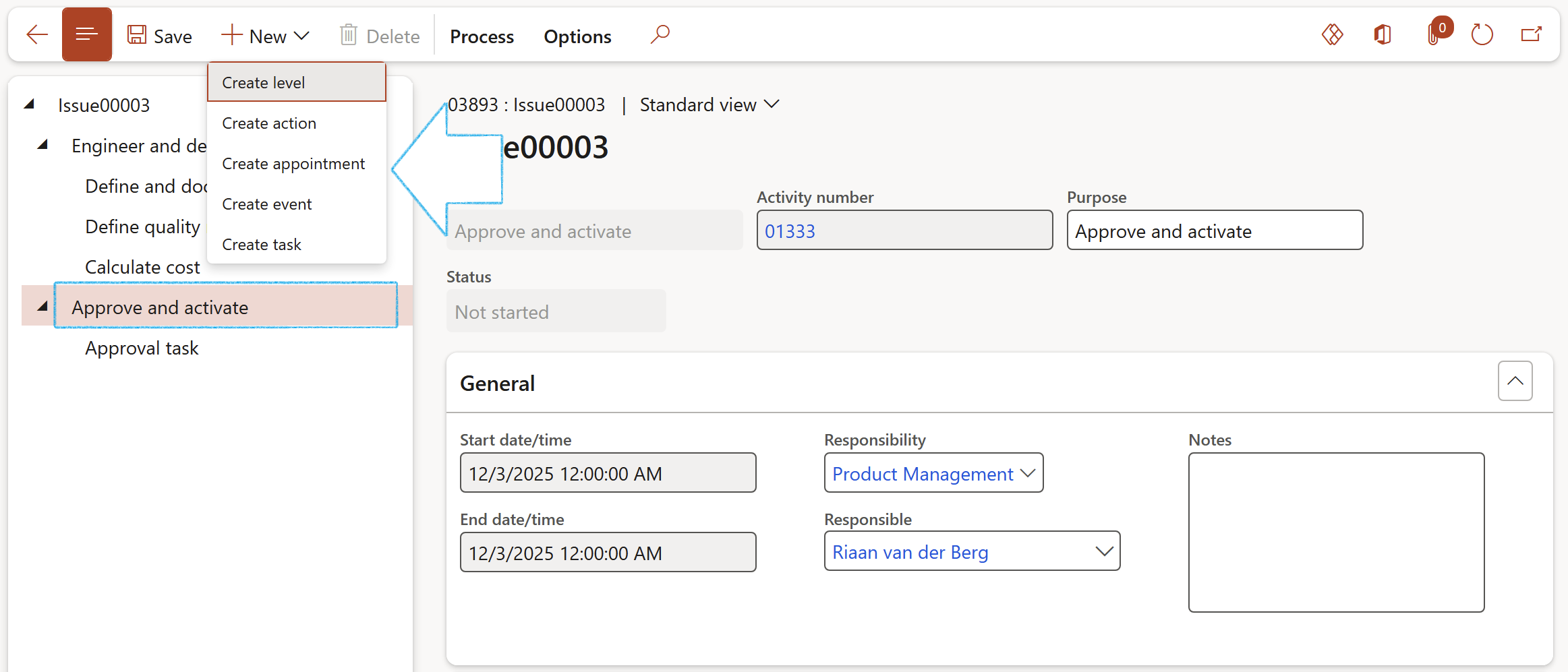
- Select the level that you want to create the activity for
- In the Button strip, click on the New button and select the type of activity that you want to create
¶ Step 12: Case feedback
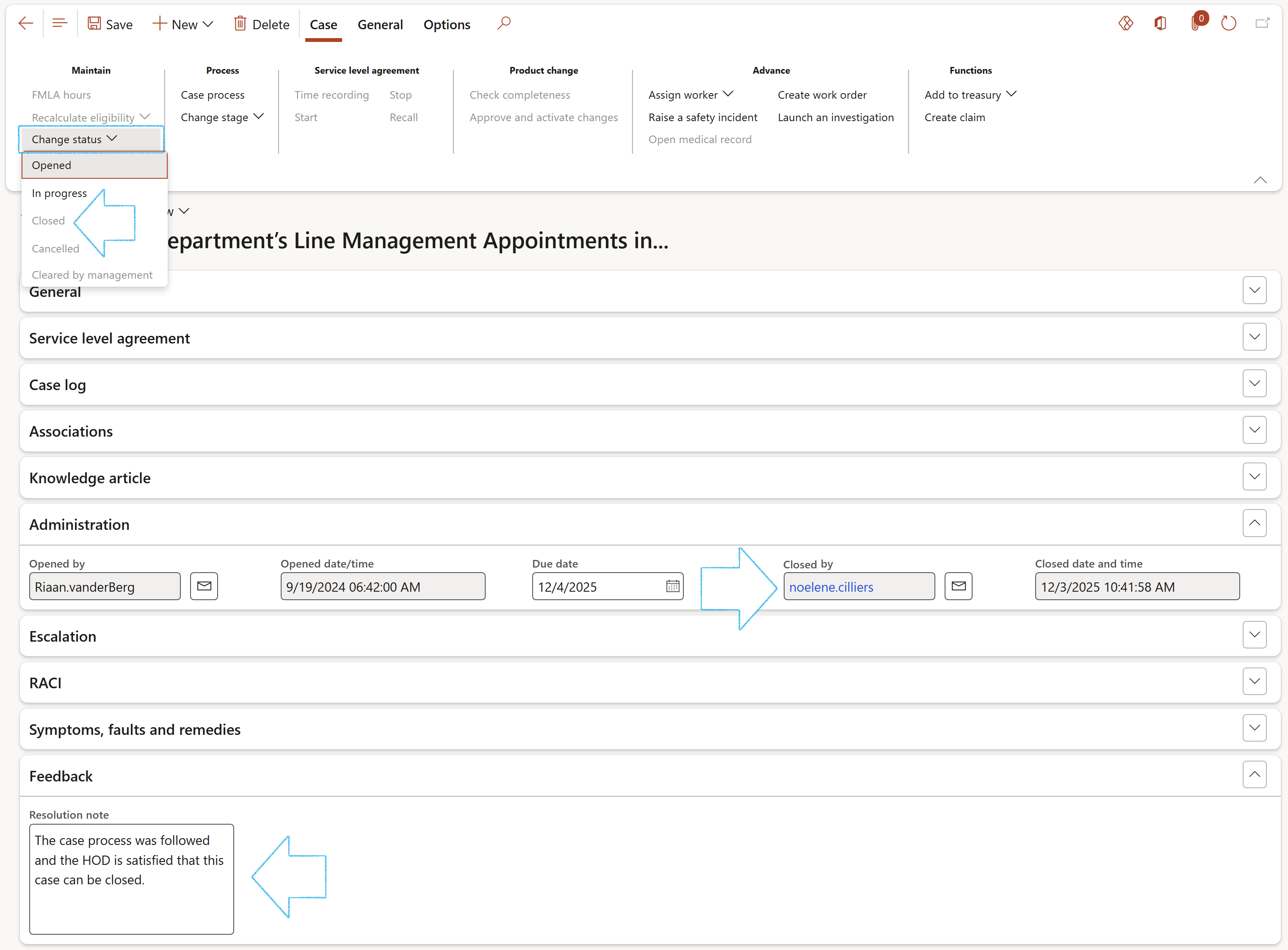
- On the Case, expand the Feedback Fast tab
- Enter the Resolution note in the box provided
- On the Action pane, in the Maintain group, click on the Change status button and click on Closed
- Expand the Administration Fast tab so see the Closed by and Closed date and time fields populated by the system
¶ Step 13: Confidential cases
- On the Case, expand the General Fast tab
- Move the Confidential slider to Yes
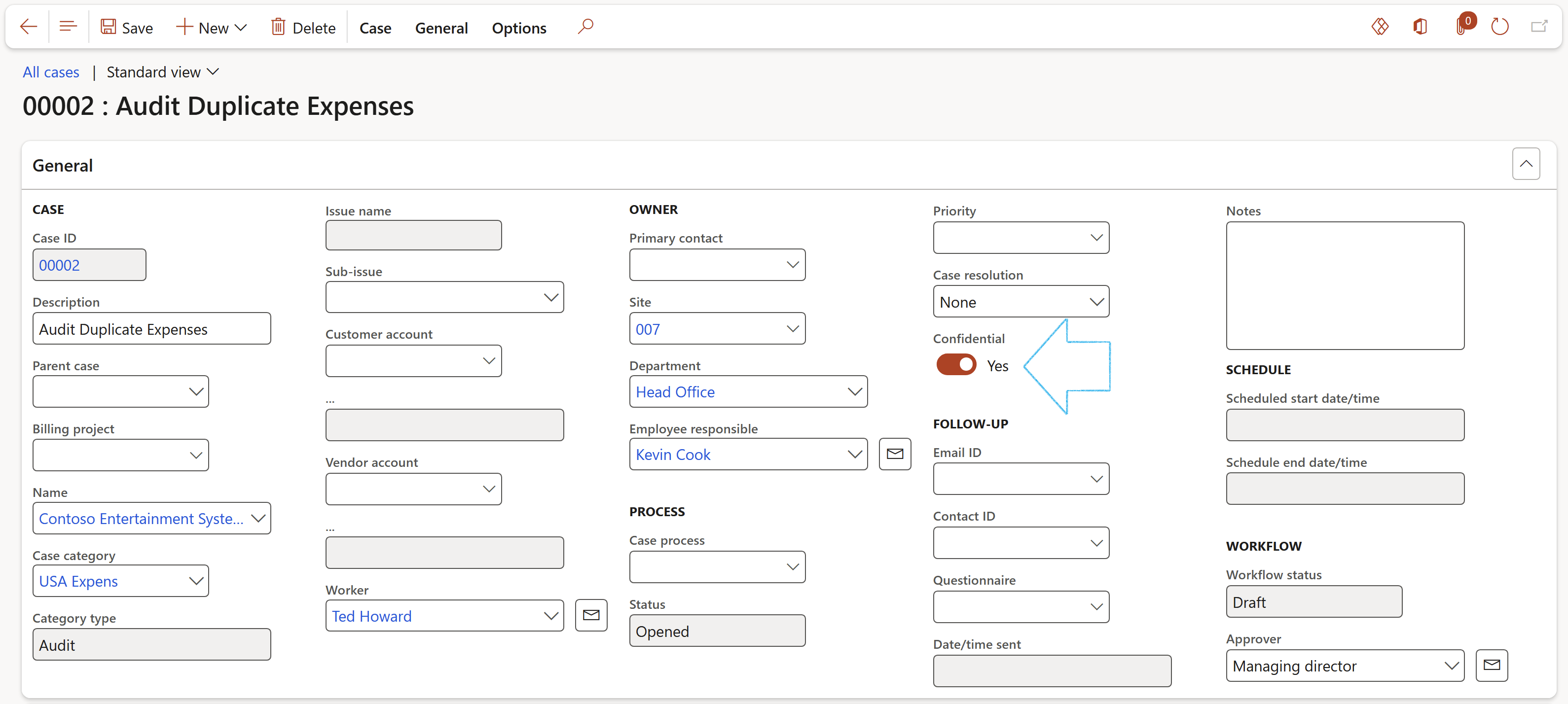
All cases that are flagged as Confidential can be found on the All confidential cases list page
Only users that belong to the Admin user group will be able to access the All confidential cases list page
¶ Step 14: Use cases
¶ Step 14.1: Maintenance use case
To access all cases
Go to: Common > Cases > All cases
- Select the Case you need to add more detail to by clicking on the Case ID
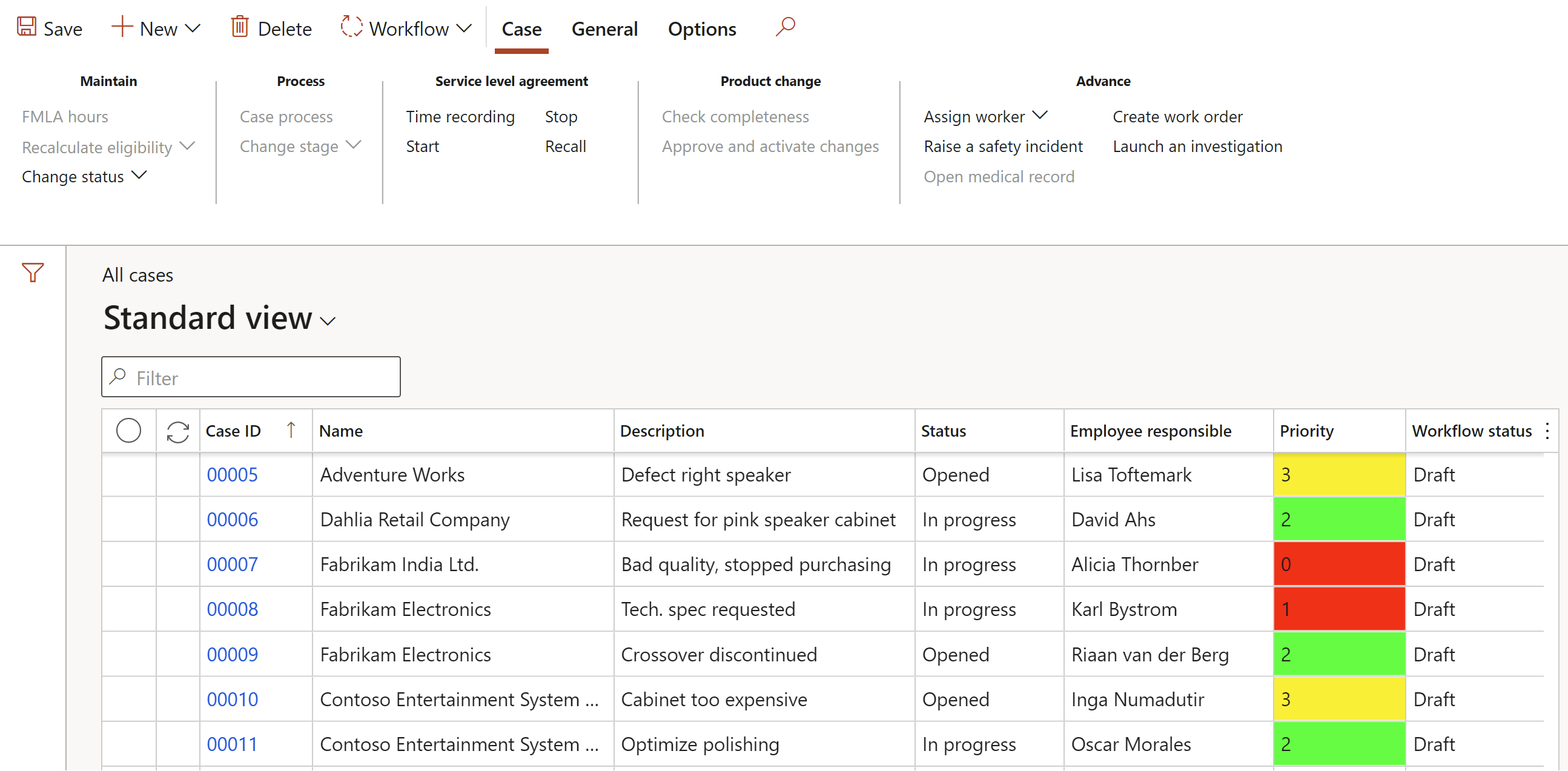
- Users can record information under the Symptoms, faults and remedies Fast tab
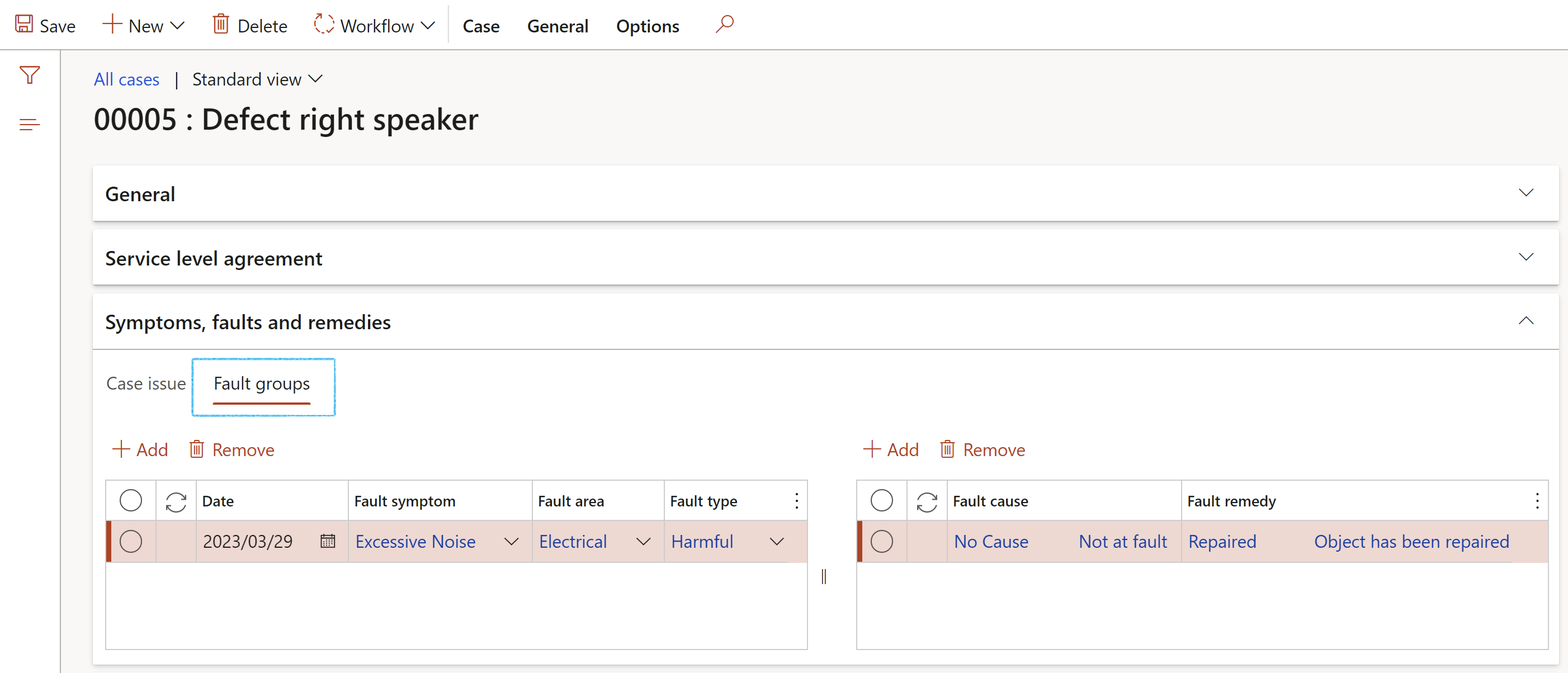
- The dropdown values are limited based on the case category setup. This reduces random data being entered
- Correct setup will ensure context correct data
- Users can record user definable issues and Sub-issues per case
- Users can select the Root cause per case
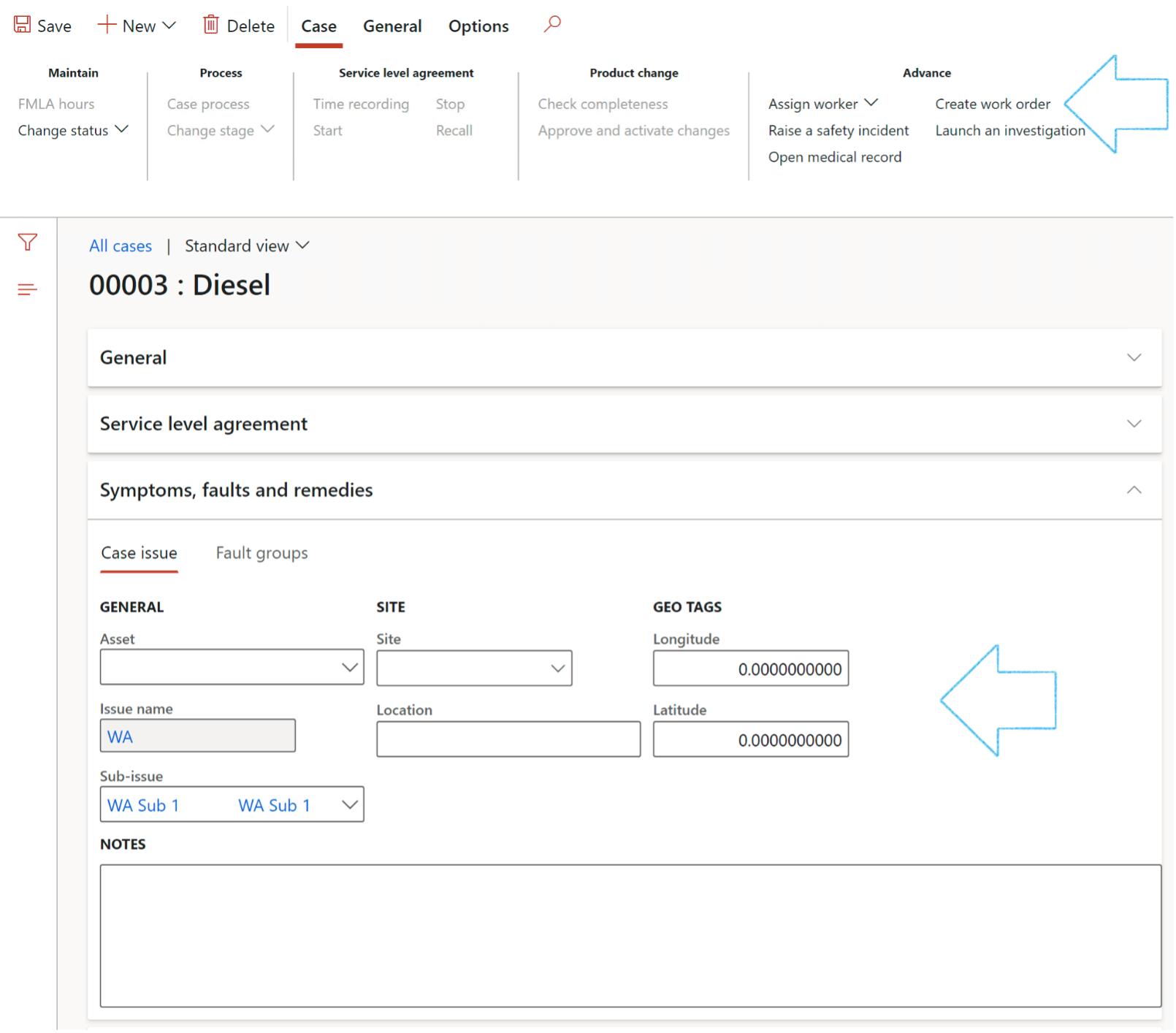
Note, the ability to record Geo tags is useful for PowerBI reporting
By using the Create work order button in the Action pane, users can create a Maintenance work order from the case
¶ Step 14.2: Medical use case
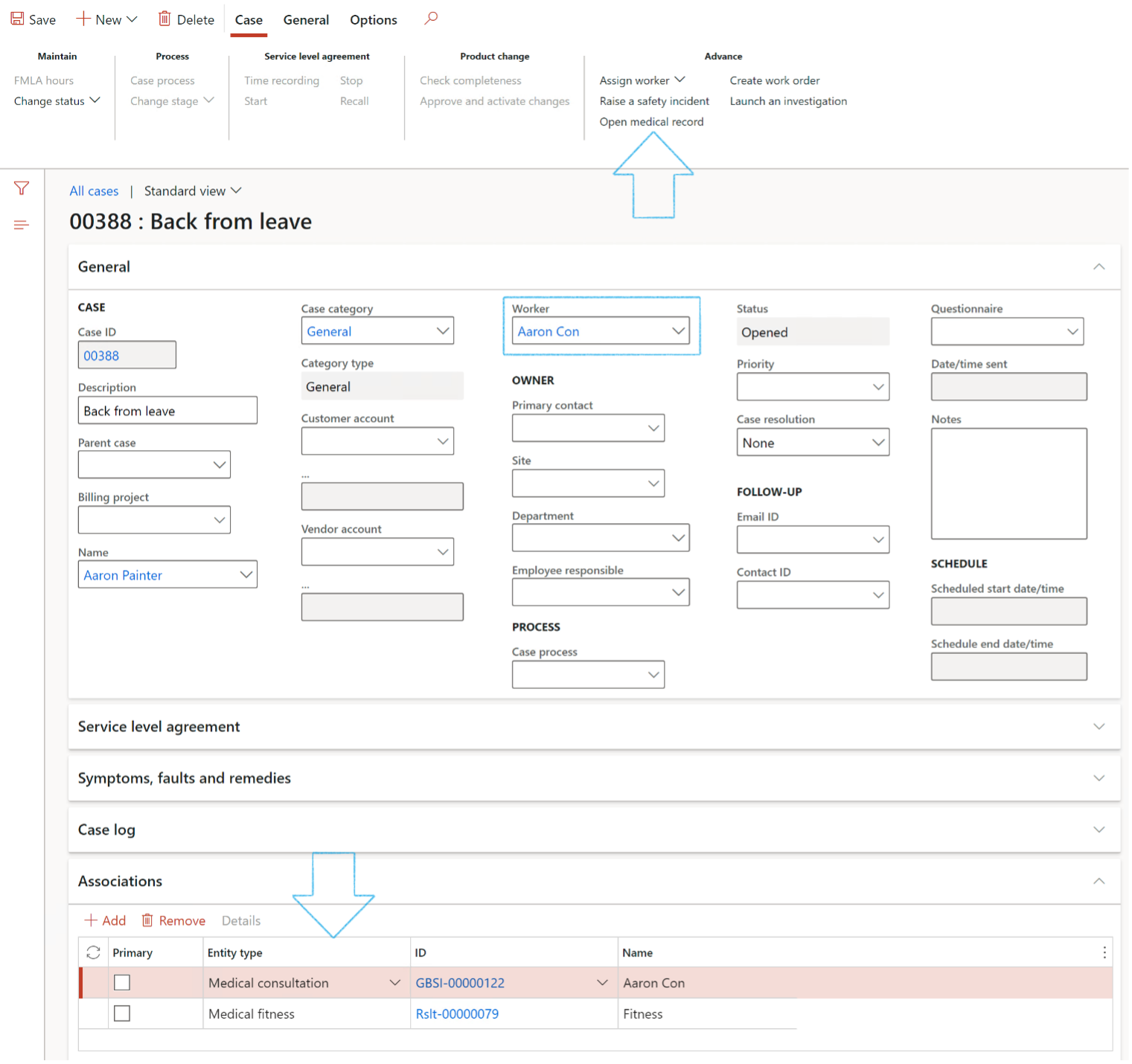
- Users can capture the following per case under the General Fast tab:
- The worker for whom the medical assessment is going to be created/requested/followed through
- Then, by using the Open medical record button in the Action pane, users can create a medical consultation inside the HSE module
- The result of this created medical consultation is recorded under the Associations Fast tab. Users can also manually link other medical records such a fitness results
- Users can create escalations on the case under the Escalation Fast tab
- Users can also add other detailed information required for a case
- Other Fast tabs where additional information can be added:
- Service Level Agreement (SLA) - If the case is upgraded to a higher priority we can recall the SLA and assign a shorter time frame.
- Case log
- Associations – any additional documents that are linked to the case
- Knowledge article
- Administration
- Governance
- RACI (Responsibility matrix)
Service Level Agreement - If the case is upgraded to a higher priority we can recall the SLA and assign a shorter time frame. Each time we recall an SLA, D365 prompts the user for a reason code, and all SLA related changes are tracked in a transaction log. Similarly, if the case is taking longer than expected for reasons outside our control (pending customer response), we can stop the SLA so that the case does not appear as overdue. A reason code is also required for any stoppages and can be tracked downstream to better evaluate your customer service professionals
¶ Step 14.3: Incidents and Investigations use case
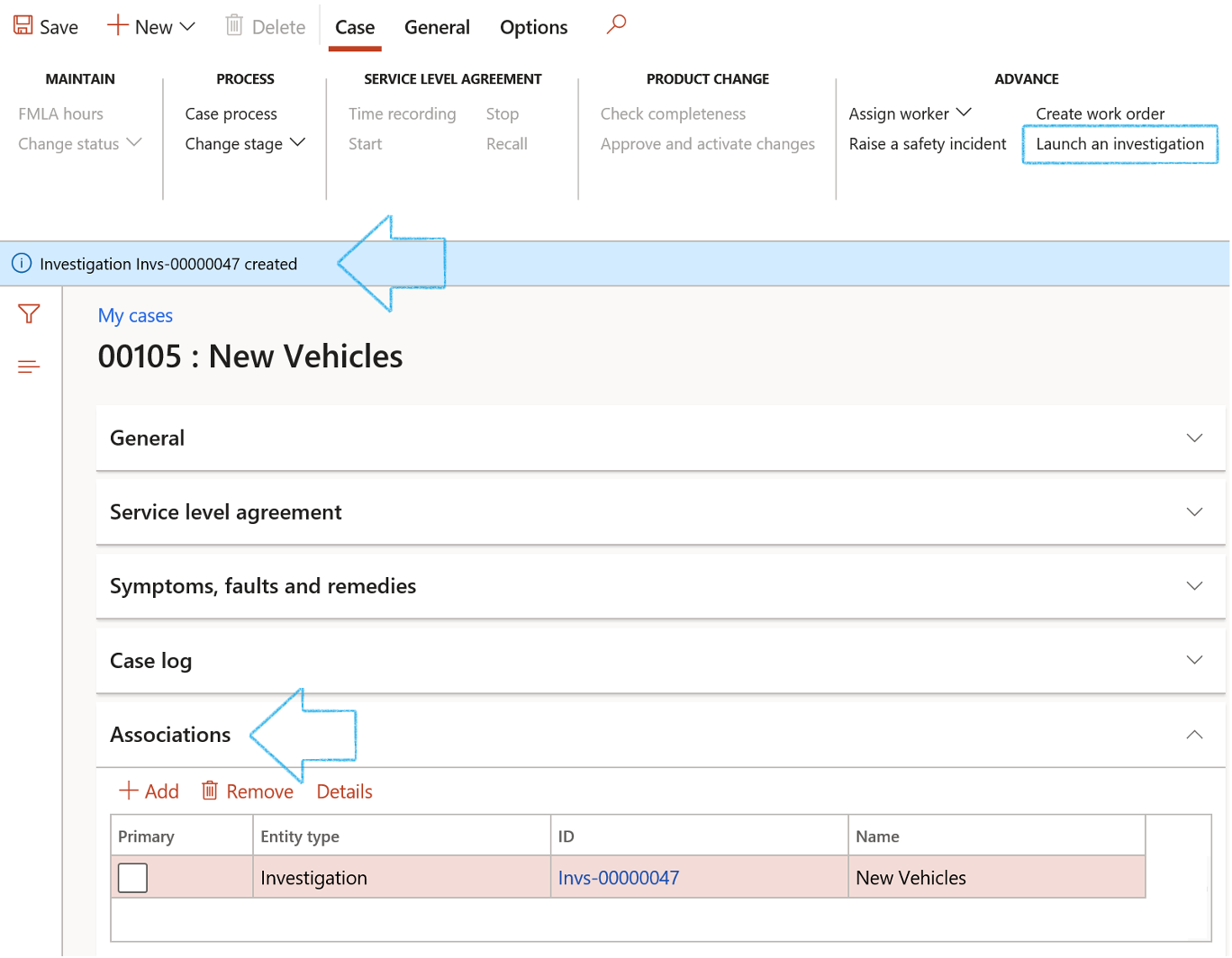
- Launch an Investigation from the case
- On the Action pane, in the Advanced group, click on the Launch an investigation button
- The new Investigation ID and Name will be displayed under the Associations Fast tab
¶ Step 14.4: Contract requests use case
Contract request is the start of the entire contract lifecycle and defines the type of contract to be created and the related details. Contract request involves all the activities necessary to initiate a new contract in Dynamics 365 F&O. The process can be ad hoc, where users manually write down what type of contract they want and what should be inside it, or automated, where users choose from a contract baseline (template) and using workflows to route to the proper approval users. GRC 365 supports two types of contract request cases:
- Request for a new contract
- Request to review an existing contract
Please refer to the Contract management Wiki page for more detail
¶ Step 14.5: Legal use case
¶ Step 14.6: Other
For Treasury to work, the G2T model is required and from a setup point of view, users must work with cases of Category type = Treasury
If the LIMS (Lab Information Management System) module was installed, cases can be created using the LIMS case category type
¶ Step 15: CAPA case
Corrective and preventive action (CAPA) management lets you create and maintain records of the actions that are taken to manage and resolve nonconformities or defects.
CAPA management provides features that automate the process to help drive continuous improvement. This approach supports the core disciplines for various quality standards, such as Six Sigma and ISO-9000. The solution is role based, supports electronic records and electronic signatures, and is fully compliant with part 11 of Title 21 of the Code of Federal Regulations (21 CFR Part 11).
Click on link at "learn.microsoft" here for detail
¶ Reporting
¶ Step 16: The Workspace
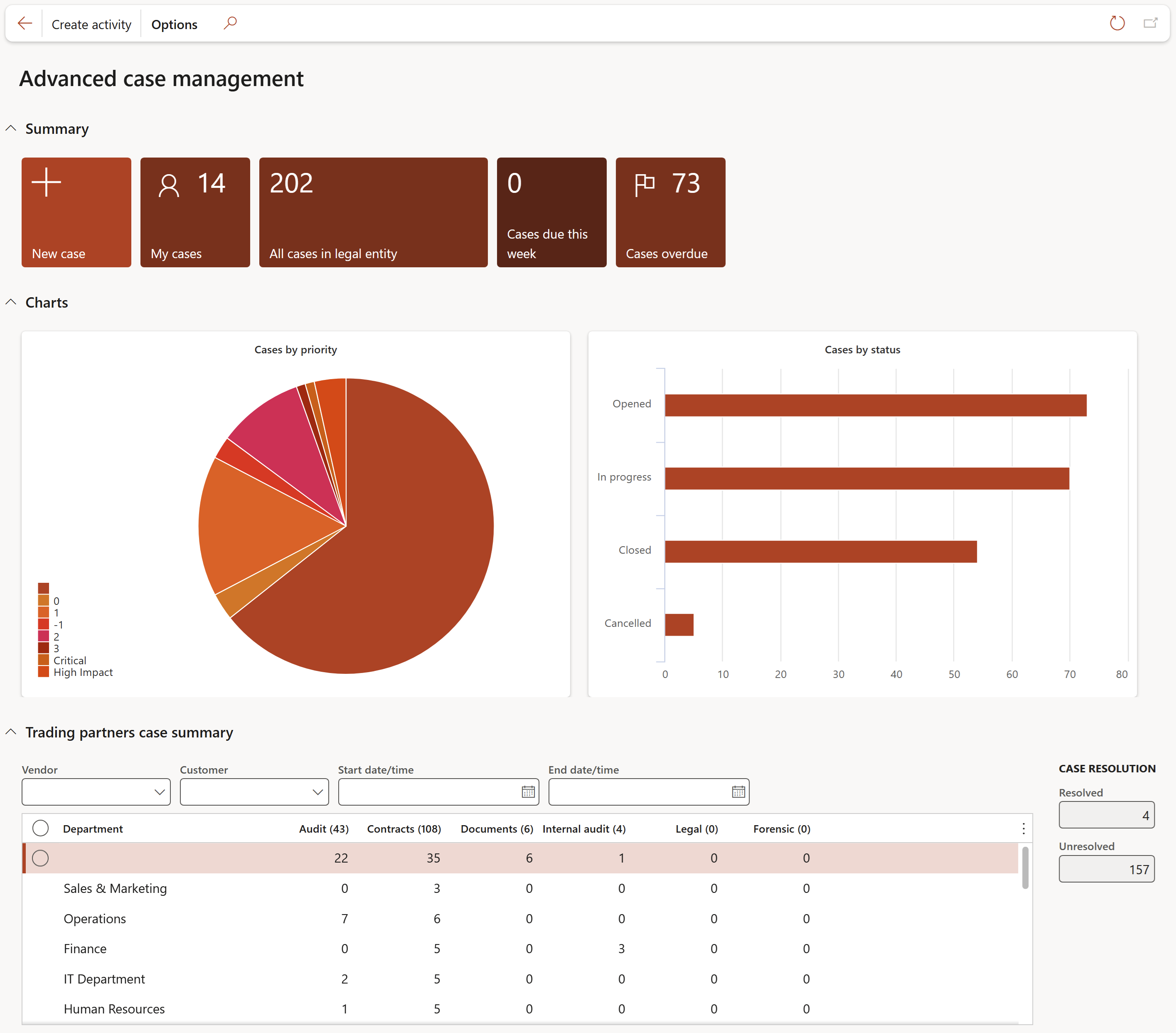
Go to: Common > Advanced case manager
- From here you can create a new case, view all cases in your current legal entity, view due and overdue cases
- You can also get a graphical view of cases by priority and cases by status
- Under the Trading partners case summary section, the user can filter on Vendor or Customer
The data will be pivoted into columns per Case category type and rows per Department
¶ Integration
¶ Step 17: Email to case
Functionality (being added) to allow people to send an email and GRC will then auto create a case inside Dynamics 365 FO case management.